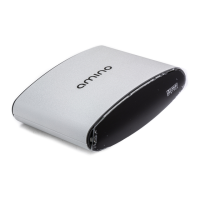
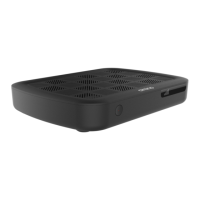
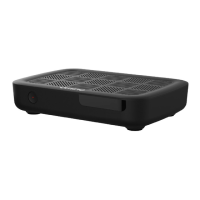
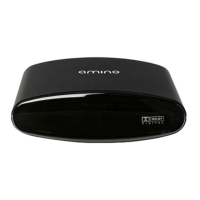
Need help?
Do you have a question about the Amino A550 and is the answer not in the manual?
Overview of Amino's newest set top boxes and the guide's purpose.
Instructions on how to download pre-signed software images for the STBs.
Guidance on placing software on a web server and setting correct permissions.
Sample configuration file and steps for a Linux DHCP server.
Steps to configure a Windows 2008 DHCP server for STB software discovery.
Interprets screen messages indicating networking or DHCP configuration problems.
Explains LED flash codes to diagnose specific STB boot issues.
How to display the browser address bar for entering URLs.
Instructions for streaming video by entering URLs into the address bar.
Configuring the STB to create and manage a list of video channels.
Options for customizing STB software images and advanced configurations.
Overview of the tool for STB control and configuration over IP network.
Information on developing user interfaces using HTML, JavaScript, and APIs.
Guidance on accessing documentation, knowledgebase, and support services.
Overview of Amino's newest set top boxes and the guide's purpose.
Instructions on how to download pre-signed software images for the STBs.
Guidance on placing software on a web server and setting correct permissions.
Sample configuration file and steps for a Linux DHCP server.
Steps to configure a Windows 2008 DHCP server for STB software discovery.
Interprets screen messages indicating networking or DHCP configuration problems.
Explains LED flash codes to diagnose specific STB boot issues.
How to display the browser address bar for entering URLs.
Instructions for streaming video by entering URLs into the address bar.
Configuring the STB to create and manage a list of video channels.
Options for customizing STB software images and advanced configurations.
Overview of the tool for STB control and configuration over IP network.
Information on developing user interfaces using HTML, JavaScript, and APIs.
Guidance on accessing documentation, knowledgebase, and support services.
The Amino Quick Start Guide (Ax4x and Ax5x) provides technical information for setting up and configuring Amino's Ax4x and Ax5x series of set-top boxes (STBs). This guide is designed to help users get the appropriate Opera browser-based software onto these STBs, making it a fundamental resource for initial deployment and basic operation.
The Ax4x and Ax5x series, including models like A150, H150, A550, A140, H140, and A540, are the latest ranges of STBs in the AmiNET family. These devices are primarily designed to deliver multimedia content, such as video streams and web-based applications, to a television or display. The core functionality revolves around loading and running a main software image, which typically includes a browser (Opera in this case) or a middleware application.
The STBs come with a "recovery image" pre-installed. This recovery image is a minimal software layer that enables the loading of the main software image. The main software image, referred to as mc2.mcfs (or mc2), contains the full operational software for the device. This image is signed with a key provided by Amino to ensure its authenticity and integrity.
The primary method for loading the main software image is over the network, although USB installation is also possible for some models. Network loading can occur via two protocols:
The STBs are configured to use DHCP by default, which is crucial for network-based software loading. DHCP provides the STB with necessary network information, including the address or multicast group to use for software download. Special Amino-specific DHCP options must be configured on the DHCP server to facilitate this process.
Once the software is loaded, the STB boots into the Opera homepage, indicating successful installation. Users can then interact with the device using an IR keyboard to access various functionalities, such as bringing up the browser address bar, playing video streams, and setting up channel lists.
The guide outlines a clear, step-by-step process for getting the STB operational:
Software Acquisition: Pre-signed Opera browser-based software images for both Ax4x and Ax5x models can be downloaded from Amino's support site (http://stbsupport.aminocom.com). These images are freely available without requiring a login, making it easy for users to obtain the necessary software. Users navigate to the "Online Support > Downloads > Aminet STBs > Software Releases" section, select their STB model (Ax4x or Ax5x), and then choose the Opera release, typically the highest numbered version. The file name usually starts with mc2.
Webserver Installation: The downloaded mc2.mcfs file needs to be placed on a web server. The guide emphasizes ensuring correct file permissions for downloading and noting the URL, as this will be required for DHCP configuration.
DHCP Server Configuration: This is a critical step for network-based software loading. The STBs rely on specific vendor options passed via DHCP to locate the software image. The key option is "AMINO.software_uri," which specifies the URL of the mc2.mcfs file.
dhcpd.conf.ax4x) is available on the support site. Users can either modify an existing DHCP configuration by adding Amino option declarations and the "AMINO.software_uri" option, or use the sample file directly by uncommenting and editing specific lines to include the software URL and network details. The DHCP server must be restarted after configuration changes. The guide also provides instructions for adapting the configuration for Ax5x products by replacing "x4x" with "x5x" in the class definitions.mc2.mcfs file is entered as the value for this option.STB Boot-up and Software Installation: Once the mc2.mcfs file is on the web server and the DHCP server is configured, the STB is connected to the network and powered on. During the boot-up sequence, the STB makes a DHCP request, locates the mc2 file, and installs it. The installation process typically takes 2.5 to 3 minutes, during which the STB displays a sequence of splash screens: "Amino: Recovery Image," "Amino: Fetching Data," "Amino: Upgrading Do Not Unplug," and "Amino: Upgrade Successful," followed by a reboot and finally the Opera homepage.
Post-Installation Features:
igmp://<multicast address>:<port>) and RTSP streams (rtsp://ServerAddress:554/<Path>/Asset).file:///mnt/nv/index.html to automatically start the channel zapper after a reboot, accessed via Alt-M (password 'leaves') and editing the browser homepage field.The guide provides essential information for troubleshooting and maintaining the STBs:
Common Problems and Troubleshooting: If the STB does not progress through the installation stages or the Opera page fails to appear, the guide offers troubleshooting tips:
AMINO.software_uri from the DHCP server. Users should check the DHCP configuration.mc2.mcfs file from the URL specified in AMINO.software_uri. Users should verify the URL and file permissions on the web server.Configuring Software Images: The guide mentions that Amino STBs have many configuration options for optimal network operation, fully documented in the "Set-Top Box Configuration Guide." This guide also explains mechanisms for changing configurations. For advanced features or pre-configuring a software image, users might need a software release archive, potentially adding a "post build pack" or editing files before signing the image.
STBremoteconf: This tool is designed for basic control and configuration of STBs over the IP network. It runs on a Linux server and can send commands via unicast or multicast, with more details available in the "Set-Top Box Configuration Guide."
UI Development: Development on Amino STBs uses standard HTML and JavaScript, leveraging Amino's proprietary JavaScript APIs, known as JMACX, which can be downloaded from the support site.
Getting Support: Amino's support site (http://stbsupport.aminocom.com) provides key documentation and knowledgebase articles.
The guide emphasizes the importance of proper DHCP configuration and network setup for successful STB operation, providing detailed instructions for both Linux and Windows environments. It serves as a foundational document for anyone deploying or managing Amino Ax4x and Ax5x STBs.
 General
| Resolution | Up to 1080p |
|---|---|
| Ethernet | 10/100 Mbps |
| Bluetooth | No |
| MicroSD Slot | No |
| Video Output | HDMI |
| Audio Output | HDMI, Optical |
| Network Connectivity | Ethernet, Wi-Fi |
| Wi-Fi | 802.11 b/g/n |
| Operating System | Amino OS (based on Linux) |
| USB Ports | 2 x USB 2.0 |


 To Next Page