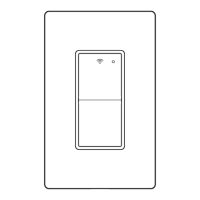
This document is a user guide for the Commercial Electric 3-Way Smart Light Switch, model #HPSA21CWB, SKU #1008 435 695. It provides comprehensive instructions for installation, operation, and troubleshooting, along with safety information, FCC regulations, wireless protocol details, and warranty information.
The smart light switch is designed to control lights from one or two locations, offering both traditional manual control and smart functionalities through the Hubspace™ app. It is suitable for indoor use only and is not compatible with standard 4-way wiring. The device has a maximum total wattage rating of up to 300 watts for LED and CFL bulbs, and 600 watts for Incandescent/Halogen bulbs at 120V. It is crucial not to exceed these load power rating limits to ensure safe operation and prevent damage.
The guide emphasizes several critical safety precautions. Users are warned that the product is for indoor use only and should not be used in wet locations. Installation must comply with all local electrical codes and regulations. If a user is unsure about any part of the instructions, they should consult a licensed electrician. It is also important to save the instruction sheet, as it contains technical data, testing, and troubleshooting information that will be useful after installation. Users are explicitly warned not to disassemble the product or attempt repairs themselves, as this risks electric shock and voids the limited warranty. For service or assistance, customers should contact Customer Service. The device should be used with a 15A circuit breaker upstream. A caution is included to reduce the risk of overheating and damage to other equipment, advising against installing the switch to control a receptacle, a motor-operated appliance, a fluorescent lighting fixture, or a transformer-supplied appliance.
Installation Process:
The installation process begins with turning off power at the circuit breaker or fuse for the light switch being replaced. The old light switch is then removed by disconnecting all wires. The new smart light switch is connected according to detailed wiring diagrams provided in the manual or on The Home Depot website. The guide stresses the importance of ensuring the power is off before wiring and confirms that a neutral wire (typically white) is required. If a neutral wire is not present in the wall box, users are advised to try another location or call a professional electrician. The wire colors indicated in the manual are typical but may vary in some homes. Wire nuts (D) must be securely fastened to each wire.
For single-pole installations (lights controlled from one location), the ground wire is connected to the smart switch. The black LINE/LOAD wire on the smart switch is connected to the LINE/HOT wire (typically black) using the included wire nuts. The white NEUTRAL wire on the smart switch is connected to the NEUTRAL wire in the wall (typically white). The red TRAVELER 1 wire on the smart switch is connected to the LOAD wire (typically black). The red TRAVELER 2 wire should have a wire nut screwed onto it, as it is not used in a single-pole setup. A note clarifies that the LINE/HOT wire on the switch being replaced is usually connected towards the top, near the ON position, or identified by a unique darker color screw or a screw/wire labeled COMM. A voltage tester can also identify the LINE/HOT wire, which is always energized when the circuit breaker is on.
For 3-way installations (lights controlled from two locations), the guide provides diagrams for two scenarios: a smart switch with a traditional switch controlling a load light, and a smart switch with a load light controlling a traditional switch, and two smart switches wiring. In all 3-way setups, the ground wire is connected to the smart switch. TRAVELER 1 and TRAVELER 2 wires on the smart switch are connected to the red and black TRAVELER wires in the wall using wire nuts. The white NEUTRAL wire on the smart switch is connected to the NEUTRAL wire in the wall. The black LINE/LOAD wire connection varies based on the diagram: it connects to the LINE wire (typically black) in scenario 1, to the LOAD wire (typically black) in scenario 2, or to the LINE wire on one smart switch and the LOAD wire on the other smart switch in scenario 3. After wiring, the light switch is mounted with screws (C), and the wall plate (B) is attached. Finally, power is turned back on at the circuit breaker or fuse.
Multi-Gang Application:
For multi-light switch installations, a reduction in the light switch's capacity may be required. The guide includes a chart detailing maximum load per light switch for single, two-gang, and three-gang applications. For LED/CFL bulbs, the maximum load remains 300W across all applications. For Incandescent/Halogen bulbs, the maximum load is 600W for single-gang, and 500W for both two-gang and three-gang applications. No derating is required for LED or CFL bulb applications.
Operation and Smart Features:
The smart light switch integrates with the Hubspace™ app, which can be downloaded from the Apple App Store or Google Play Store. Users need to sign in or register for an account. After connecting the light switch to power, users follow the in-app instructions. The Hubspace app requires a 2.4GHz Wi-Fi channel. If the Wi-Fi network name is not visible, users should check router settings or move the product closer to the Wi-Fi router. To add the light switch, users tap the '+' button in the upper-right corner of the app screen. Bluetooth® access and Location services (for Android phones) are required for product setup and Bluetooth scanning.
The smart light switch can be added by scanning a QR code located on the device housing or in the Quick Start Guide. If the QR code cannot be scanned, a 24-digit code can be entered manually. Once added, users can turn the light switch on or off by tapping the On/Off button on the Hubspace Home screen. The app also allows setting schedules and auto-off timers. Manual control is available by pressing the button on the light switch itself, which also features a Status LED. The smart switch can also be connected to voice assistants like Google Home and Alexa through the Hubspace app or by signing into the respective voice assistant app.
Troubleshooting:
The troubleshooting section addresses common issues. If lights are flickering, it could be a bad connection or a faulty bulb. If the light or LED indicator doesn't turn on, the circuit breaker might have tripped, the bulb could be burned out, or the neutral connection might be unwired. If the light cannot be controlled, users should ensure the switch is connected to the network and wiring is correct. For 3-way circuits, it's important that the two smart switches are not in the same group or being group-controlled.
Connectivity issues with Wi-Fi often stem from the product not being connected to a power source, an internet connection outage, or a weak Wi-Fi signal. If no Wi-Fi networks are found, users should ensure they have a 2.4GHz capable Wi-Fi network within range. If the product is in a location without Wi-Fi, it can still be used with the Hubspace app via a phone with an internet connection (like LTE) if the phone is within Bluetooth range and Bluetooth is enabled.
Other issues include not being able to find the QR code (it's on the housing and in documentation), or a damaged QR code (manual entry of the 24-digit code is an option). If the QR code is lost, the app's "Add Product" feature with the "Search" button can be used. To transfer a product from another account, scanning the QR code will facilitate the transfer. If the product is offline for long periods, improving Wi-Fi signal strength with a router, mesh Wi-Fi, or extenders is recommended. If the app cannot connect despite the product being on and the QR code scanned, Android users should check Location services and try toggling Bluetooth or restarting their phone. Each product has a unique QR code, so the same QR code cannot be used to add multiple products.


 To Next Page
 General