To Next Page


T
Tina BarberSep 7, 2025
What to do if error reading PCMCIA card on Dell OptiPlex 5080?
- JJoseph LevySep 7, 2025
If you receive an error while reading a PCMCIA card on your Dell Desktop, reinsert the card or try another card.

What to do if error reading PCMCIA card on Dell OptiPlex 5080?
If you receive an error while reading a PCMCIA card on your Dell Desktop, reinsert the card or try another card.
How to fix 'Operating System not found' on Dell OptiPlex 5080?
If you receive an 'Operating System not found' error on your Dell Desktop, reinstall the operating system. If the problem continues, no answer.
What to do if I get 'Bad command or file name' error on Dell Desktop?
If you encounter a 'Bad command or file name' error on your Dell Desktop, ensure that you have spelled the command correctly, put spaces in the proper place, and used the correct path name.
What to do if I have a keyboard failure on my Dell OptiPlex 5080 Desktop?
If reseating the cable does not solve the problem, replace the keyboard.
What does data error mean on Dell OptiPlex 5080 Desktop?
The hard drive cannot read the data.
How to fix sector not found error on Dell Desktop?
To fix a sector not found error on your Dell Desktop, run the Windows error-checking utility to check the file structure on the hard drive.
What to do if keyboard controller failure on Dell OptiPlex 5080?
If you experience a keyboard controller failure on your Dell Desktop, for external keyboards, check the cable connection. Restart the computer, and avoid touching the keyboard or the mouse during the boot routine. Run the Keyboard Controller test in Dell Diagnostics.
How to troubleshoot CMOS battery failure on Dell OptiPlex 5080?
To troubleshoot a CMOS battery failure on your Dell Desktop, reset the CMOS battery connection. If the problem persists, replace the RTS battery.
How to fix CMOS battery failure on Dell OptiPlex 5080 Desktop?
Reset the CMOS battery connection. If the problem persists, replace the RTS battery.
What to do if 'The file being copied is too large for the destination drive' on Dell OptiPlex 5080?
If you receive the error 'The file being copied is too large for the destination drive' on your Dell Desktop, try copying the file to a different disk or use a larger capacity disk.
Explains the purpose of the cable cover and the steps involved in its installation.
Provides step-by-step instructions for installing the cable cover on the Dell OptiPlex system, including notes and cautions.
Provides instructions on how to contact Dell for sales, technical support, or customer service.
Information required before contacting Dell support, especially regarding internet connectivity.
Details the online and telephone support options available from Dell.
Step-by-step guide to navigate Dell's support website and find relevant assistance.
Explains the purpose of the cable cover and the steps involved in its installation.
Provides step-by-step instructions for installing the cable cover on the Dell OptiPlex system, including notes and cautions.
Provides instructions on how to contact Dell for sales, technical support, or customer service.
Information required before contacting Dell support, especially regarding internet connectivity.
Details the online and telephone support options available from Dell.
Step-by-step guide to navigate Dell's support website and find relevant assistance.
The Dell OptiPlex 5080 Small Form Factor Cable Cover is an accessory designed to enhance the protection and organization of cables connected to the Dell OptiPlex 5080 Small Form Factor system. Its primary function is to safeguard the ports and cables from accidental disconnections, damage, and unauthorized access, contributing to a more secure and tidy workspace. This user guide provides comprehensive instructions for the installation and use of the cable cover, ensuring users can effectively leverage its features.
The cable cover serves as a physical barrier that encloses the rear-facing ports and the cables connected to them on the Dell OptiPlex 5080 Small Form Factor system. By routing and securing these cables within the cover, it prevents them from being easily pulled out or tampered with. This is particularly beneficial in environments where the system might be exposed to frequent movement, public access, or situations where cable management is crucial for operational efficiency and safety. The cover's design is specifically tailored to the OptiPlex 5080 SFF chassis, ensuring a snug and secure fit that complements the system's aesthetic. It helps to maintain a clean and professional appearance by bundling cables together, reducing clutter, and making the overall setup look more organized. Furthermore, the cover can deter casual attempts to disconnect peripherals, adding a layer of physical security to the system's connections. For enhanced security, the cover is designed to work in conjunction with the Noble Wedge slot, allowing users to secure the entire system, including the covered cables, with a compatible lock.
The installation process for the Dell OptiPlex 5080 Small Form Factor Cable Cover is straightforward and user-friendly, designed to be completed with minimal effort. The guide outlines a clear, step-by-step procedure to ensure correct installation.
The design of the cable cover is intuitive, allowing for quick installation and removal when access to the ports is required for maintenance or configuration changes. The clear visual aids provided in the guide, such as numbered images, simplify the process, making it accessible even for users who may not be highly technically inclined. The emphasis on gentle handling of plastic components highlights the importance of careful installation to ensure the longevity of the product.
The Dell OptiPlex 5080 Small Form Factor Cable Cover is designed for minimal maintenance, focusing on durability and ease of use.
Overall, the Dell OptiPlex 5080 Small Form Factor Cable Cover is a practical and effective accessory that enhances the security, organization, and longevity of the Dell OptiPlex 5080 Small Form Factor system by providing robust protection and management for its cables. Its user-friendly design and clear instructions make it an accessible solution for maintaining a secure and tidy computing environment.
 General
| Processor cache | 16 MB |
|---|---|
| Processor cores | 8 |
| Processor family | Intel® Core™ i7 |
| Processor frequency | 2 GHz |
| Processor cache type | Smart Cache |
| Configurable TDP-down | 25 W |
| Processor manufacturer | Intel |
| Processor boost frequency | 4.5 GHz |
| Number of processors installed | 1 |
| Configurable TDP-down frequency | 1.3 GHz |
| Memory slots | 2x SO-DIMM |
| Internal memory | 16 GB |
| Memory clock speed | 2666 MHz |
| Internal memory type | DDR4-SDRAM |
| Maximum internal memory | 64 GB |
| SSD capacity | The Solid State Drive's storage capacity in Gigabytes. |
| SSD interface | PCI Express |
| Storage media | SSD |
| SSD form factor | M.2 |
| Optical drive type | No |
| Total storage capacity | 256 GB |
| On-board graphics card | Yes |
| Discrete graphics card model | Not available |
| On-board graphics card model | Intel® UHD Graphics 630 |
| Wi-Fi standards | 802.11a, 802.11b, 802.11g, Wi-Fi 4 (802.11n), Wi-Fi 5 (802.11ac), Wi-Fi 6 (802.11ax) |
| Bluetooth version | 5.1 |
| Cabling technology | 10/100/1000Base-T(X) |
| Top Wi-Fi standard | Wi-Fi 6 (802.11ax) |
| WLAN controller model | Intel Wi-Fi 6 AX201 |
| Ethernet LAN data rates | 10, 100, 1000 Mbit/s |
| DisplayPort version | 1.4 |
| USB 2.0 ports quantity | 0 |
| USB 3.2 Gen 1 (3.1 Gen 1) Type-A ports quantity | 5 |
| Chassis type | MFF |
| Product color | Black |
| Placement supported | Horizontal/Vertical |
| Audio chip | Realtek ALC3246 |
| Audio system | High Definition Audio |
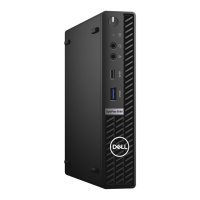
| Product type | Mini PC |
| Motherboard chipset | Intel Q470 |
| Trusted Platform Module (TPM) | - |
| Operating system architecture | 64-bit |
| Power supply | 90 W |
| Power supply input voltage | 100 - 240 V |
| Power supply input frequency | 50 - 60 Hz |
| Operating altitude | 0 - 3048 m |
| Non-operating shock | 105 G |
| Operating vibration | 0.26 G |
| Non-operating altitude | 0 - 10668 m |
| Non-operating vibration | 1.37 G |
| Storage temperature (T-T) | -40 - 65 °C |
| Operating temperature (T-T) | 10 - 35 °C |
| Storage relative humidity (H-H) | 5 - 95 % |
| Operating relative humidity (H-H) | 20 - 80 % |
 Weight and Dimensions
| Depth | 178.56 mm |
|---|---|
| Width | 36 mm |
| Height | 182 mm |
| Weight | 1380 g |
| Package depth | 238 mm |
| Package width | 498 mm |
| Package height | 133 mm |
| Package weight | 2910 g |