
 To Next Page


C
craigpayneAug 14, 2025
What to do if my Garmin Rino 120 Two-Way Radio does not turn on?
- AAaron NortonAug 14, 2025
If your Garmin Two-Way Radio does not turn on, the batteries may be exhausted. Try replacing them.

What to do if my Garmin Rino 120 Two-Way Radio does not turn on?
If your Garmin Two-Way Radio does not turn on, the batteries may be exhausted. Try replacing them.
What to do if Garmin Rino 120 Two-Way Radio does not turn on even with new batteries?
If your Garmin Two-Way Radio does not turn on, even with new batteries: * The batteries may be installed backwards. Reinstall them correctly. * Ensure you press and hold the Power button for 2 seconds, rather than just pressing and releasing it.
Why does it take more than ten minutes to get a location fix on my Garmin Rino 120 Two-Way Radio?
If it takes more than ten minutes to get a location fix on your Garmin Two-Way Radio, the unit’s view of satellites may be obstructed. Move to a location with a clear view of the sky.
Why does my Garmin Rino 120 turn on, then turn off?
If your Garmin Two-Way Radio turns on and then turns off, the batteries may be nearly exhausted. Try replacing the batteries.
What to do if I cannot access a WAAS system satellite on my Garmin Rino 120?
If you cannot access a WAAS system satellite on your Garmin Two-Way Radio after 2 to 5 minutes: * Your view of the satellite may be obstructed, or you are located too far from satellites currently in service for the Americas. Move to a location with a clear view and point the unit antenna in the direction of the satellite. * The system GPS operation may be set to something other than Normal, and/or the interface setting is set for RTCM. Set the system GPS to Normal and the interface to other than RTCM, or simply turn off WAAS.
What to do if I cannot obtain a differential position from WAAS on my Garmin Two-Way Radio?
If you cannot obtain a differential position from WAAS on your Garmin Two-Way Radio, you may not have collected enough information from the WAAS satellite. Wait 10–20 minutes for the initial collection, then 1–2 minutes afterwards.
Why I cannot view a track being laid down on the map page when traveling with my Garmin Two-Way Radio?
If you cannot view a track being laid down on the map page when traveling with your Garmin Two-Way Radio, the Track Log feature may be turned off. Access the Tracks Page, highlight the On button, and press the Thumb Stick In.
What to do if I cannot easily see the panning arrow on the Map Page of my Garmin Rino 120?
If you cannot easily see the panning arrow on the Map Page of your Garmin Two-Way Radio, there may be too much map clutter, or the scale is such that map features are too densely displayed. Use the Map Page Setup Page to reduce map clutter or change the map scale.
How to exit a menu or page on Garmin Rino 120 if Thumb Stick to the Left doesn't work?
If you cannot exit a menu or page by moving the Thumb Stick to the Left on your Garmin Two-Way Radio, some menus and pages may have an “X” (Exit) on-screen button in the upper right corner. Highlight the on-screen button and then press the Thumb Stick In.
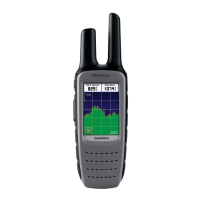
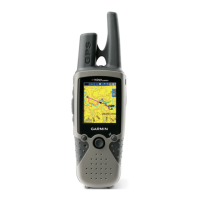
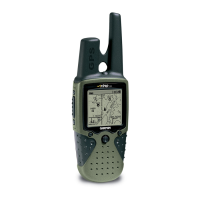
Introduces the Rino 120, its features, and capabilities.
Details the buttons and functions on the front of the Rino 120 device.
Describes the ports and components located on the back of the Rino 120.
Explains how to cycle through the five default main pages of the Rino 120.
Covers initial setup, using the Thumb Stick, Option Menu, and keylock feature.
Explains the icons displayed on the Rino 120 status bar for current settings.
Provides a basic explanation of GPS functionality and satellite acquisition.
Overview of the Radio Page, initialization, and basic radio setup.
Steps to initialize the GPS receiver for optimal performance.
Setting your name (My ID) and symbol for communication with other users.
How to select radio channels and squelch codes for clear communication.
Using scan and monitor features to find and listen to radio transmissions.
Accessing advanced radio settings via the Option Menu.
Configuring radio functions like Send Location, VOX, Scramble, GMRS, Headset, and Mic Sensitivity.
Customizing call, ring, roger, vibrate, and message tones for radio alerts.
Understanding the Rino 120's informational picture and status icons.
Interpreting various icons shown on the Mark Waypoint figure.
Details peer-to-peer positioning and contact management on the Rino 120.
Enables sending location to other Rino users for tracking and navigation.
Displays information for newly received contacts and options to accept or ignore.
Explains map display, options, pan map, data fields, and map setup.
Customizing the Map Page display with contacts, data fields, or map only.
Allows moving the map pointer to view different areas and identify map items.
Customizing up to four data fields on Map, Navigation, and Trip Computer pages.
Configuring map orientation, detail, auto zoom, and other display preferences.
Adjusting general map settings like orientation, auto zoom, and detail level.
Configuring saved tracks, track log, and track points display settings.
Controlling the display scale for points of interest, streets, and land cover.
Adjusting the screen size of text labels for map features.
Selecting which map data sources are displayed on the map.
Using the Measure Distance tool to calculate distances between points on the map.
Describes the Navigation Page, its components, and options for active guidance.
Explains how to use the bearing pointer and compass ring for directional guidance.
Customizing navigation display, including Sight 'N Go, pointers, and data fields.
Details how to customize and manage trip data displayed on the device.
Provides access to various Rino 120 features and allows page sequence customization.
Navigating and accessing features through the Rino 120's main menu.
Managing the sequence of pages accessible from the Main Menu.
Adding, removing, or reordering pages in the Main Page sequence.
Explains how to access and use the Shortcuts Menu for common functions.
Marks current location as a waypoint and opens the Mark Waypoint Page.
Opens the Find 'N Go Page to locate waypoints, contacts, cities, and exits.
Allows sending a text note to other Rino 120 users on the same channel.
Enables keylock to prevent inadvertent button presses.
Covers marking, creating, projecting, editing, and deleting waypoints.
Allows marking and recording a location as a waypoint with details.
Methods for creating waypoints from map features, panning arrow, or manual entry.
Establishing a new waypoint based on bearing and distance from another map item.
Modifying waypoint name, symbol, coordinates, elevation, or notes.
Guides users on finding waypoints, contacts, cities, POIs, addresses, and intersections.
Locating stored waypoints by name or nearest to current location.
Locating received contacts and viewing their details or location.
Searching for cities by name or nearest location and viewing city information.
Locating nearby interstate exits and information about services at each exit.
Searching for nearby points of interest like restaurants, lodging, and landmarks.
Locating specific addresses or intersections using map data coverage.
Accessing recently found locations like points of interest, cities, or contacts.
Explains how to send saved or new notes to other Rino 120 users.
Describes how to create a direct route to a destination using the Goto function.
Covers route creation, editing, adding points, navigating, and stopping routes.
Steps to create a new route by adding waypoints, cities, or points of interest.
Options for editing routes, including removing waypoints and reversing route order.
Using the panning arrow on the Route Map Page to add or edit route waypoints.
Guidance on navigating a created route using the Map or Navigation Pages.
How to terminate an active navigation session for a route, goto, or track.
Customizing the data fields displayed on the Route Page for useful navigation information.
Explains track logging, saving tracks, and using the TracBack feature for navigation.
Describes the electronic bread crumb trail (Track Log) and saving tracks.
Returning along a traveled path or another user's path without marking waypoints.
Configuring track recording interval, display resolution, and managing saved tracks.
Details how to define alarm circles around waypoints or contacts for alerts.
Adding, clearing, and enabling/disabling proximity alarms for specific locations.
Shows satellite signal tracking, location coordinates, and WAAS status.
Displays satellite signal tracking and location coordinates.
Explains the Wide Area Augmentation System for improved GPS accuracy.
Information on determining location based on satellite signal strength.
Options for GPS off mode, track/north up orientation, and new location setup.
Introduction to setup pages for personalizing time, units, display, and system preferences.
Setting the current time, time zone, and time format (12/24 hour).
Configuring units of measure, map grids, and datums for navigation.
Setting display formats for coordinates and LORAN TD settings.
Adjusting map datum, distance, speed, elevation, and pressure units.
Configuring display contrast, backlighting timeout, and contrast adjustment.
Selecting heading displays, North references, and magnetic variation.
Configuring serial data formats for connecting external devices and data transfer.
Adjusting GPS modes, WAAS capabilities, message beeps, and battery types.
Using the calendar to display dates and add programmable reference notes.
Setting and managing alarm times and modes on the Rino 120.
Accessing and using the built-in standard or scientific calculator.
Utilizing the Rino 120 as a stopwatch, including lap timing and lap-by-distance.
Displaying sun and moon positions, sunrise, sunset, moonrise, and moonset times.
Providing optimal times for hunting and fishing based on location and date.
Calculating and saving areas measured by tracking a path.
Accessing and playing built-in games like Memory Race and Waypoint Bomber.
Lists detailed physical, performance, and radio specifications of the Rino 120.
Information on optional accessories for the Rino 120.
Instructions and hierarchy for transferring detailed map data using MapSource.
Explains the FRS service, its features, limitations, and frequencies.
Information on GMRS operation, licensing, and frequencies.
Common GPS problems and their solutions for the Rino 120.
Common radio transmission and reception problems and their remedies.
Lists frequencies for FRS and GMRS channels, including repeater channels.
Provides a chart of CTCSS frequencies corresponding to squelch codes.
Explains the various data fields available on different pages of the Rino 120.
Details interface formats, NMEA sentences, and proprietary sentences supported.
States compliance with FCC regulations and measures to correct interference.
Information on obtaining an FCC license for GMRS operation.
Outlines the warranty terms, conditions, and service procedures for the product.
Terms and conditions for using the embedded software in the Rino 120.
Important safety information regarding GPS, operation, and RF exposure.
Information on RF exposure, safety standards, and guidelines for wireless radios.
Recommendations for maintaining safe distance between radios and pacemakers.
Potential RF interference with electronic devices like hearing aids.
How RF signals may affect electronic systems in motor vehicles.
Warnings about operating radios in potentially explosive atmospheres or blasting areas.
Introduces the Rino 120, its features, and capabilities.
Details the buttons and functions on the front of the Rino 120 device.
Describes the ports and components located on the back of the Rino 120.
Explains how to cycle through the five default main pages of the Rino 120.
Covers initial setup, using the Thumb Stick, Option Menu, and keylock feature.
Explains the icons displayed on the Rino 120 status bar for current settings.
Provides a basic explanation of GPS functionality and satellite acquisition.
Overview of the Radio Page, initialization, and basic radio setup.
Steps to initialize the GPS receiver for optimal performance.
Setting your name (My ID) and symbol for communication with other users.
How to select radio channels and squelch codes for clear communication.
Using scan and monitor features to find and listen to radio transmissions.
Accessing advanced radio settings via the Option Menu.
Configuring radio functions like Send Location, VOX, Scramble, GMRS, Headset, and Mic Sensitivity.
Customizing call, ring, roger, vibrate, and message tones for radio alerts.
Understanding the Rino 120's informational picture and status icons.
Interpreting various icons shown on the Mark Waypoint figure.
Details peer-to-peer positioning and contact management on the Rino 120.
Enables sending location to other Rino users for tracking and navigation.
Displays information for newly received contacts and options to accept or ignore.
Explains map display, options, pan map, data fields, and map setup.
Customizing the Map Page display with contacts, data fields, or map only.
Allows moving the map pointer to view different areas and identify map items.
Customizing up to four data fields on Map, Navigation, and Trip Computer pages.
Configuring map orientation, detail, auto zoom, and other display preferences.
Adjusting general map settings like orientation, auto zoom, and detail level.
Configuring saved tracks, track log, and track points display settings.
Controlling the display scale for points of interest, streets, and land cover.
Adjusting the screen size of text labels for map features.
Selecting which map data sources are displayed on the map.
Using the Measure Distance tool to calculate distances between points on the map.
Describes the Navigation Page, its components, and options for active guidance.
Explains how to use the bearing pointer and compass ring for directional guidance.
Customizing navigation display, including Sight 'N Go, pointers, and data fields.
Details how to customize and manage trip data displayed on the device.
Provides access to various Rino 120 features and allows page sequence customization.
Navigating and accessing features through the Rino 120's main menu.
Managing the sequence of pages accessible from the Main Menu.
Adding, removing, or reordering pages in the Main Page sequence.
Explains how to access and use the Shortcuts Menu for common functions.
Marks current location as a waypoint and opens the Mark Waypoint Page.
Opens the Find 'N Go Page to locate waypoints, contacts, cities, and exits.
Allows sending a text note to other Rino 120 users on the same channel.
Enables keylock to prevent inadvertent button presses.
Covers marking, creating, projecting, editing, and deleting waypoints.
Allows marking and recording a location as a waypoint with details.
Methods for creating waypoints from map features, panning arrow, or manual entry.
Establishing a new waypoint based on bearing and distance from another map item.
Modifying waypoint name, symbol, coordinates, elevation, or notes.
Guides users on finding waypoints, contacts, cities, POIs, addresses, and intersections.
Locating stored waypoints by name or nearest to current location.
Locating received contacts and viewing their details or location.
Searching for cities by name or nearest location and viewing city information.
Locating nearby interstate exits and information about services at each exit.
Searching for nearby points of interest like restaurants, lodging, and landmarks.
Locating specific addresses or intersections using map data coverage.
Accessing recently found locations like points of interest, cities, or contacts.
Explains how to send saved or new notes to other Rino 120 users.
Describes how to create a direct route to a destination using the Goto function.
Covers route creation, editing, adding points, navigating, and stopping routes.
Steps to create a new route by adding waypoints, cities, or points of interest.
Options for editing routes, including removing waypoints and reversing route order.
Using the panning arrow on the Route Map Page to add or edit route waypoints.
Guidance on navigating a created route using the Map or Navigation Pages.
How to terminate an active navigation session for a route, goto, or track.
Customizing the data fields displayed on the Route Page for useful navigation information.
Explains track logging, saving tracks, and using the TracBack feature for navigation.
Describes the electronic bread crumb trail (Track Log) and saving tracks.
Returning along a traveled path or another user's path without marking waypoints.
Configuring track recording interval, display resolution, and managing saved tracks.
Details how to define alarm circles around waypoints or contacts for alerts.
Adding, clearing, and enabling/disabling proximity alarms for specific locations.
Shows satellite signal tracking, location coordinates, and WAAS status.
Displays satellite signal tracking and location coordinates.
Explains the Wide Area Augmentation System for improved GPS accuracy.
Information on determining location based on satellite signal strength.
Options for GPS off mode, track/north up orientation, and new location setup.
Introduction to setup pages for personalizing time, units, display, and system preferences.
Setting the current time, time zone, and time format (12/24 hour).
Configuring units of measure, map grids, and datums for navigation.
Setting display formats for coordinates and LORAN TD settings.
Adjusting map datum, distance, speed, elevation, and pressure units.
Configuring display contrast, backlighting timeout, and contrast adjustment.
Selecting heading displays, North references, and magnetic variation.
Configuring serial data formats for connecting external devices and data transfer.
Adjusting GPS modes, WAAS capabilities, message beeps, and battery types.
Using the calendar to display dates and add programmable reference notes.
Setting and managing alarm times and modes on the Rino 120.
Accessing and using the built-in standard or scientific calculator.
Utilizing the Rino 120 as a stopwatch, including lap timing and lap-by-distance.
Displaying sun and moon positions, sunrise, sunset, moonrise, and moonset times.
Providing optimal times for hunting and fishing based on location and date.
Calculating and saving areas measured by tracking a path.
Accessing and playing built-in games like Memory Race and Waypoint Bomber.
Lists detailed physical, performance, and radio specifications of the Rino 120.
Information on optional accessories for the Rino 120.
Instructions and hierarchy for transferring detailed map data using MapSource.
Explains the FRS service, its features, limitations, and frequencies.
Information on GMRS operation, licensing, and frequencies.
Common GPS problems and their solutions for the Rino 120.
Common radio transmission and reception problems and their remedies.
Lists frequencies for FRS and GMRS channels, including repeater channels.
Provides a chart of CTCSS frequencies corresponding to squelch codes.
Explains the various data fields available on different pages of the Rino 120.
Details interface formats, NMEA sentences, and proprietary sentences supported.
States compliance with FCC regulations and measures to correct interference.
Information on obtaining an FCC license for GMRS operation.
Outlines the warranty terms, conditions, and service procedures for the product.
Terms and conditions for using the embedded software in the Rino 120.
Important safety information regarding GPS, operation, and RF exposure.
Information on RF exposure, safety standards, and guidelines for wireless radios.
Recommendations for maintaining safe distance between radios and pacemakers.
Potential RF interference with electronic devices like hearing aids.
How RF signals may affect electronic systems in motor vehicles.
Warnings about operating radios in potentially explosive atmospheres or blasting areas.
 General
| Outdoor (hiking, trekking) | Yes |
|---|---|
| Marine (chartplotters, sounders) | No |
| Routes quantity | 20 |
| Number of waypoints | 500 |
| Form factor | Handheld |
| Product color | Gray |
| Interface | RS232 |
| Display diagonal | 7 \ |
| Grayscale levels | 4 |
| Display resolution | 160 x 160 pixels |
| Display size (HxV) (imperial) | 1.4 x 1.4 \ |
| Battery type | AA |
| Battery life (max) | 15 h |
| Number of batteries supported | 3 |
 Weight and Dimensions
| Depth | 16 mm |
|---|---|
| Width | 58 mm |
| Height | 114 mm |
| Weight | 236 g |