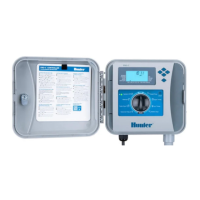
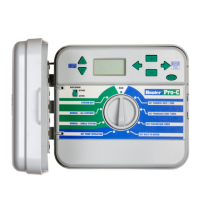
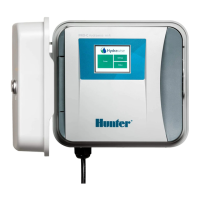
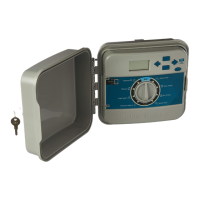
Contractor details: _______________________________________________________________ Name
_______________________________________________________________ Phone
_______________________________________________________________ Email
Website www.hunterindustries.com | Customer Support 800-383-4747 | Technical Service 760 -59 1-73 83
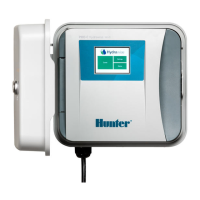
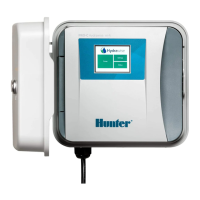
Thank you for purchasing a Hunter “Hydrawise-ready” controller.
Your irrigation controller has the ability to connect to a Wi-Fi signal, and can then be accessed via your
smart device or computer. For more information on your Hydrawise controller, please visit our website
at www.hydrawise.com.
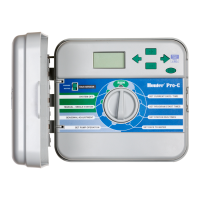
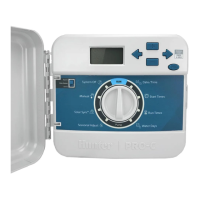
PRO-C
®
Hydrawise
™
REFERENCE CARD
The installing contractor has completed the following:
A
Set up both your account and your controller and is managing your system (email was sent from Hydrawise).
B
Set up both your account and your controller and is not managing your system (email was sent from Hydrawise).
C
Connected your controller to the internet and is managing your system.
D
Connected your controller to the internet and is not managing your system.
E
Loaded a program into the controller and has not connected to a Wi-Fi signal.
F
Other (Please specify) _________________________________________________
A or B Here’s how to get connected to your controller
1. Open the Hydrawise email and click “Let’s get started.”
2. Follow the setup instructions and choose a password.
3. Setup is complete.
C or F Here’s how to get connected to your controller
1. Contact the contractor listed on this reference card, or contact support@hydrawise.com.
2. Setup is completed by the contractor or our support team.
D or E Here’s how to get connected to your controller
1. Visit www.hydrawise.com and click on “Try Now.”
2. Register for an account by entering your name and email address.
3. We’ll send you an email, and use the information you received to set up your account.
4. Use the Watering Schedule information list on this card to set up your system.
5. Follow the instructions in the Quick Start Guide to connect your controller to your Wi-Fi signal, or go to
hydrawise.com/quickstart.
6. Setup is complete.
Wi-Fi Specs and Tips
The following Wi-Fi requirements and limitations apply to your Hunter Hydrawise-ready controller.
For the Hunter HC controller, use 802.11B/G
For the Hunter Pro-HC, HPC-FP, and Pro-C Hydrawise, use 802.11 B/G/N
The router must broadcast a 2.4 GHz signal. If you have a dual band router (i.e., 2.4 GHz and 5G Hz),
do not disable the 2.4 GHz signal.
The HC controller and some new routers may require you to set the channel between 1 and 11.
Set the Security Type to WPA or WPA2.
The network must not contain enterprise access points that have been congured to require
certicates or other forms of enterprise authentication.
Hydrawise-ready controllers cannot connect to guest networks or networks that use a portal page
to log in.
RC-049 1/18
SERIAL NUMBER ____________________________



 To Next Page
 Need help?
 General