
 Need help?
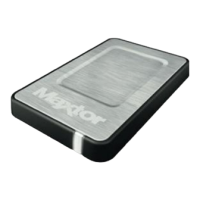
Do you have a question about the Maxtor OneTouch 4 500GB and is the answer not in the manual?
Step-by-step guide for installing the Maxtor Manager software on your computer.
How to use the system tray icon to check drive status and access Maxtor Manager features.
Instructions to restore the Maxtor icon to the system tray if it disappears from view.
How to configure the OneTouch button to perform specific user-defined actions.
How to set the inactivity period before the drive enters power-saving mode.
Performing diagnostic tests to check the health and functionality of your OneTouch drive.
How to check for and manage software updates for the Maxtor Manager application.
Steps to create a backup plan, covering Simple and Custom backup options.
Pre-configured backup for My Documents or Vista Documents folder daily.
Setting up a backup with specific folders, file types, and schedules.
How to modify existing backup plans, including folders, file types, and schedules.
Instructions for removing an unwanted backup plan from the system.
Understanding and managing the automatic backup feature for scheduled backups.
Performing an immediate backup using the OneTouch button or software interface.
Accessing the history of backup operations and their status.
Procedures for recovering files that have been previously backed up.
Recovering a specific past version of a file from the backup.
Recovering the latest available version of a file from the backup.
Overview of security features like DrivePass available for older OneTouch models.
How to enable DrivePass to password-protect your OneTouch drive.
How to unlock the drive after DrivePass has been enabled and the computer restarted.
Steps to disable and remove the DrivePass security feature from the drive.
How to update or change an existing DrivePass password for security.
What to do if you forget your DrivePass password, including reformatting the drive.
Overview of file synchronization options for keeping folders updated across devices.
Setting up automatic synchronization for My Documents or Personal Folder.
Configuring sync with specific folders, file types, and synchronization rules.
Modifying existing sync configurations like selected folders and file types.
How to view the status and history of synchronization tasks.
Removing existing synchronization settings and configurations.
How automatic sync tracks and synchronizes file changes between folders.
Disabling the automatic synchronization feature to control sync timing.
How automatic overwrite replaces older file versions with newer ones during sync.
Setting up RAID configurations for supported OneTouch III drives.
Step-by-step guide for installing the Maxtor Manager software on your computer.
How to use the system tray icon to check drive status and access Maxtor Manager features.
Instructions to restore the Maxtor icon to the system tray if it disappears from view.
How to configure the OneTouch button to perform specific user-defined actions.
How to set the inactivity period before the drive enters power-saving mode.
Performing diagnostic tests to check the health and functionality of your OneTouch drive.
How to check for and manage software updates for the Maxtor Manager application.
Steps to create a backup plan, covering Simple and Custom backup options.
Pre-configured backup for My Documents or Vista Documents folder daily.
Setting up a backup with specific folders, file types, and schedules.
How to modify existing backup plans, including folders, file types, and schedules.
Instructions for removing an unwanted backup plan from the system.
Understanding and managing the automatic backup feature for scheduled backups.
Performing an immediate backup using the OneTouch button or software interface.
Accessing the history of backup operations and their status.
Procedures for recovering files that have been previously backed up.
Recovering a specific past version of a file from the backup.
Recovering the latest available version of a file from the backup.
Overview of security features like DrivePass available for older OneTouch models.
How to enable DrivePass to password-protect your OneTouch drive.
How to unlock the drive after DrivePass has been enabled and the computer restarted.
Steps to disable and remove the DrivePass security feature from the drive.
How to update or change an existing DrivePass password for security.
What to do if you forget your DrivePass password, including reformatting the drive.
Overview of file synchronization options for keeping folders updated across devices.
Setting up automatic synchronization for My Documents or Personal Folder.
Configuring sync with specific folders, file types, and synchronization rules.
Modifying existing sync configurations like selected folders and file types.
How to view the status and history of synchronization tasks.
Removing existing synchronization settings and configurations.
How automatic sync tracks and synchronizes file changes between folders.
Disabling the automatic synchronization feature to control sync timing.
How automatic overwrite replaces older file versions with newer ones during sync.
Setting up RAID configurations for supported OneTouch III drives.
 General
| Capacity | 500GB |
|---|---|
| Interface | USB 2.0 |
| Form Factor | External |
| Rotational Speed | 7200 RPM |
| Included Software | Maxtor Manager |
| Power Supply | External power adapter |




 To Next Page