EasyManua.ls Logo

Samsung SmartCam SNH-C6417BN - User Manual

Samsung SmartCam SNH-C6417BN
2 pages
Print Icon
To Next Page IconTo Next Page
Loading...
Quick Start Guide for iOS Setup
Before you begin your SmartCam Setup, please:
Have your SmartCam and power adapter ready.
Have your iOS device available to download the SmartCam app.
Make sure you are within range of the same Wi-Fi network you’ll use for
your camera.
Record your Wi-Fi network password here:_________________________
For more information about the user manual, the mobile app manual or the FAQ,
please visit www.samsungsmartcam.com.
If you have questions or need any help related to the installation of the SmartCam,
refer to the help list in the mobile app information menu or contact our technical
support team.
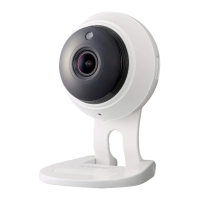
Product Views For Setup
Use the following diagrams to familiarize yourself with the camera setup features:
1) MicroSD Card Slot (up to 128GB)
2)
Power/Wi-Fi Status LED, Mic
3) Power Input
4) Speakers
5) Wi-Fi Direct Button
6) Reset Button
For a more detailed diagram, please refer to the User’s Manual.
The initial camera registration can only be performed using the mobile app.
You can also access all functions at www.samsungsmartcam.com, including camera
settings, live monitoring and playing back recorded videos.
Create User Account
Please follow these easy steps to create a user account, before setting up
your camera.
iOS Wireless Camera Setup
Continue with camera setup by following the app wizard instructions.
SmartCam Control Guide
Once setup is complete and live video appears on your iOS device, tap
the screen to display the SmartCam tool bar to customize your SmartCam
experience. The table below is reference information for the Search Screen
Control function.
Number Description
1. Phone recording The user can save the video in <Manage saved video clips> in Settings
2. SD Save Tap to save streaming video onto the SD card
3. Capture Tap to capture and save a still image during monitoring
4. Two-Way Talk Tap to begin and end Two-Way Talk between mobile device and camera
4A. Microphone Button To talk, press and hold the mic button on the screen, release to listen
5. Selecting a resolution
It displays the video resolution that is currently connected. Please tap to change the
current resolution.
6. Melody Tap to view and choose melody selection to play through camera
7. Brightness Control Tap to adjust screen image brightness
8. Flip Control Tap to flip screen image vertically or horizontally
9. Motion Zone Select
Tab to detect a motion in a specific area (up to 3 areas).
If the motion detection function is activated, any motion can be detected, without even
setting the motion zone.
10. Voice Recording
You can output any voice message recorded via the camera speaker (up to 10
messages).
Record Your SmartCam User Account Information Here:
USER ID: ______________________
A combination of 8-14 alphanumeric letters
Example: johnsmith or johnsmith12
USER PASSWORD: ____________
A combination of 10-14 alphanumeric letters
Example: smartcam123
CONGRATULATIONS!
You have successfully completed the SmartCam setup!
Camera Setup Information:
CAMERA NAME: __________
1-20 alphabetic letters and/or numbers
Example: kitchen or kitchen123 or 123
CAMERA PASSWORD: _________
1-8 alphabetic letters and/or nubmers
Example: room or room123 or 123
2.
Search for "Samsung
SmartCam" and
install the app.
3. Open the app. 4. Tap "Create new
account".
5. Tap "Start".
1. Go to the App Store
from your iPhone or
iPad.
1. Tap "Wireless
Setup".
2. Connect the power
and follow the on-
screen instructions
to set up Wi-Fi
connection. When
done, click "Next".
7. Enter your home
Wi-Fi network
password and tap
"Connect".
8. When the LED light
turns green on the
camera, you will
automatically be
directed to Step 9.
9.
Create a name
and password
for your camera.
(Name: 1-20 letters
and numbers.
Password: 1-8
letters and numbers)
3. Exit SmartCam app
by pressing the
home button.
10. To setup your
camera, select
Yes ”.
11. Select your Time
Zone and then tap
"Next".
12.
Enable motion and/
or audio detection to
receive event alerts
on your devices.
5.
Turn on your Wi-Fi,
and pick the network
ending in the last 4
characters of your
camera's serial
number. If a password
is required, enter
“smartcam”. Once
connected, exit
"Settings" and return
to the SmartCam app.
6. In the SmartCam
app, select your
home Wi-Fi
network.
4.
Go to the "Settings"
on your iPhone/iPad,
and tap "Wi-Fi".
test test
Back Back
a b dc e f g h i j
6. Enter user ID,
password, name
and e-mail.
Tap "Register".
7. Tap "Next" to
register your
camera.
English
5
6
1
2
3
4
Question and Answer IconNeed help?

Do you have a question about the Samsung SmartCam SNH-C6417BN and is the answer not in the manual?

Summary

Quick Start Guide for iOS Setup

Product Views For Setup

Overview of camera components and ports for initial setup and identification.

Create User Account

Step-by-step instructions for creating a user account prior to camera setup.

iOS Wireless Camera Setup

Guide to configuring the camera wirelessly using the mobile app on an iOS device.

SmartCam Control Guide

Explanation of in-app controls for customizing SmartCam features and live monitoring.

Quick Start Guide for Android Setup

Product Views For Setup

Overview of camera components and ports for initial setup and identification.

Create User Account

Step-by-step instructions for creating a user account prior to camera setup.

Android Wireless Camera Setup

Guide to configuring the camera wirelessly using the mobile app on an Android device.

SmartCam Control Guide

Explanation of in-app controls for customizing SmartCam features and live monitoring.

Summary

Quick Start Guide for iOS Setup

Product Views For Setup

Overview of camera components and ports for initial setup and identification.

Create User Account

Step-by-step instructions for creating a user account prior to camera setup.

iOS Wireless Camera Setup

Guide to configuring the camera wirelessly using the mobile app on an iOS device.

SmartCam Control Guide

Explanation of in-app controls for customizing SmartCam features and live monitoring.

Quick Start Guide for Android Setup

Product Views For Setup

Overview of camera components and ports for initial setup and identification.

Create User Account

Step-by-step instructions for creating a user account prior to camera setup.

Android Wireless Camera Setup

Guide to configuring the camera wirelessly using the mobile app on an Android device.

SmartCam Control Guide

Explanation of in-app controls for customizing SmartCam features and live monitoring.

Overview

The Samsung SmartCam is a versatile home monitoring camera designed for ease of use and comprehensive surveillance. It allows users to keep an eye on their home, pets, or loved ones from anywhere using a mobile device. The camera integrates seamlessly with both iOS and Android platforms, offering a user-friendly experience from initial setup to daily operation.

Function Description

The primary function of the SmartCam is to provide real-time video monitoring of a designated area. It captures live video streams and allows users to view them remotely on their smartphone or tablet via the dedicated SmartCam app. Beyond live viewing, the camera offers a suite of features designed to enhance security and convenience.

Motion and audio detection are core functionalities, enabling the camera to alert users to unusual activity. When motion or sound is detected, the camera can trigger event alerts on the user's mobile device, ensuring timely awareness of potential incidents. This is particularly useful for monitoring children, pets, or for general home security when away.

Two-way talk functionality is another key feature, allowing users to communicate with individuals in the camera's vicinity. This can be used to soothe a pet, speak to a child, or even deter an intruder. The camera is equipped with both a microphone and a speaker to facilitate this interaction.

For recording purposes, the SmartCam supports local storage via a MicroSD card (up to 128GB). This allows for continuous recording or event-triggered recording, providing a historical record of activities. Users can also manually capture still images or record video clips directly to their mobile device while viewing the live feed.

The camera's connectivity relies on Wi-Fi, making it easy to integrate into existing home networks. The setup process is guided by the mobile app, simplifying the connection to the user's home Wi-Fi network.

Usage Features

The SmartCam is designed for intuitive operation through its mobile application. Upon successful setup, users gain access to a control interface that offers various options for customizing their monitoring experience.

Live Monitoring and Recording:

  • Live Video Feed: Users can view real-time video from the camera on their mobile device.
  • Phone Recording: This feature allows users to save streaming video directly to their phone's storage, useful for capturing specific moments or incidents.
  • SD Save: Users can initiate saving streaming video onto the installed MicroSD card, providing a local backup of footage.
  • Capture: A quick tap enables users to capture a still image from the live feed, perfect for documenting specific events or for sharing snapshots.

Communication and Interaction:

  • Two-Way Talk: This function enables real-time audio communication between the mobile device and the camera. Users press and hold a microphone button on the app to speak and release it to listen, facilitating natural conversation.
  • Voice Recording: The camera supports playing pre-recorded voice messages (up to 10 messages) through its speaker, which can be useful for leaving instructions or comforting messages.
  • Melody Playback: Users can select and play various melodies through the camera's speaker, which might be used to soothe a baby or entertain a pet.

Customization and Control:

  • Resolution Selection: Users can adjust the video resolution to suit their viewing preferences or network conditions, balancing image quality with bandwidth usage.
  • Brightness Control: The app allows for adjustment of the screen image brightness, ensuring optimal visibility in different lighting environments.
  • Flip Control: This feature enables users to vertically or horizontally flip the screen image, accommodating various camera mounting orientations.
  • Motion Zone Selection: For more targeted monitoring, users can define specific areas (up to 3 zones) within the camera's field of view for motion detection. This helps reduce false alarms from irrelevant areas.
  • Motion and Audio Detection Enable/Disable: Users can easily activate or deactivate motion and/or audio detection to receive event alerts on their devices, providing flexibility based on their monitoring needs.
  • Camera Naming and Password: During setup, users assign a unique name and password to their camera, enhancing security and making it easier to manage multiple cameras.
  • Time Zone Selection: The app allows users to select their local time zone, ensuring accurate timestamps on recorded footage and event logs.

Maintenance Features

While the SmartCam is largely designed for set-and-forget operation, there are a few aspects related to maintenance and troubleshooting that users should be aware of.

MicroSD Card Management:

  • The camera supports MicroSD cards up to 128GB. Users should periodically check the card's status and capacity through the app to ensure continuous recording. Formatting the card through the app may be necessary from time to time to maintain optimal performance and free up space.
  • Physical insertion and removal of the MicroSD card should be done carefully, following the instructions in the user manual, to avoid damage to the card or the camera's slot.

Connectivity and Reset:

  • Wi-Fi Direct Button: This button on the camera is crucial for the initial wireless setup, facilitating a direct connection with the mobile device before joining the home Wi-Fi network.
  • Reset Button: In case of network issues, forgotten passwords, or other operational problems, the reset button allows users to restore the camera to its factory default settings. This is a vital troubleshooting step for resolving persistent issues.
  • Power/Wi-Fi Status LED: The LED indicator provides visual feedback on the camera's operational status, including power and Wi-Fi connectivity. Users can refer to the manual to interpret different LED colors and patterns for troubleshooting.

Software Updates:

  • While not explicitly detailed in the provided quick start guide, security cameras typically receive firmware updates to improve performance, add new features, and address security vulnerabilities. Users should regularly check the SmartCam app or the Samsung SmartCam website for information on available updates and follow instructions for installation.

Physical Cleaning:

  • Like any electronic device, the camera's lens and exterior may accumulate dust or smudges over time. Gentle cleaning with a soft, dry cloth is recommended to maintain clear image quality. Avoid using harsh chemicals or abrasive materials that could damage the lens or casing.

Technical Support and Resources:

  • Samsung provides a comprehensive support ecosystem. Users can refer to the full user manual, the mobile app manual, or the FAQ section on www.samsungsmartcam.com for detailed information and troubleshooting guides.
  • For direct assistance, technical support is available, and users can find contact information within the mobile app's information menu.

By understanding these functions, usage features, and maintenance considerations, users can maximize the utility and longevity of their Samsung SmartCam, ensuring a reliable and effective home monitoring solution.

Samsung SmartCam SNH-C6417BN Specifications

General IconGeneral
ModelSNH-C6417BN
CategorySecurity Camera
Image Sensor1/2.8" CMOS
Frame Rate30 fps
ApertureF2.0
Focal Length2.8mm
Digital Zoom4x
AudioTwo-way audio
Motion DetectionYes
Mobile AppSamsung SmartCam App
Resolution1920 x 1080
Night VisionYes
ConnectivityWi-Fi (802.11 b/g/n), Ethernet
StorageMicroSD card (up to 128GB)
PowerDC 5V
Operating Temperature-10°C ~ 50°C
Dimensions70 x 70 x 119.5 mm

Related product manuals