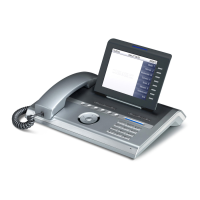
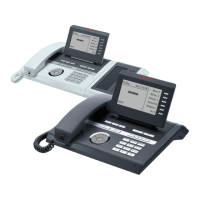
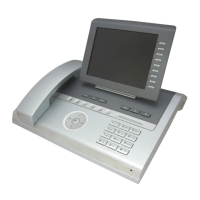
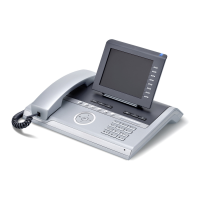
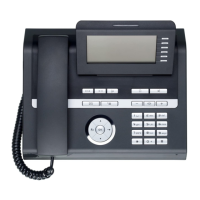
This document provides a comprehensive overview of the OpenStage 60/80 HFA telephone, designed for use with HiPath 4000 systems. It covers key layout, icon meanings, and essential operational procedures, along with a selection of advanced features.
Key Layout and Operation
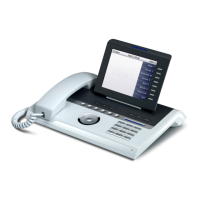
The OpenStage phone features a user-friendly interface with distinct function keys, audio keys, mode keys, and a TouchGuide for navigation.
Function Keys and Audio Keys:
- Call Forwarding: An icon with an arrow turning to the right allows activation/deactivation of call forwarding.
- End Call: A red square with a phone icon indicates the end (disconnect) call function.
- Mute: A crossed-out microphone icon enables turning mute on/off.
- Headset: A headset icon allows turning the headset on/off.
- Speakerphone: A speaker icon enables turning the speaker on/off.
Mode Keys and TouchSlider:
The mode keys provide quick access to various phone functionalities:
- Telephony Interface: Represented by a phone icon.
- Phonebooks: An open book icon for accessing contacts.
- Call Logs: A clock icon for viewing call history.
- Messages: An envelope icon for accessing messages.
- Settings/Application Menu: A gear icon for system settings and applications.
- Help Function: A question mark icon for on-device assistance.
Visual Indicators:
- Shining Blue: Indicates that a mode is active.
- Shining White: For call lists, it signifies a new entry; for voicemails, it indicates a new voicemail.
TouchGuide:
The TouchGuide is a central navigation tool with multiple functions:
- Up Arrow (▲): Scrolls upwards. Holding it down jumps to the beginning of a list.
- Left Arrow (◀): Cancels a function, deletes a character to the left of the cursor, or moves up a menu level.
- Down Arrow (▼): Scrolls downwards. Holding it down jumps to the end of a list.
- Right Arrow (▶): Opens the idle menu, calls up the context menu, or moves down a level.
- OK Key: Confirms input or performs an action.
- TouchSlider (outer edge): Running a finger over the TouchSlider adjusts volumes for the ringer or speaker, depending on the context.
- TouchSlider (inner edge): Running a finger over the inner edge of the ring scrolls through lists and menus, and adjusts volume.
Open Context Menu:
If the context menu is not visible, it can be accessed by pressing the right arrow key on the TouchGuide. The left arrow key can be used to escape a selected option or function, or to cancel and go back one level.
Icon Overview
The phone's display uses various icons to convey status and information.
Display Icons in Idle State:
- Envelope with Plus Sign (✉+): You have received one or more new messages.
- Checkmark in Box (☑): One or more new entries have been added to the call lists.
- Arrow Turning Right (↪): Call Forwarding is activated for all calls.
- Crossed-Out Bell (?): The ring tone is deactivated.
- Wrench (?): Remote maintenance is activated.
- Crossed-Out Person (??): Do not disturb is activated.
- Padlock (?): The phone lock is activated.
- Bluetooth Symbol (Ⓑ): Bluetooth connectivity is activated.
- Person with Arrow (?): A mobility user is logged on to the telephone.
Display Icons during a Call:
- Phone Receiver (?): The call is active.
- Crossed-Out Phone Receiver (?❌): The call has been disconnected.
- Hand Holding Phone (✋?): You have placed the call on hold.
- Hand Holding Phone with Arrow (✋?➡️): Your call partner has placed the call on hold (e.g., consultation hold).
- Lock (?): You are conducting a call via a secure connection.
- Unlocked Lock (?): You are conducting a call via an unsecured connection.
Using Your OpenStage
Placing a Call:
- Lift the handset and dial the number.
- Dial the number first, then lift the handset.
- For handsfree calls, dial the number.
- If en-block dialing is enabled (like a cell phone), press the right arrow key (▶) to send digits.
Answering a Call:
- Lift the handset.
- For handsfree calls, press the speakerphone icon (?).
Ending a Call:
- Hang up the handset.
- To end a handsfree call, press the end call icon (?).
Using the Headset:
- To place a call, dial the number.
- To answer or end a call, press the headset icon (?).
Redialing a Number:
- Lift the handset to use handset mode.
- Select "Last number redial" from the context menu and press the right arrow key (▶).
Hold/Retrieve a Call:
- During a call, select "Consultation" from the context menu or press the "Consultation" key and then the right arrow key (▶).
- To retrieve a call, select "Return to held call" from the context menu and press the right arrow key (▶).
Making a Conference Call:
- During a call with party A, select "Start conference" from the context menu and press the right arrow key (▶).
- Enter the phone number for party B and press OK.
- Once connected with party B, select "Conference" from the context menu and press OK.
You are now connected in a conference with party A and B.
Transferring a Call:
Using Your OpenStage (Continued)
Programming/Editing Call Forwarding:
- Press and hold the right arrow key (▶) until the menu is displayed.
- Select "Edit call forwarding" and press the right arrow key (▶).
- Select "External calls", "Internal calls", "Busy", "No reply", "Busy or No reply", or "All calls" and press the right arrow key (▶).
- Enter the destination phone number and press the right arrow key (▶).
- Press the left arrow key (◀) to return to phone mode.
Activating Call Forwarding for All Calls:
- Press the right arrow key (▶) to turn Call Forwarding on/off.
Dialing from the Caller List:
- Press the call logs icon (?).
- If a missed call is in the list, the "Missed" tab will appear first. Press the right arrow key (▶) repeatedly for "Dialed", "Received", or "Forwarded" tabs.
- Select the desired phone number and press OK.
Activating Callback while calling:
- Enter the destination phone number and press OK.
- If there is no answer or the line is busy, select "Callback" from the context menu and press the right arrow key (▶).
Using Mute during a call:
- Press the mute icon (?) for turning mute on/off.
Switching to Speakerphone Mode during a Call:
- US mode: Press the speakerphone icon (?) and hang up.
- Default mode: Hold down the speakerphone icon (?) until you hang up.
- For Open Listening: Press the speakerphone icon (?).
- To switch back to Handset Mode, lift the handset.
Saving a Feature to a Key:
- Press and hold down the desired programmable key until a popup appears.
- Select "Assign telephony function" and press the right arrow key (▶).
- Select "Change" and press the right arrow key (▶).
- Select the desired function and press the right arrow key (▶).
- In some cases, enter additional parameters and press the right arrow key (▶).
- Select "Save" and press the right arrow key (▶).
Saving a Phone Number to a Key:
- Press and hold down the desired programmable key until a popup appears.
- Select "Edit selected dialing" and press OK.
- Select "Number" and press OK.
- Enter the desired station number.
- Select "Label".
- Enter the desired key label.
- Select "Options" and press OK.
Further Helpful Features of Your OpenStage Telephone
The OpenStage telephone offers a range of advanced features to enhance communication and user experience.
Multi-line Functionality:
The programmable sensor keys on multi-line phones function as trunk keys. Each key programmed with the "Line" function corresponds to a specific line. This allows for up to 9 line keys on the OpenStage 80/80 G and up to 8 on the OpenStage 60/60 G. These lines can be configured as Private, Shared, or Direct call lines, providing flexibility in managing multiple calls simultaneously.
Mobility:
The mobility feature allows users to transfer their telephone user interface, including phone number, key assignments, authorization, and phonebook, to another telephone. When a user logs in as a "Mobile User," their current telephone (Home user) is deactivated, and the new telephone becomes their active device (Mobile HFA). The transfer remains intact until the "Mobile User" logs off. This functionality also supports network-wide telephone connections, enabling seamless transitions across different locations.
Backup/Restore User Data:
OpenStage 60/60 G/80/80 G phones support saving user settings and personal phonebook entries to a USB memory stick. This data can then be downloaded (restored) to the same or another OpenStage 60/60 G/80/80 G device. This feature ensures that personalized settings and contacts are easily transferable and recoverable, simplifying device migration or replacement.
Retrieving Voicemail Messages:
Depending on the communication platform and its configuration, users can access received callbacks and messages from OpenScape Xpressions. If the system is appropriately configured, users can directly call the voice mailbox and immediately play back stored messages. This provides convenient access to important communications, ensuring that no message is missed.
For more detailed information on specific features and their usage, users are encouraged to refer to the comprehensive user guides available on www.siemens-enterprise.com and wiki.siemens-enterprise.com.


 To Next Page
 General