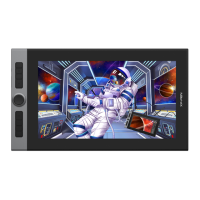
Need help?
Do you have a question about the XP-PEN Artist 24 and is the answer not in the manual?
Details physical components of the pen display, including active area, keys, and ports.
Explains how to connect the pen display to a computer via HDMI and USB-C.
Instructions for downloading the correct driver from the official XP-PEN website.
Steps to unzip and run the driver installation file, including important notes.
Guidance on connecting the device and opening the driver for customization.
Details setting the screen work area and mapping the pen display's work area.
How to assign specific functions to applications via the driver interface.
Configures pen key functions, mouse controls, keyboard shortcuts, precision mode, and pressure adjustment.
Guides on setting up custom shortcut keys for device buttons, including roller/touch functions.
Customization options for the roller functions, including key combinations.
Options to disable shortcut keys, messages, pressure, tilt, and manage driver configurations.
Details physical components of the pen display, including active area, keys, and ports.
Explains how to connect the pen display to a computer via HDMI and USB-C.
Instructions for downloading the correct driver from the official XP-PEN website.
Steps to unzip and run the driver installation file, including important notes.
Guidance on connecting the device and opening the driver for customization.
Details setting the screen work area and mapping the pen display's work area.
How to assign specific functions to applications via the driver interface.
Configures pen key functions, mouse controls, keyboard shortcuts, precision mode, and pressure adjustment.
Guides on setting up custom shortcut keys for device buttons, including roller/touch functions.
Customization options for the roller functions, including key combinations.
Options to disable shortcut keys, messages, pressure, tilt, and manage driver configurations.
This document describes the XP-PEN Artist 24 Pen Display, a device designed for digital art and design, offering a comprehensive set of features for an enhanced creative workflow.
The XP-PEN Artist 24 Pen Display serves as a digital canvas, allowing users to draw, paint, and design directly on its screen with a stylus. It functions as an interactive display that integrates with a computer, providing a responsive and intuitive interface for various creative applications. The device's core functionality revolves around its display/active area, where all pen input and visual output occur. It includes essential controls such as a back key, brightness adjustment buttons (up and down), and a Menu/OK button for navigating on-screen display (OSD) settings. A power switch is provided for turning the device on and off, requiring a press and hold for approximately 3 seconds. The power LED indicates the device's status: always on when connected to a computer and powered, flashing when powered but not receiving a signal from the computer, and off when the power supply is disconnected.
Connectivity is a key aspect of the Artist 24. It features a headphone port for audio output, an HDMI port for video input, a USB-C port for data and video, and a power jack for external power. These ports allow the device to connect to a computer and receive power, enabling its full functionality.
The Artist 24 Pen Display offers several usage features designed to optimize the user experience:
Connection Options: The device supports two primary connection methods:
Driver and Software: To unlock the full potential of the pen display, users must download and install the corresponding driver from the XP-PEN official website. The driver allows for extensive customization of the device. After installation, it's recommended to restart the computer. The driver interface provides a centralized hub for configuring various settings, and any changes made can be saved by clicking the "OK" button.
Work Area Configuration: The driver offers flexible options for configuring the work area, which is the portion of the screen where pen input is active.
Application-Specific Settings: The driver allows users to configure specific functions for individual applications. Users can add applications to a list and then customize the device's behavior when that application is active. This enables tailored settings for different creative software.
Pen Settings: The stylus features customizable keys. Users can assign various functions to these keys, including switching between pen and eraser modes, or other custom actions.
Shortcut Keys: The device's shortcut keys are customizable, with Photoshop commands as default. Users can assign functions to these keys, and it's recommended to set one key to "Switch Ring function" if the device has a roller or touch feature, to toggle control functions.
Touch/Roller Functionality: The Artist 24 features rollers (Roller 1 and Roller 2) that can be assigned various functions, such as zoom, brush size, scroll, and rotate. These functions can be customized or disabled. Customization allows users to assign specific key combinations to the roller actions and name them.
The XP-PEN Artist 24 Pen Display incorporates features that aid in troubleshooting and managing device configurations:
Settings: The settings menu provides options to manage various aspects of the device's operation:
Driver Updates: For optimal performance, users are advised to regularly check for and update the driver from the XP-PEN website. This ensures compatibility, bug fixes, and access to new features.
Troubleshooting Support: The manual provides contact information (website and email) for further assistance, indicating a support system for users encountering issues.
In summary, the XP-PEN Artist 24 Pen Display is a versatile tool for digital artists, offering extensive customization through its driver, multiple connectivity options, and a range of features designed to enhance precision and workflow efficiency. Its maintenance features, including configuration management and diagnostic tools, aim to provide a reliable and user-friendly experience.
 General
| Response Time | 14ms |
|---|---|
| Contrast Ratio | 1000:1 |
| Pen Pressure Levels | 8192 |
| Pen Resolution | 5080 LPI |
| Screen Size | 23.8 inches |
| Resolution | 2560 x 1440 |
| Viewing Angle | 178° |
| Display Colors | 16.7 million |
| Pen Technology | Electromagnetic Resonance (EMR) |
| Accuracy | ±0.5mm |
| Power Input | AC 100-240V |
| Brightness | 250 cd/m² |
| Stand Adjustability | Tilt |
| Tilt | ±60° |
| Interface | HDMI |

 To Next Page