To Next Page

W
william64Sep 2, 2025
What does 'PFC Soft Start Fail' mean on my Delta Amplon RT UPS?
- JjuliewoodSep 2, 2025
The 'PFC Soft Start Fail' message on your Delta UPS indicates an internal fault. Contact service personnel.


What does 'PFC Soft Start Fail' mean on my Delta Amplon RT UPS?
The 'PFC Soft Start Fail' message on your Delta UPS indicates an internal fault. Contact service personnel.
Why is my Delta UPS overheating and what to do?
If your Delta UPS is showing an over temperature warning, it means the unit is too hot. Try these steps: 1. Choose a well-ventilated area for the UPS. 2. Decrease the load on the UPS.
What to do if my Delta UPS shows Over Heat Shutdown - S?
If your Delta UPS shows 'Over Heat Shutdown - S', it could be caused by blocked vents. Check whether the vents are blocked.
What does 'Parallel Unit Config Conflict' mean on Delta Amplon RT?
If the Delta UPS displays 'Parallel Unit Config Conflict', it means that the parameters of the parallel units are not the same. Check the parameters of the parallel units.
Why is my Delta Amplon RT enabling 'Battery Save' shutdown after 30 minutes in battery mode?
If your Delta UPS is enabling 'Battery Save' shutdown after running in battery mode for 30 minutes, it is because the total load is too small or there is no load connected to the UPS. Contact service personnel.
What does 'INV Over Current Shutdown - T' mean on my Delta Amplon RT UPS?
If the Delta UPS displays 'INV Over Current Shutdown - T', it indicates that the UPS output phase L3 is short-circuited. Check whether the output is short-circuited.
What to do if my Delta Amplon RT UPS shows 'Output Overload Shutdown'?
If your Delta UPS is showing an 'Output Overload Shutdown' message, it means the UPS is overloaded. Check the power consumption of the connected devices and remove any unnecessary loads.
What to do if my Delta UPS displays INV Overcurrent Warning - R?
If your Delta UPS displays 'INV Overcurrent Warning - R', it means overcurrent occurs in UPS output phase L1. Check the power consumption of the loads.
What to do if my Delta UPS reports a fan fault?
If your Delta UPS reports a fan fault, the fan might be damaged or stuck. Check the fan for any foreign objects that may be obstructing it and remove them. If the problem persists, contact service personnel.
What to do if the output fuse is broken in my Delta UPS?
If the output fuse in your Delta UPS is broken, contact service personnel.
 General
| Topology | Double Conversion |
|---|---|
| Output Frequency | 50/60 Hz |
| Battery Type | Sealed Lead-Acid (SLA) |
| Transfer Time | 0 ms |
| Power Rating | 1kVA to 20kVA |
| Power Factor | 0.9 |
| Communication Ports | RS232, USB, SNMP (optional) |
| Operating Temperature | 0°C to 40°C |
| Operating Humidity | 0% to 95% (non-condensing) |
| Form Factor | Tower/Rackmount |
| Dimensions | Varies depending on the specific model |
| Weight | Varies depending on the specific model |
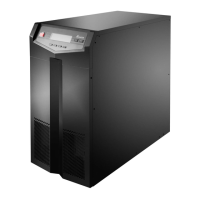
| Model | Delta Amplon RT Series |
| Type | Online Double Conversion |
Guidelines for safe installation of the UPS to prevent hazards.
Precautions for safely connecting the UPS to power sources and loads.
Important warnings for safe and correct operation of the UPS.
Safety guidelines for handling and managing UPS batteries.
Procedures and conditions for storing the UPS before and after usage.
Overview of the RT series UPS models, features, and capabilities.
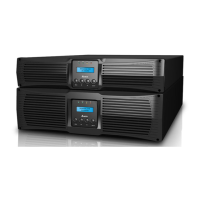
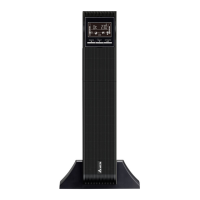
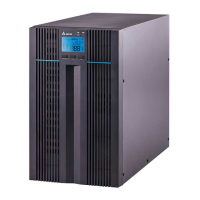
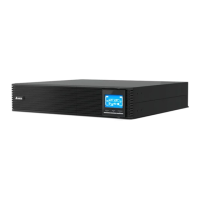
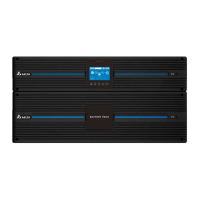
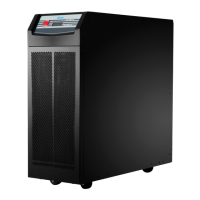
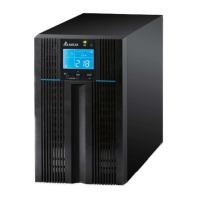
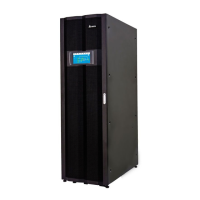
Physical dimensions and exterior views of the RT series UPS models.
List of items included in the UPS package.
Description of the status and fault indicators on the UPS operation panel.
Explanation of the functions of the ON/OFF, Enter, Scrolling, and Escape buttons.
Details on icons and display definitions shown on the UPS LCD screen.
Visual representations and explanations of different UPS operating modes.
Identification and function of terminals and connectors on the UPS rear panel.
Description of the mini slot for optional communication cards.
Details on the RS-485 port for lithium-ion battery communication.
Information on USB, Parallel, REPO ports for UPS management and connectivity.
Configuration and function of input and output dry contacts for monitoring.
Instructions for installing the UPS in a standard 19-inch server rack.
Procedures for mounting the UPS in an upright, tower configuration.
Important warnings and guidelines before connecting UPS cables.
Nominal current ratings and recommended cable sizes for UPS models.
Guidance on installing circuit breakers and backfeed protection.
Identification and function of UPS wiring terminal blocks.
Specific wiring instructions for various input/output phase configurations.
Guidelines for connecting multiple UPS units in parallel.
Connecting multiple UPS units to share the same lead-acid battery packs.
Connecting optional MBB and PDB accessories to the UPS.
Overview of available Delta lead-acid, lithium-ion, and customer-owned battery packs.
Details on Delta lead-acid, lithium-ion, and customer-owned battery pack options.
Requirements for DC breakers or fuses for customer-owned battery overcurrent protection.
Parameters for Delta lead-acid and lithium-ion standard battery packs.
Procedures for connecting Delta lead-acid and lithium-ion battery packs to the UPS.
Configuring battery parameters via the UPS initial setting screen.
Specifications for customer-owned lead-acid and other battery types.
Important precautions for connecting and using external battery packs.
Procedures for replacing standard battery packs by qualified service personnel.
Information on UPS battery alarms and how to initiate a battery test.
Steps for starting up the UPS in AC mode and cold start scenarios.
Steps for safely shutting down the UPS and its components.
Understanding UPS alarms and how to silence audible warnings.
Details on Initial Setting, Standby, and Bypass modes.
Details on Online, Battery, ECO, and Frequency Conversion modes.
Configuration steps for Language, Date/Time, Output, and Battery settings.
How to navigate and use the UPS Main Menu for settings and measurements.
Overview of Measurement, Setup, Control, and Maintenance menus.
Displays UPS status readings like output, input, and battery parameters.
Configuring output and input parameters like voltage, frequency, and phase.
Settings for ECO Mode, Parallel UPS configuration, and On/Off options.
Configuring battery tests, warnings, charge modes, and battery types.
Settings for language, alarms, LCD backlight, dry contacts, and remote control.
Settings for predicting fan life.
Enabling UPS functions like charger and alarm settings via the Control Menu.
Performing tests, managing logs, and viewing UPS information.
List and functions of optional accessories like dust filters, communication cards, and boxes.
Identifies common UPS problems, causes, and solutions.
Regular cleaning and inspection procedures for the UPS unit.
Guidelines for battery inspection, replacement, and charging to ensure longevity.
Ensuring proper fan operation and replacement to maintain cooling.
Details on UPS input voltage, frequency, power factor, and connection.
Details on UPS output voltage, frequency, power factor, and overload capacity.
UPS efficiency ratings and battery/charger voltage and current.
Physical dimensions, weight, operating altitude, temperature, and humidity.
Details on product warranty coverage, exclusions, and maintenance services.