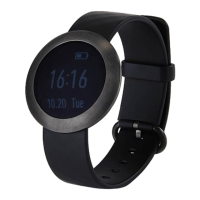
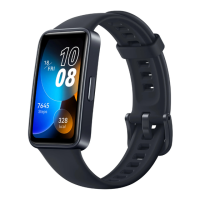
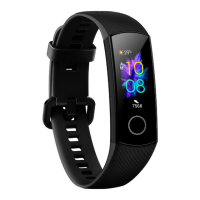
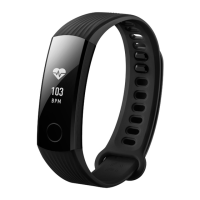
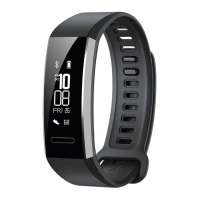
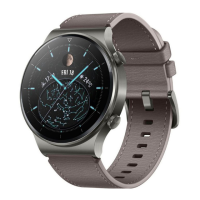
If you cannot pair your Band with your phone, try following the steps below:
Ensure that you have enabled Bluetooth on your phone. If Bluetooth is disabled,
turn on the Bluetooth switch and place your phone next to the Band to try and
establish a connection.
Make sure that you use the Huawei Wear app to establish the Bluetooth
connection. Do not connect to the Band via your phone's Bluetooth interface.
Verify that you have selected the correct Band. Your Band will appear as
HUAWEI Band-XXX on your phone. XXX represents the last three digits of
your Band's MAC address. You can view the MAC address on the back of your
Band.
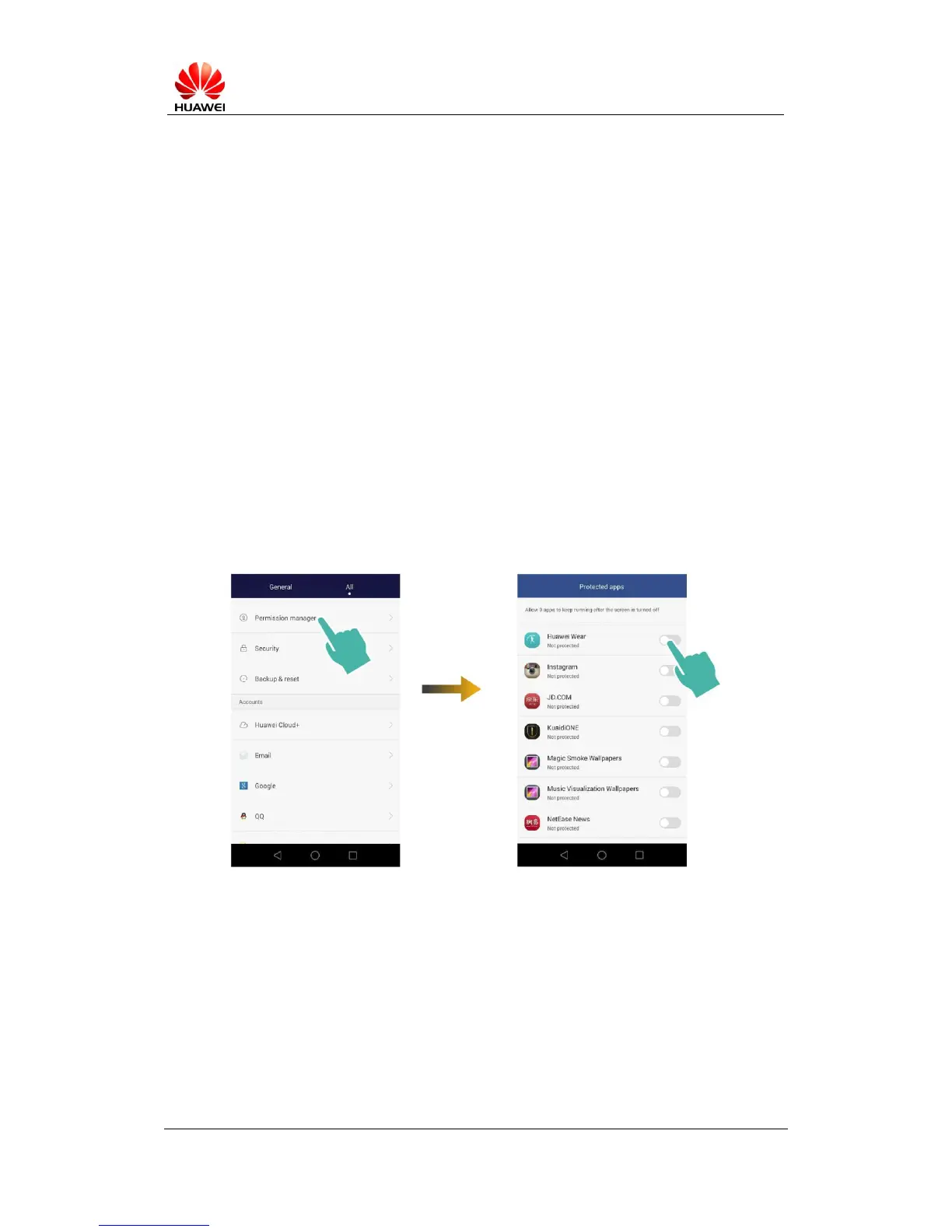
If you are using an Android device, verify that the Huawei Wear app is running in
the background. We recommend that you add the Huawei Wear app to the
protected apps list. On the Huawei P7, the list of protected apps can be accessed
by going to Settings > Protected apps. Find the Huawei Wear app and turn on
the corresponding switch.
If the Bluetooth connection is lost, your phone will automatically attempt to
re-establish the connection. If the connection is not re-established, open the
Huawei Wear app and swipe down on the screen. If you see “Disconnected”
under “HUAWEI Band”, press the “HUAWEI Band” to re-scan and re-connect.
If you don’t see “Disconnected”, press “Set up a new device” and then
“HUAWEI Band” to re-scan and re-connect.


 To Next Page
 Loading...