EasyManua.ls Logo

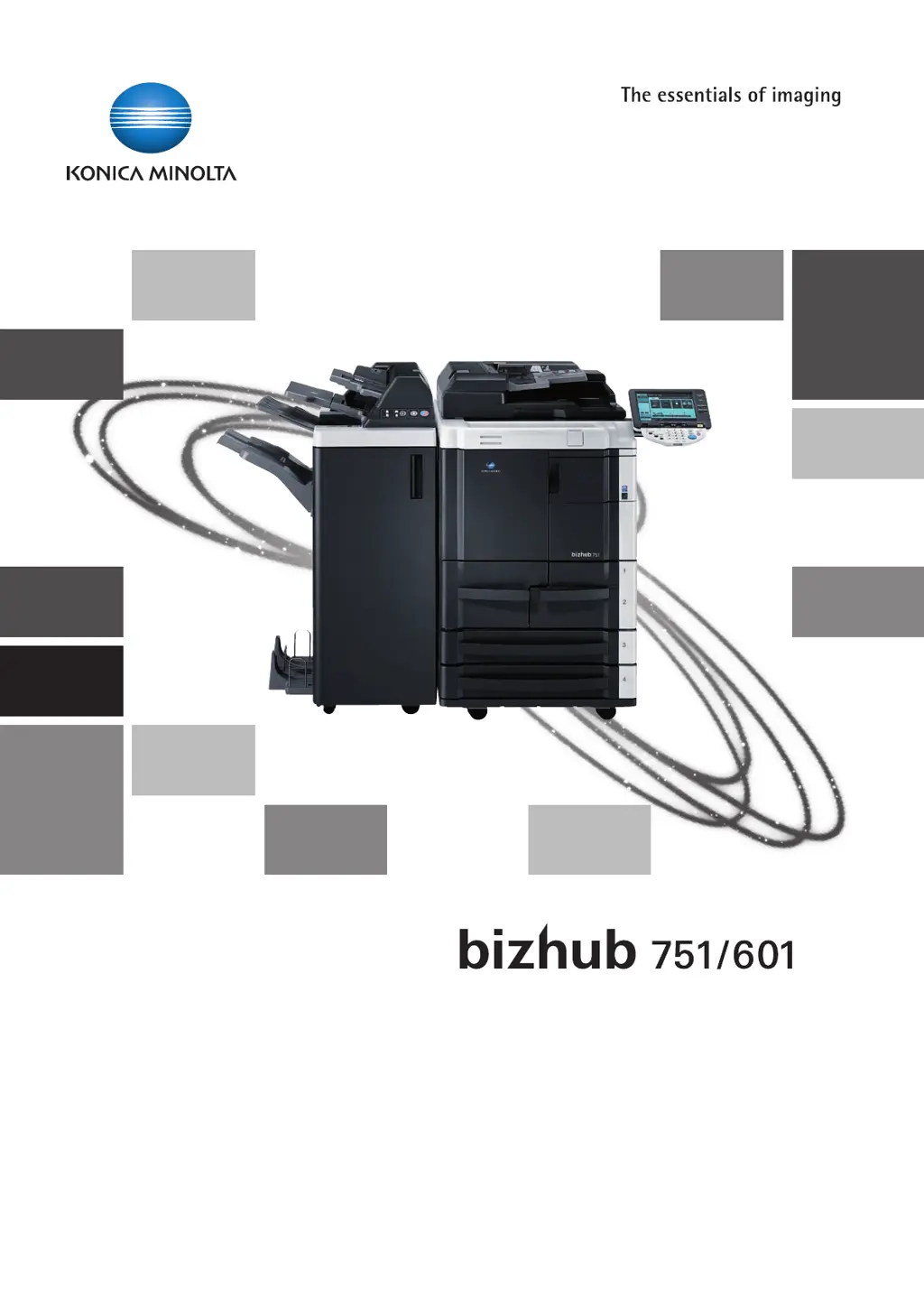
Konica Minolta bizhub 601 - User Manual

Konica Minolta bizhub 601
628 pages
Print Icon
To Next Page IconTo Next Page
Loading...
User’s Guide
Copy Operations

Table of Contents

Other manuals for Konica Minolta bizhub 601

Questions and Answers

Summary

Introduction

1.1 Available features

Describes various functions like automatic paper selection, zoom ratio adjustment, scanning, and finishing options.

1.2 Explanation of manual conventions

Explains marks, text formats, safety advice, and tips used in the manual for clarity.

1.4 User manuals

Lists available printed and PDF user manuals for the machine's functions and operations.

Before making copies

2.1 Machine configuration

Details the main unit and various optional components and their identification.

2.3 Turning on the main power and the auxiliary power

Explains the procedure to turn on the machine using the main power switch and auxiliary power key.

2.7 Loading paper into the bypass tray

Guides the user on how to load paper manually into the bypass tray for special paper types.

Basic copy operations

3.1 General copy operation

Describes the fundamental procedure for performing a single-sided copy using basic operations.

3.3 Feeding the original

Details the methods for feeding originals into the ADF or placing them on the original glass.

3.4 Specifying original settings

Covers settings for original size, mixed sizes, Z-folded, and tab paper for optimal copying.

3.6 Specifying a zoom setting

Guides on setting zoom ratios for enlarging or reducing copy images.

3.11 Selecting finishing settings

Covers various finishing options like sorting, stapling, punching, and folding.

Additional copy operations

4.1 Checking the copy settings (Check Job)

Describes how to check and change current copy settings before or after a job.

4.2 Printing a proof to check the settings (Proof Copy)

Explains how to print a single sample copy to verify settings before a large print job.

4.5 Registering copy programs (Mode Memory)

Guides on storing and recalling frequently used copy settings for easy access.

4.8 Specifying control panel settings (Accessibility mode)

Covers settings for touch panel adjustment, key repeat, auto reset, and sound settings.

Troubleshooting

5.1 When an error code appears

Provides guidance on identifying and resolving machine errors indicated by error codes.

5.2 When the message misfeed detected. appears

Explains how to clear paper misfeeds, including identifying locations and illustrations.

5.3 Simple troubleshooting

Offers solutions for common machine symptoms like startup issues, light/dark prints, and misfeeds.

Specifications

6.1 Specifications

Details the main unit specifications including resolution, paper handling, and power requirements.

6.2 Option specifications

Lists specifications for optional units like Large Capacity Units, Finishers, and Punch Kits.

Copy paper;originals

7.1 Copy paper

Details available paper sizes and types, and equipment for paper handling.

7.2 Selecting the paper settings for bypass tray

Explains how to specify paper size and type settings for the bypass tray.

7.4 Originals

Details originals that can be loaded into the ADF or placed on the glass, including size and weight limits.

Application functions

8.1 Inserting paper between OHP transparencies (OHP Interleave function)

Allows insertion of paper between OHP transparencies to prevent sticking.

8.2 Adding cover pages (Cover Sheet function)

Explains how to add cover pages using different paper for the main body of the original.

8.3 Inserting different paper into copies (Insert Sheet function)

Describes inserting different paper for specified pages within copies.

8.4 Inserting copies of a different original for a specified page (Insert Image function)

Allows inserting scanned images from a different original at specific page locations.

8.6 Scanning originals with different settings and printing copies all together (Program Jobs function)

Enables scanning originals with varied settings and printing all copies together.

8.14 Erasing specified area of copies (Erase)

Allows erasing unwanted areas like borders, center folds, or non-image areas from copies.

8.15 Printing the date;time or page number on copies (Stamp;Composition functions)

Adds date/time, page numbers, copy protection text, or watermarks to copies.

Replacing toner cartridges and staple cartridges and emptying hole-punch scrap box

9.1 Replacing the toner cartridge

Provides instructions and precautions for replacing the toner cartridge when it is empty.

9.2 Replacing the staple cartridge

Explains the procedure for replacing the staple cartridge when it is empty.

9.3 Emptying hole-punch scrap boxes

Guides on how to empty the hole-punch scrap box when it becomes full.

Care of the machine

10.1 Cleaning

Details procedures for cleaning various parts of the machine, like glass and rollers.

10.2 Viewing counters (Meter Count)

Explains how to view the machine's usage counters and print a list of counters.

Managing jobs

11.1 Overview of Job List screen

Introduces the Job List screen and its functions for checking and managing jobs.

11.2 Performing operations on jobs

Covers operations like deleting jobs, checking settings, and viewing job details.

Utility mode

12.1 Overview of Utility mode parameters

Lists registration information and parameters available in Utility mode.

12.2 Registering a destination

Covers creating one-touch destinations, user boxes, and limiting access to destinations.

12.3 Specifying user settings

Details system settings, copier settings, scan/fax settings, printer settings, and password changes.

12.4 Specifying administrator settings

Explains system settings, network settings, copier settings, printer settings, fax settings, and security settings.

12.8 Authentication Method

Explains user authentication and account track settings for controlling machine access.

12.9 User Authentication Setting

Details administrative settings, default function permissions, public user access, and user registration.

Authentication Unit (Biometric Type AU-101)

13.1 Safety information

Provides essential safety warnings and precautions for using the authentication unit.

13.2 Using Authentication Unit (Biometric Type) AU-101

Explains how to set up the machine and register users for biometric authentication.

13.2.2 Registering users

Covers methods for registering users directly from the machine or via Data Administrator.

13.2.3 Logging on to this machine

Details the procedure for logging on using finger vein patterns for authentication.

13.2.4 ID & Print function

Explains how to save and print jobs from a computer using ID & Print user box.

Authentication Unit (IC Card Type AU-201)

14.1 Safety information

Provides essential safety warnings and precautions for using the IC card authentication unit.

14.2 Using Authentication Unit (IC Card Type) AU-201)

Explains machine setup and user registration for IC card authentication.

14.2.2 Registering users

Covers user registration via the machine control panel or Data Administrator software.

14.2.3 Logging on to this machine

Details the procedure for logging on using IC cards for authentication.

14.2.4 ID & Print function

Explains saving and printing jobs from a computer using ID & Print user box with IC cards.

Appendix

15.1 Entering text

Describes how to use the on-screen keyboard for entering text, numbers, and symbols.

15.2 Glossary

Provides definitions of terms used in Copy mode operations.

Index

Konica Minolta bizhub 601 Specifications

General IconGeneral
Printing TechnologyLaser
Print Speed (Black)60 ppm
Copy Resolution600 x 600 dpi
Scan Resolution600 x 600 dpi
Duplex PrintingYes
Automatic Document Feeder (ADF)Yes
Reduction/Enlargement25 - 400 %
FunctionsCopier, Printer, Scanner
Copy Speed (Black)60 cpm
Paper Capacity1150 sheets
ConnectivityUSB, Ethernet
InterfaceUSB 2.0
Network ConnectivityEthernet 10/100Base-TX
Operating System CompatibilityWindows

Related product manuals