9
Use video options
Access several useful features while viewing video.
Note
Available video options depend on the video •
source.
Button Action
/
Searches slow-backward or
slow-forward. Press repeatedly to
change the search speed.
For VCD/SVCD, slow-backward
search is not available.
AUDIO
SYNC
Selects an audio language or
channel.
SUBTITLE Selects subtitle language for video.
INFO
Displays information about what
is playing.
REPEAT Repeats a chapter or title.
ANGLE Displays options for different
camera angles.
Use picture options
Access several useful features while viewing
pictures.
Button Action
/
Rotates the picture counter-
clockwise or clockwise.
/
Skips to the previous or next
picture.
REPEAT Repeats a single le in the folder or
repeats the entire folder.
Shuf es les in a folder.
INFO
Displays photo albums in a
thumbnail overview.
Use audio options
Access several useful features while audio is
played.
Button Action
REPEAT Repeats a track, the entire disc
or shuf e tracks.
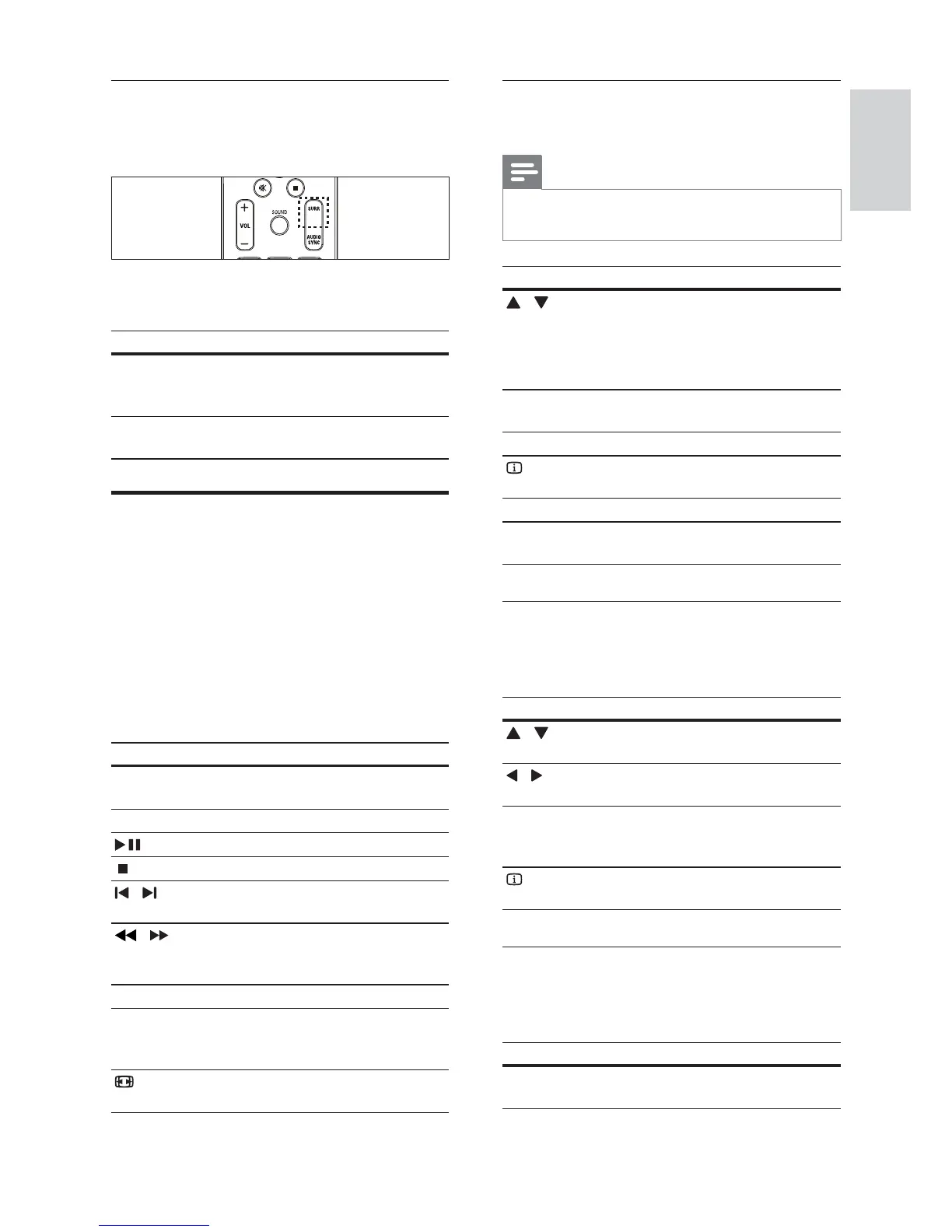
Change surround sound mode
Experience an immersive audio experience with
surround sound modes.
Press SURR repeatedly to cycle through the
available surround modes.
Option Description
MULTI-
CHANNEL
Immersive multi-channel
sound for an enhanced movie
experience.
STEREO Two-channel stereo sound. Ideal
for listening to music.
Play a disc
The home theater can play a wide variety of discs,
including video, audio and mixed media (for example,
a CD-R that contains JPEG pictures and MP3 music).
1 Insert a disc into the home theater.
2 Press DISC .
The disc plays or the disc main menu »
appears.
3 Press the following buttons to control play:
Button Action
Navigation
buttons
Navigate menus.
OK Con rms an entry or selection.
Starts, pauses or resumes play.
Stops play.
/
Skips to the previous or next
track, chapter or le.
/
Fast backwards or fast forwards.
Press repeatedly to change the
search speed.
ZOOM Zooms into a video scene or picture.
REPEAT A-B Marks two points within a
chapter or track for repeat play,
or turns off repeat mode.
SCREEN
FIT
Fits the picture format to the TV
screen.
English
EN


 To Next Page
 Loading...