Changing the Camera Angle
ADVANCED
FUNCTIONS
When a DVD contains multiple angles of a particular scene, you can select the Angle function.
Using the ANGLE button
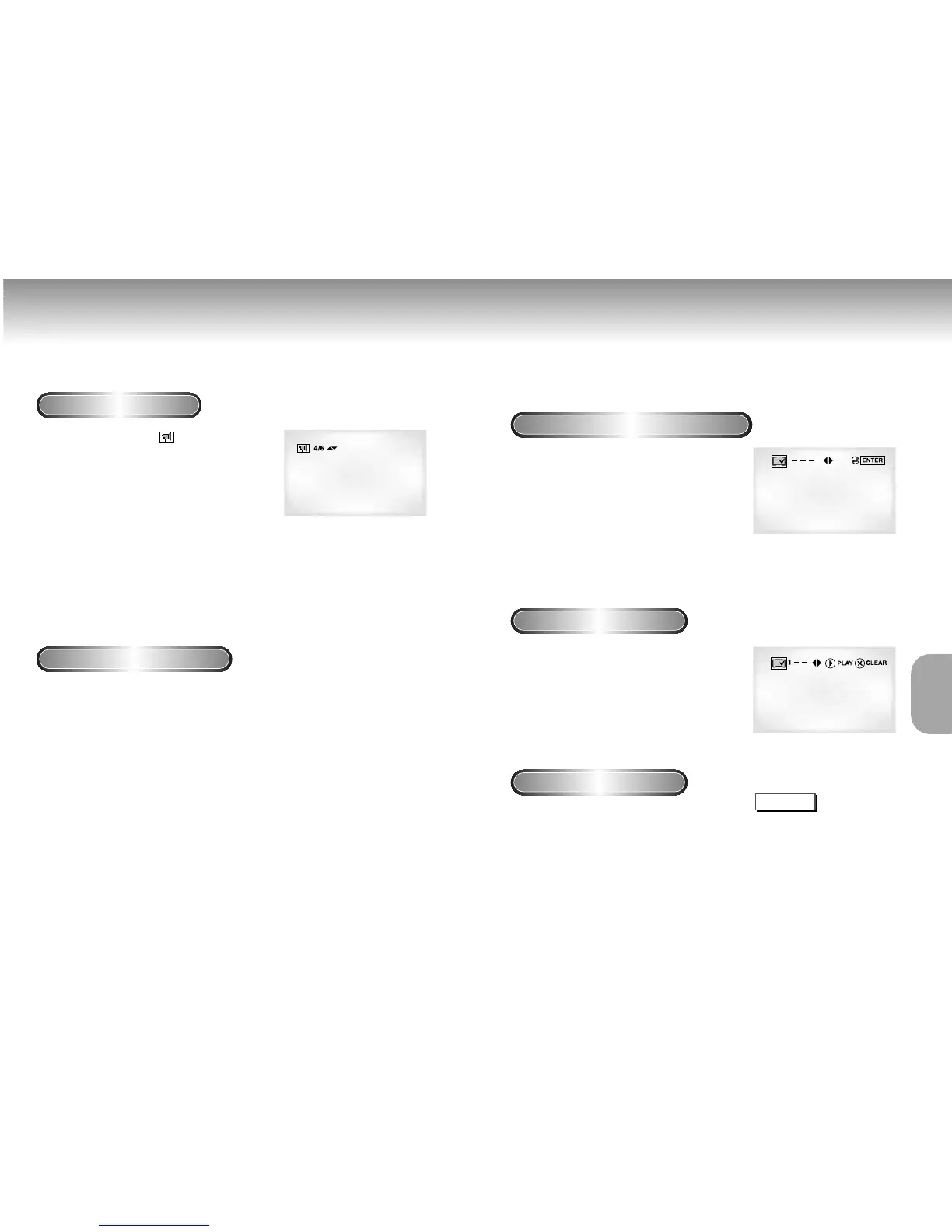
Check to see if an ANGLE ( ) mark is present
at the upper right hand corner of the screen.
1
1
When an ANGLE mark is shown, press the
ANGLE button, then an ANGLE select icon
is present at the upper left hand corner of
the screen.
2
2
Use the UP/DOWN button to select the
desired screen angle.
3
3
To turn off the display, press the ANGLE
button again.
example
Master Volume Control Function
1
1
Press the VOL.CON. button. Use the
UP/DOWN button to select a suitable
volume.
- Master Volume Control function lets you adjust the
volume of the player’s output. This is useful for matching
the player’s output level to other equipment in your
system.
- Volume control is only operative when using the
Analog Audio outputs.
- There are up to 64 levels. Lowering each level
reduces the audio level by 0.5dB.
Using the Bookmark Function
The Bookmark function lets you select parts of a DVD or VCD (MENU OFF mode) so that you
can quickly find the section at a later time.
Using the Bookmark Function (DVD/VCD)
1
1
During play, press the BOOKMARK button on
the remote. The Bookmark icons will be
displayed.
2
2
Use the LEFT/RIGHT button to move to the
desired bookmark icon.
3
3
When you reach the scene you want to mark,
press the ENTER button. The icon will change to
a number (1, 2, or 3).
4
4
Press the BOOKMARK button to turn off the
display.
Recalling a Marked Scene
1
1
During play, press the BOOKMARK button on
the remote.
2
2
Use the LEFT/RIGHT button to select a marked
scene.
3
3
Press the PLAY/PAUSE button to skip to the
marked scene.
Clearing a Bookmark
1
1
During play, press the BOOKMARK button
on the remote.
2
2
Use the LEFT/RIGHT button to select the
bookmark number you want to delete.
3
3
Press the CLEAR button to delete a bookmark
number. Press the BOOKMARK button to turn
off display.
NOTE
• Up to three scenes may be
marked at a time.
• When in VCD 2.0 mode (MENU
ON mode), this function does not
work.
• Depending on the disc, the
Bookmark function may not work.
26 27


 To Next Page