15Que for Palm OS - Applications Guide
OVERVIEW >
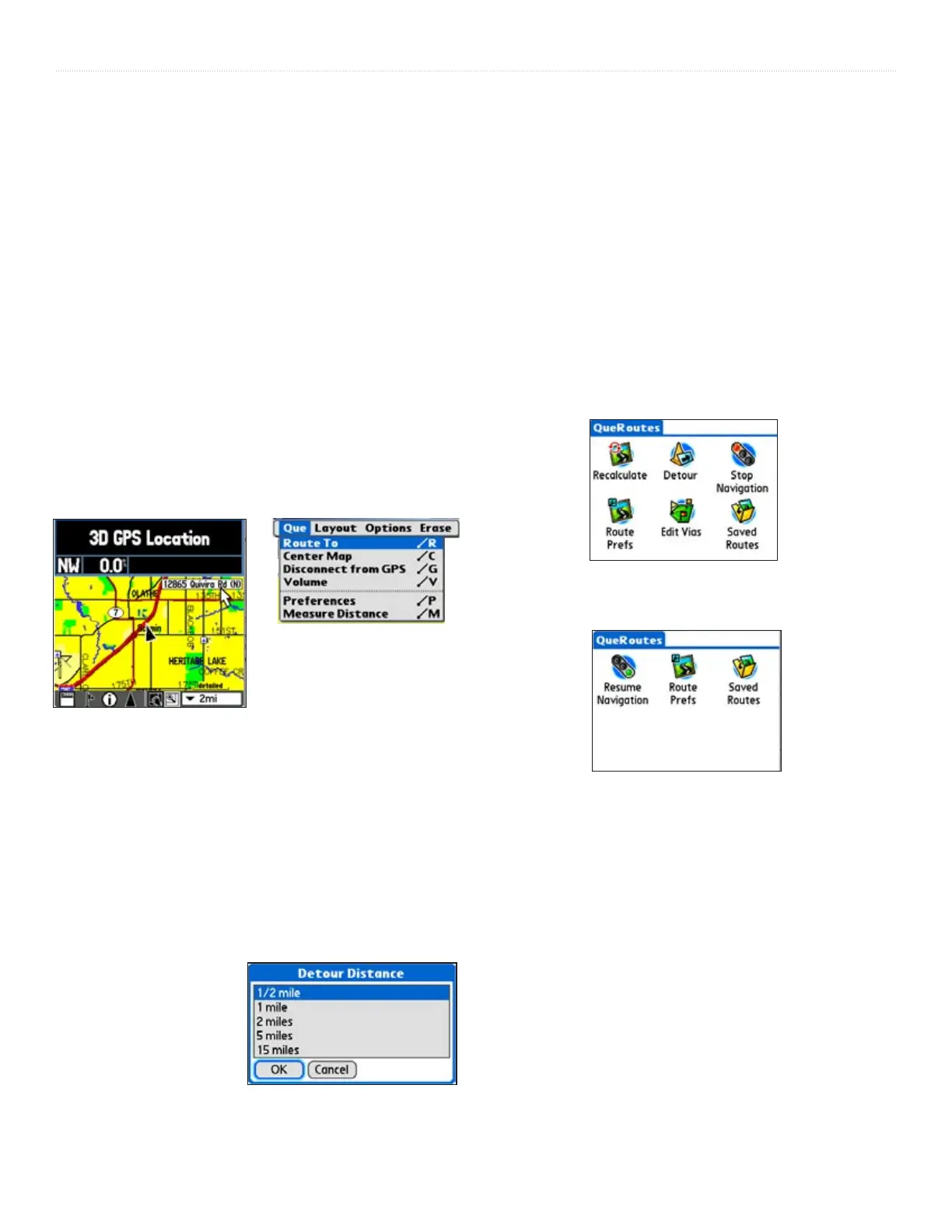
Using QueMap to Select a Destination
You can create a route to any place on the map by using the stylus
to place the map pointer on a location that you want to use as a
destination.
To select a destination:
1. Tap the
QueMap icon to display the Map.
2. With the stylus, tap the location on the map that you
want to use as a destination.
3. Tap the MENU icon to display the QueMap options
menu.
4. Tap the Route To... option.
5. A “Calculating Route” animated graphic is displayed
in the bottom left-hand corner of the map. When
the map displays the route in magenta, the route is
“active”.
6. Follow the on-screen directions, voice prompts and
turn preview pages to navigate to your destination.
Using a Detour
To avoid an area of traffic congestion or other obstacles on a route,
you can use the “Detour” option to alter the route to avoid the roads
used in the current route for a specific distance.
To use the “Detour” option:
1. Tap the
QueRoutes icon.
2. Tap the
Detour option.
3. Tap the distance to
avoid roads used in the current
route.
4. Tap
OK to activate
the detour.
5. To cancel a detour,
select the “Cancel
Detour” icon from
QueRoutes.
Stopping and Resuming Route Navigation
You can stop navigating a route at any time.
To Stop or Resume route navigation:
1. Tap the
QueRoute icon to display the ‘QueRoutes’
dialog box.
2. Tap the
Stop Navigation icon to remove the route
overlay from the ‘Map’ page. This also stops voice
prompts and turn preview pages.
3. Start navigating again by tapping the
Resume
Navigation icon from the ‘QueRoutes’ dialog box.
You can also ‘Recalculate’ a route at any time during navigation by
tapping the ‘Recalculate’ icon from the QueRoutes Application.
Detour Distance Options
Selecting a Map Item to Route To
Route To Option from Menu
QueRoutes when a Route has been
stopped before completion
QueRoutes when a Route is active



 To Next Page
 Loading...