NOTE: If your laptop or desktop PC doesn't have a serial port, use a serial-to-USB adapter (not provided).
3. At the Junos OS Evolved login prompt, type root to log in.
You don't need to enter a password. If the soware boots before you connect your laptop or desktop PC to the
console port, you might need to press the Enter key for the prompt to appear.
re0 login: root
4. Start the CLI.
[vrf:none] root@re0:~# cli
5. Enter conguraon mode.
root@re0> configure
6. Stop the chassis auto-upgrade process.
[edit]
root@re0# delete chassis auto-image-upgrade
7. Stop zero-touch provisioning (ZTP).
[edit]
root@re0# delete system commit factory-settings
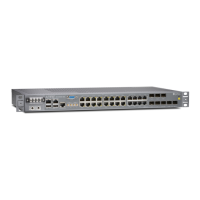
NOTE: ZTP is enabled on the ACX7024 in the factory-default conguraon. You must stop ZTP before you
congure any sengs. Unl you assign a root password and make an inial commit, you might see ZTP-
related messages on the console. You can safely ignore these messages while you congure the root
password.
8. Add a password for the root administraon user account.
[edit]
root@re0# set system root-authentication plain-text-password
New password:
password
Retype new password:
password
8


 To Next Page
 Loading...