64
Edit ( )
Image Adjust
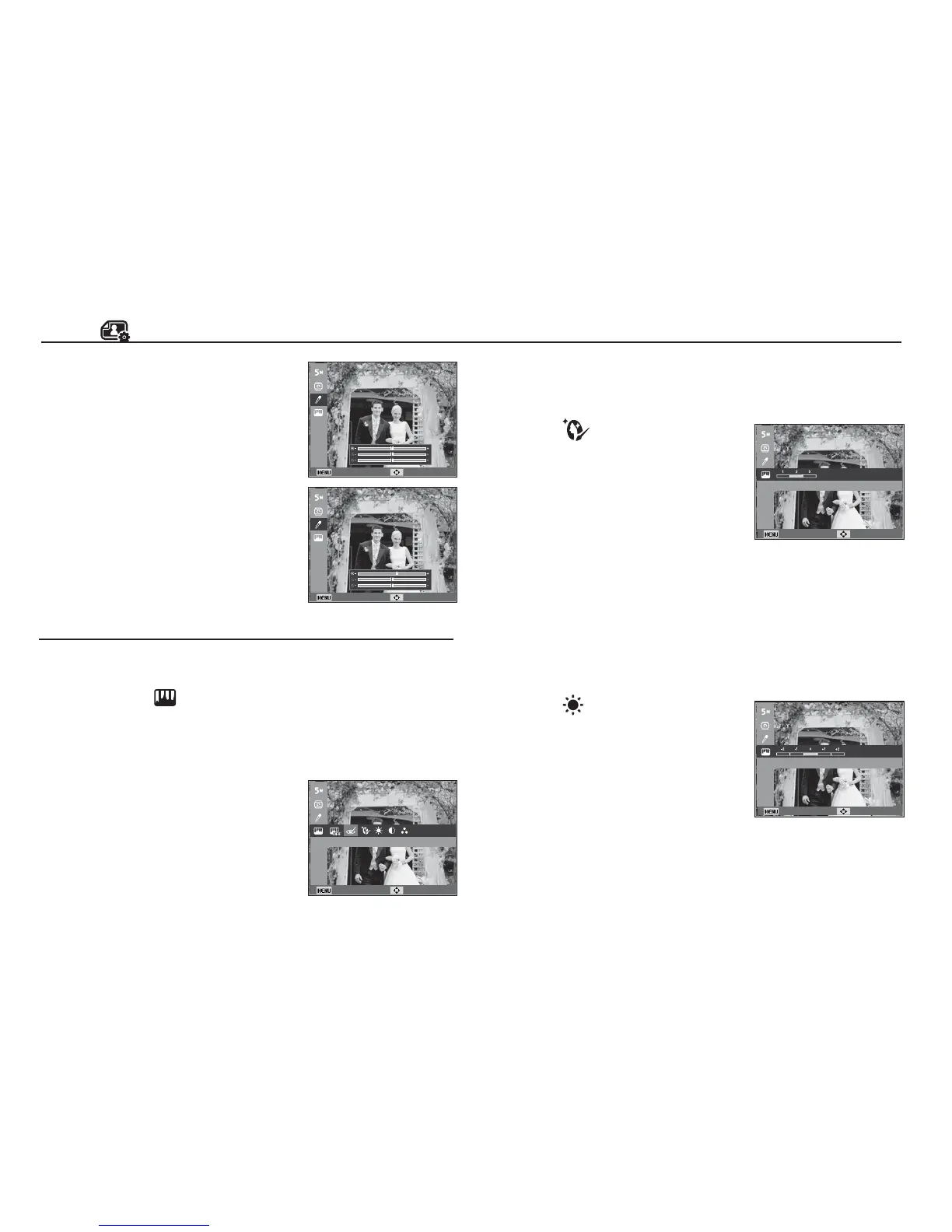
1. Press the play back button and press the MENU button.
2.
Click the Up/Down button from the Edit menu to select
[Image Adjust] ( ) menu tab and press the OK button.
Red eye Removal
Red eye effect can be removed from the captured image.
1. Select (
) by pressing the Left/Right
button and press the OK button.
2. The [Making New Image] message is
displayed and the image is saved as a
new file name.
- OK button : Select / setup the Custom
Colour
- Up / Down button : Selects R, G, B
- Left / Right button : Change the values
Custom colour
You can change the R (Red), G (Green)
and B (Blue) values of the image.
Face Retouch
You can make the skin in an image appear clear and beautiful.
1. Select ( ) by pressing the
Left/Right button and press the OK
button. Then a bar for selecting the
face retouch will be displayed.
2. Change the face retouch by pressing the
Left/Right button.
3. Press the OK button and the image will
be saved as a new file name.
Brightness control
You can change the brightness of the image.
1. Select ( ) by pressing the
Left/Right button and press the OK
button. Then a bar for selecting the
brightness will be displayed.
2. Change the brightness by pressing the
Left/Right button.
3. Press the OK button and the image will
be saved as a new file name.
Back Move
Back Move
Back Move
Red-eye Fix
Back Move
Face Retouch
Back Move
Brightness



 To Next Page
 Loading...