Shure Incorporated
15/24
1.
2.
3.
1.
2.
3.
Equalizer Applications
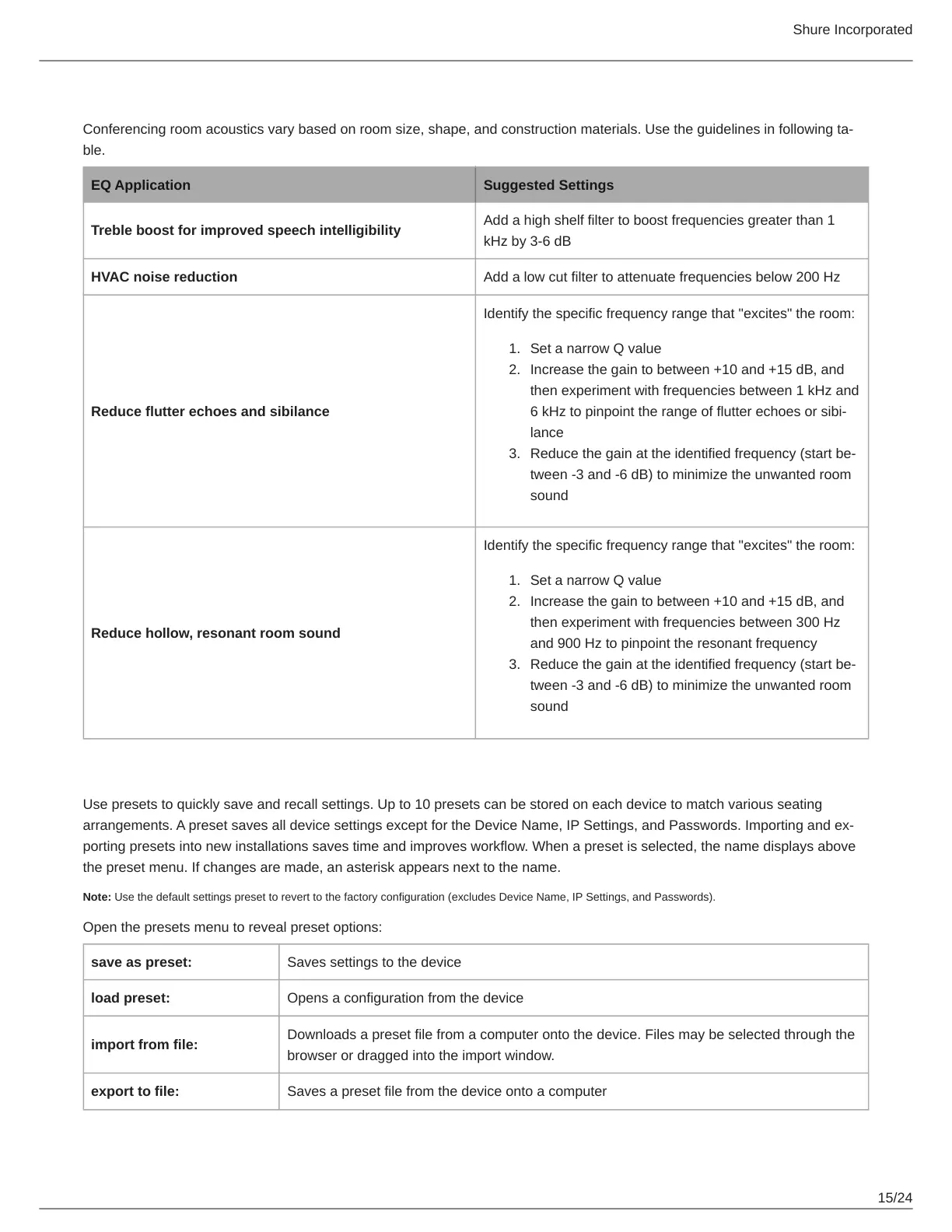
Conferencing room acoustics vary based on room size, shape, and construction materials. Use the guidelines in following ta
ble.
EQ Application Suggested Settings
Treble boost for improved speech intelligibility
Add a high shelf filter to boost frequencies greater than 1
kHz by 3-6 dB
HVAC noise reduction Add a low cut filter to attenuate frequencies below 200 Hz
Reduce flutter echoes and sibilance
Identify the specific frequency range that "excites" the room:
Set a narrow Q value
Increase the gain to between +10 and +15 dB, and
then experiment with frequencies between 1 kHz and
6 kHz to pinpoint the range of flutter echoes or sibi
lance
Reduce the gain at the identified frequency (start be
tween -3 and -6 dB) to minimize the unwanted room
sound
Reduce hollow, resonant room sound
Identify the specific frequency range that "excites" the room:
Set a narrow Q value
Increase the gain to between +10 and +15 dB, and
then experiment with frequencies between 300 Hz
and 900 Hz to pinpoint the resonant frequency
Reduce the gain at the identified frequency (start be
tween -3 and -6 dB) to minimize the unwanted room
sound
Custom Presets
Use presets to quickly save and recall settings. Up to 10 presets can be stored on each device to match various seating
arrangements. A preset saves all device settings except for the Device Name, IP Settings, and Passwords. Importing and ex
porting presets into new installations saves time and improves workflow. When a preset is selected, the name displays above
the preset menu. If changes are made, an asterisk appears next to the name.
Note: Use the default settings preset to revert to the factory configuration (excludes Device Name, IP Settings, and Passwords).
Open the presets menu to reveal preset options:
save as preset: Saves settings to the device
load preset: Opens a configuration from the device
import from file:
Downloads a preset file from a computer onto the device. Files may be selected through the
browser or dragged into the import window.
export to file: Saves a preset file from the device onto a computer


 To Next Page
 Loading...