4. From the Copy Quality submenu, select Photo.
5. Press the Start button .
Using Your Computer
1. Turn on your computer and printer, and ensure that they are connected.
2. Load photo/glossy paper with the print side facing up. If you want to copy a 4 x 6 photo, load
a 4 x 6 (10 x 15 cm) photo card with the print side facing up. For more information, see
Loading Paper into the Paper Support
.
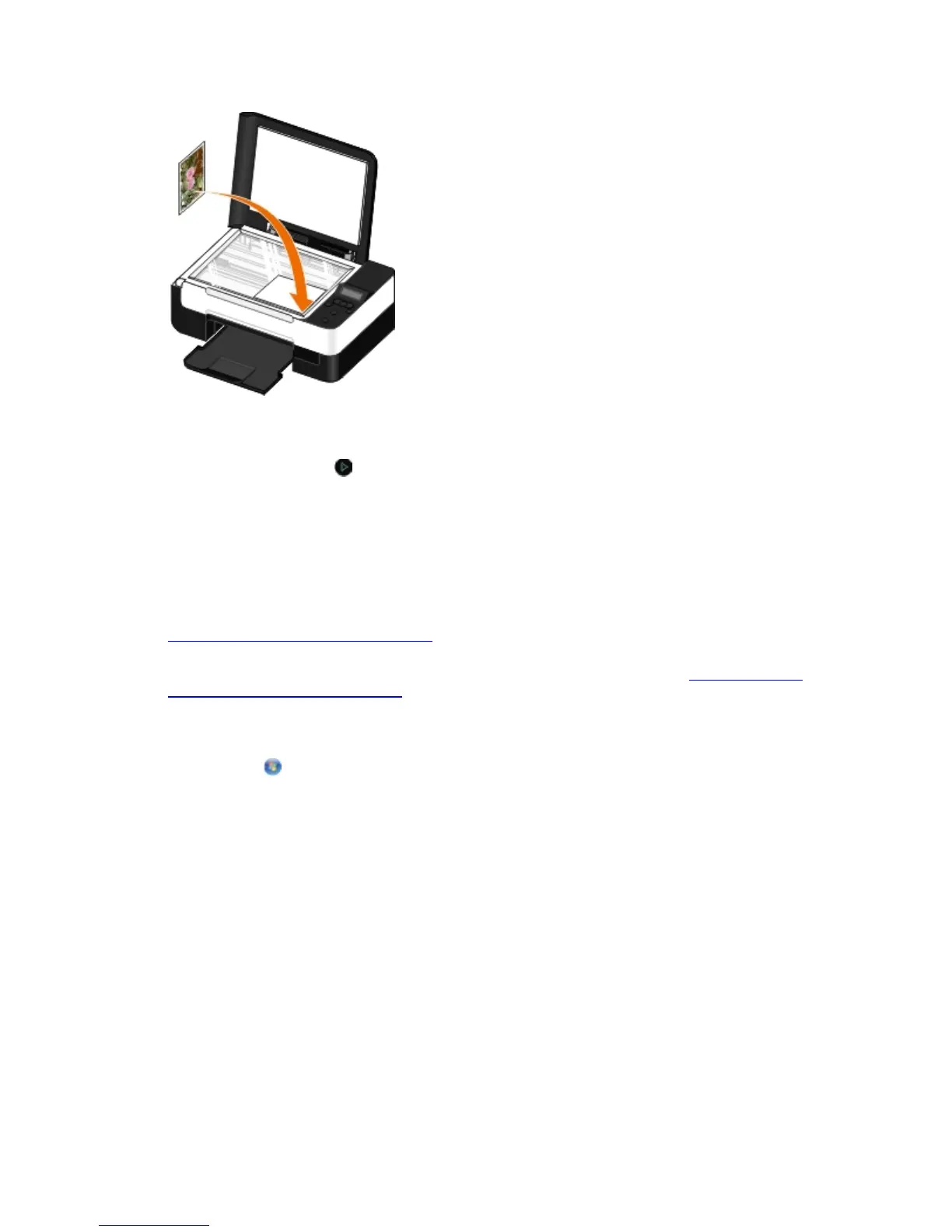
3. Load your original photo on the scanner glass. For more information, see Loading Original
Documents on the Scanner Glass.
4. In Windows Vista:
a. Click Programs.
b. Click Dell Printers.
c. Click Dell V305.
In Windows XP or Windows 2000:
Click Start Programs or All Programs Dell Printers Dell V305.
5. Select Dell Imaging Toolbox.
The Dell Imaging Toolbox dialog box opens.
6. From the Home screen, click Copy.
The What are you scanning? dialog box opens.


 To Next Page
 Loading...