Chapter3.Usingthekeyboard
Thischapterprovidesinformationaboutusingthekeyboard.
UsingtheNumericLockkey
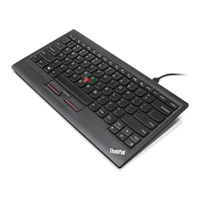
WhentheNumericLockkeyisenabled,somealphabetickeys(M,J,K,L,U,I,andO)andnumerickeys(7,
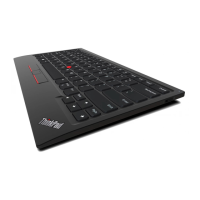
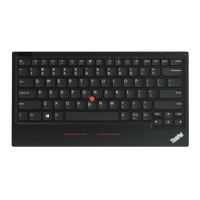
8,and9)ontheThinkPadUSBkeyboardwithTrackPointworkasa10-keynumerickeypad.
Toenableordisablethenumerickeypad,pressFn+ScrLk/NmLk.Whenyoupressthisbutton,the
correspondingindicatorisdisplayedonthecomputerscreenforafewseconds.
Notes:
•ForsomeThinkPadcomputermodelssuchastheThinkPadT400sseries,dependingontheBIOSsetting,
theOnScreenDisplay(OSD)icondisplaysdifferently:
–WhenthesystemBIOSissetasSynchronizedandyoupressFn+ScrLk/NmLkontheThinkPadUSB
keyboardwithTrackPointoronthekeyboardofyourThinkPadcomputer,theOSDicondisplaysas
inthelowerrightcornerofyourcomputerscreen.Andthisissupportedbythenotebookinternal
application.
–WhenthesystemBIOSissetasIndependent,theOSDicondisplaysdifferently:
–IfyoupressFn+ScrLk/NmLkontheThinkPadUSBkeyboardwithTrackPoint,theOSDicondisplays
asatthebottomcenterofyourcomputerscreen.
–IfyoupressFn+ScrLk/NmLkonthekeyboardofyourThinkPadcomputer,theOSDicondisplaysas
inthelowerrightcornerofyourcomputerscreen.
•FortheWindows8orWindows8.1operatingsystem,theOSDsupportdependsonyoursystem.Refer
totheUserGuideofyourcomputer.
UsingtheTrackPoint
TheTrackPointconsistsofapointingstickandthreeclickbuttons.Thepointingstickisusedtocontrol
thecursor.Thethreeclickbuttonsaretheleftbutton,therightbutton,andthecenterbutton.Thissection
providesinformationonusingthepointingstick,conguringthecenterbutton,andcustomizingthe
TrackPoint.
Usingthepointingstick
Tousethepointingstick,dothefollowing:
1.Placeyourhandsattypingposition,andpressgentlyonthepointingstickinthedirectionthatyouwant
thepointertomove.Youcanpressthepointingstickawayfromyoutomoveitup,towardyoutomove
itdown,toonesideortheothertomoveitsideways.Thespeedatwhichthepointermovesdepends
onthepressureyouapplytothepointingstick.
Note:Thecursormightperiodicallydrift.Stopusingthepointingstickforafewsecondsandtry
again.Thecursorwillworknormally.
2.Toselectanddraganitem,stopthepointingstickandpresstheleftorrightbuttonwithyourthumb.
Theleftandrightbuttonsfunctionthesameastheleftandrightbuttonsonaconventionalmouse.
©CopyrightLenovo2009,2013
9

 To Next Page
 Loading...