ENGLISH
91
DVD Camcorder: Connection
Copying a Disc onto a Tape
The copying function works only in Player Mode.
page 26
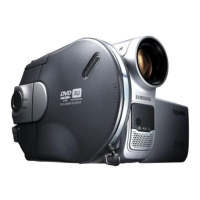
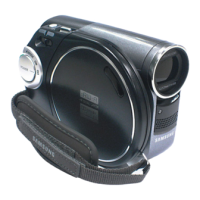
Connect your DVD Camcorder to a VCR using the AV/S jack to dub the recording from a disc onto a VCR tape.
1. Set the
[Mode] switch to [DISC].
2. Set the
[Power] switch to [ (Player)].
3. Insert the disc you want to copy in your DVD Camcorder.
4. Insert a new tape in your VCR.
5. Connect the DVD Camcorder to your VCR with Multi-AV
cable.
Connect the Multi-AV cable to the input jack on your
VCR.
The yellow jack: Video
The white jack: Audio(L)-mono
The red jack: Audio(R)
6. Press the Record button on your VCR to start recording.
7. Play the disc on your DVD Camcorder. Please refer to Page 63 for Playing.
Press the [DISPLAY] button so as not to display OSD.
When Copying is Complete:
Stop recording on your VCR, then press the [
(Stop)] button on your DVD Camcorder.
VCR
Signal flow
Multi-AV Cable
DVD Camcorder


 To Next Page
 Loading...