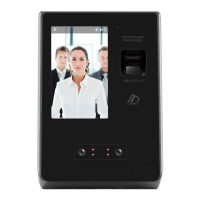
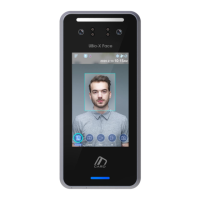
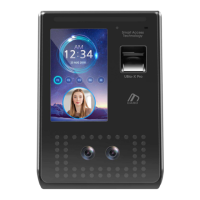
UBio-X Pro Lite User Guide
76
UNIONCOMMUNITY Co., Ltd.
Addr : 12F, Munjeong Daemyeong Valeon bldg, 127 Beobwon-ro Songpa-gu,
Seoul, Korea (zip code : 05836)
Tel : +82-2-6488-3000, Fax : +82-2-6488-3099
E-Mail :sales@unioncomm.co.kr; http://www.unioncomm.co.kr
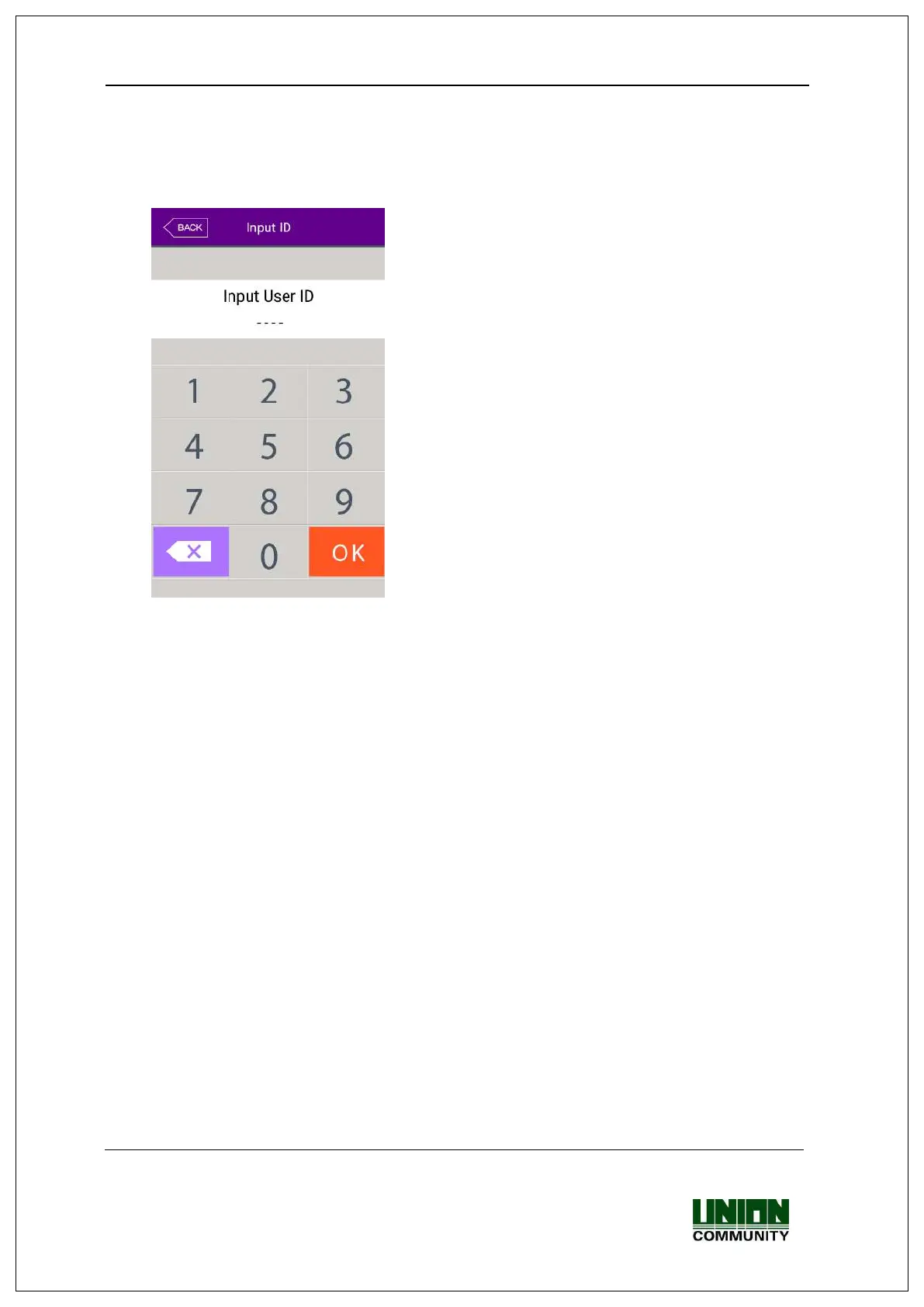
4.2. How to input user ID
If you click the button [ID] on the basic window, following the window “Input User ID” as
below.
Enter the user ID to be certified and click [OK] button,
then the input screen of fingerprint, face, card, or
password according to the authorization method of the
user.
4.3. How to authorize
4.3.1. Face authorization
▶1:N Authorization (Identification)
Set the location of your face at the LCD guideline until the guideline is changed blue, and
gaze the camera and stop moving to try authorization.
▶1:1 Authorization (Verification)
As shown in the following figure, enter your ID first by clicking [Input ID] button, and
when the face input message appears, locate your face until the LCD guideline is turned
blue, and gaze the camera and stop moving.
If the terminal cannot detect the face properly, the 1:1 Authorization will be canceled
with the message box is changed to gray after 20 seconds.


 To Next Page
 Loading...