18
Cropping and Printing Images
You can crop and print part of an image.
Display the cropping screen.
O Select an image as described in Step 4 on p. 13, press
the EDIT button, and then press the o button.
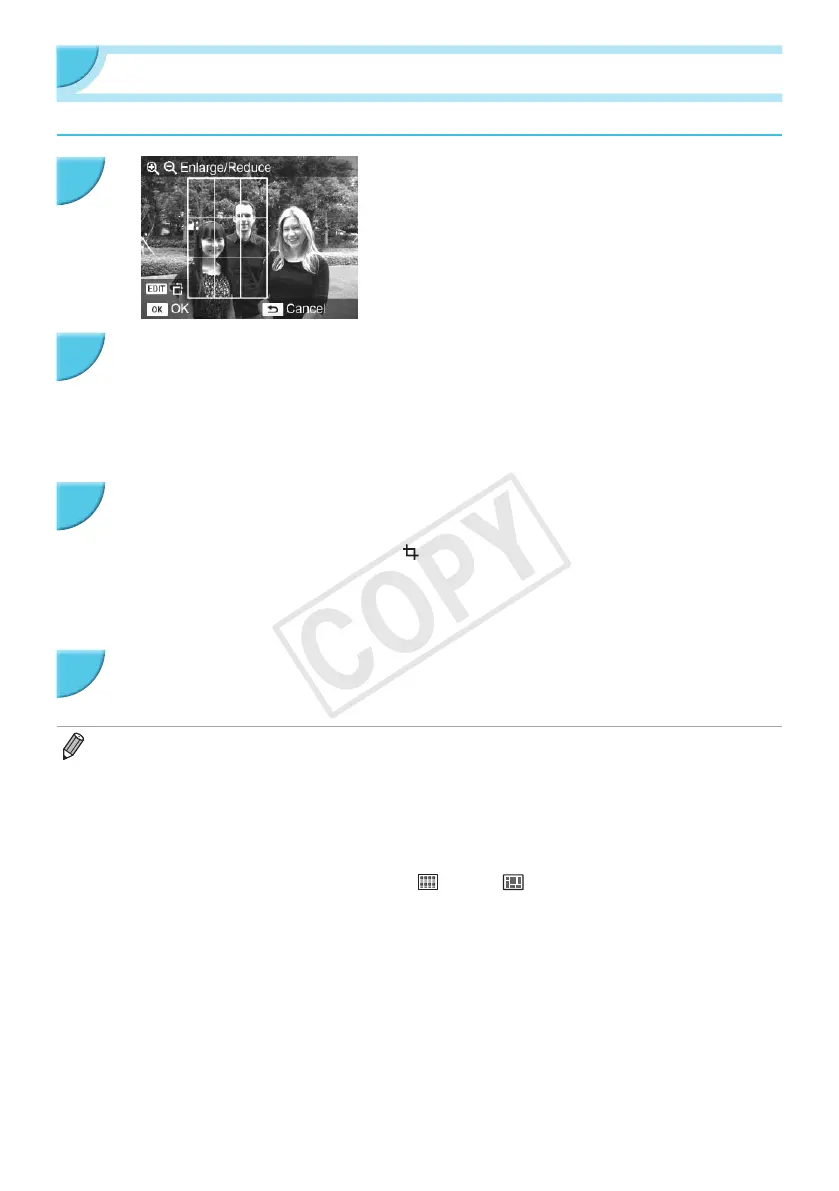
X A cropping frame to indicate the range will be displayed.
Determine the range.
O The cropping frame switches between portrait and
landscape each time you press the EDIT button.
O You can move the cropping frame by pressing the
udlr buttons.
O You can enlarge the cropping frame by pressing the -
button and shrink it by pressing the 0 button.
Make the setting.
O Press the o button to set the cropping range and
return to the image display screen.
X is displayed at the bottom left of the screen.
O The cropping range setting is not cleared by setting the
number of copies to 0.
O To crop another image and print at the same time, repeat
Steps 1 to 3.
Print the images.
O Print as described in Step 6 on p. 14.
O If you want to change the cropping range after setting it, press the EDIT button in the image display screen, press
the ud buttons to select [Adjust Cropping], and press the o button to repeat Steps 2 to 3.
O If you want to cancel the cropping range after setting it, press the EDIT button in the image display screen, press
the ud buttons to select [Reset Cropping], press the o button to display the reset cropping screen, and then
press the o button again.
O The cropping ranges are all cleared if you turn SELPHY off or remove the memory card before printing them.
O You can set up to 99 images with cropping ranges.
O You cannot crop images in [DPOF Print] and [Print All Images].
O You cannot crop images when you have selected [
Index] or [ Shufe] in [Page Layout] (p. 23).
O You cannot change the vertical and horizontal ratio of the cropping frame on the screen.
O
You can change the number of copies by pressing the ud buttons in the image display screen in Step 3.
O The cropping range is cleared when printing is nished.
1
2
3
4


 To Next Page
 Loading...