Tagging great moments while recording
(My Clip function)
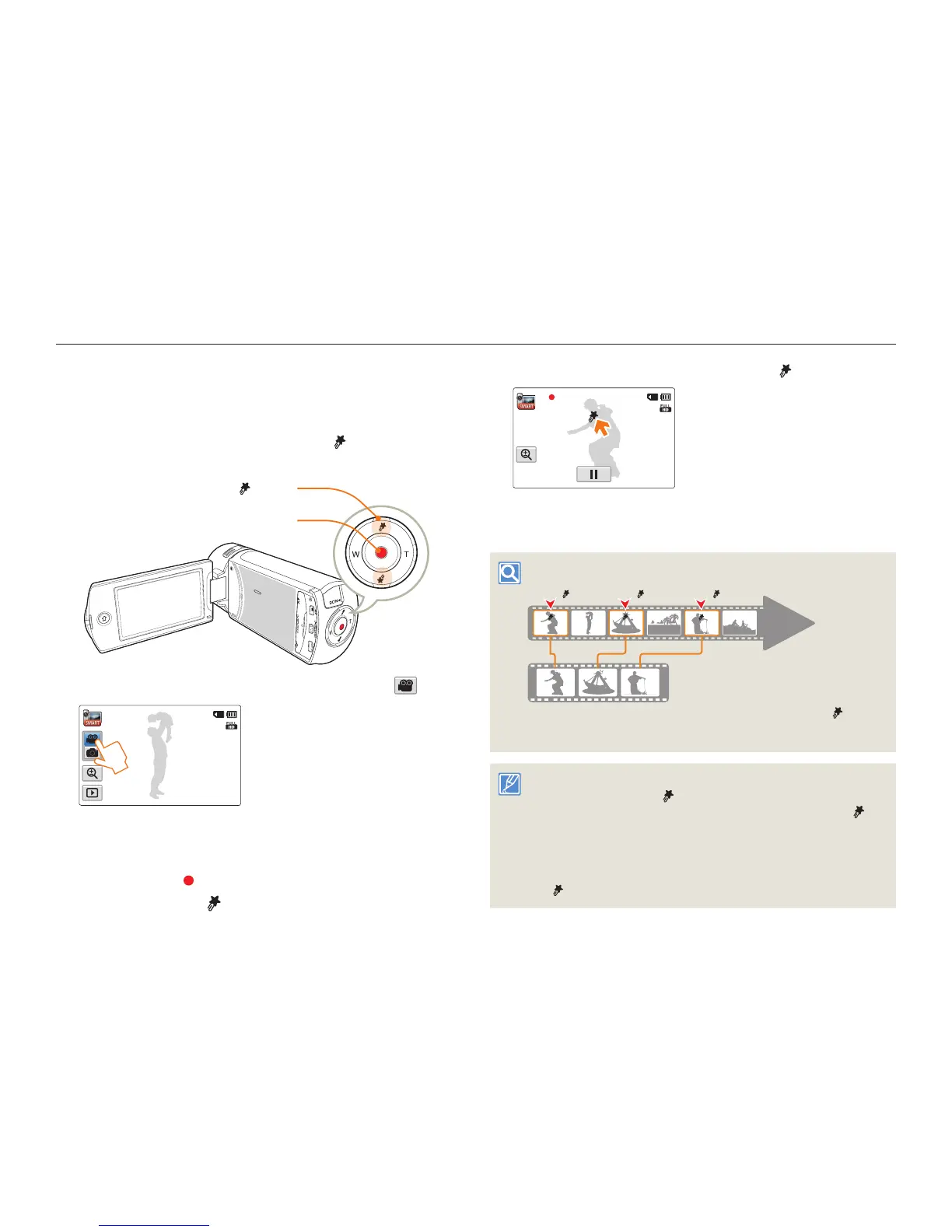
Using the My Clip function, you can tag good scenes while recording,
and then extract the scenes tagged as My Clip (
) from a long video
later for viewing.
[My Clip ( )] button
[Recording start/stop] button
1
In STBY mode, touch the Video recording mode ( ) tab.
STBY 00:00:00 [253Min]
2
Select a subject to record.
3
Press the [Recording start/stop] button.
•
The recording ( ) icon appears and recording starts.
4
Press the [My Clip ( )] button every great moment while
recording.
•
The camcorder tags the scene as My Clip ( ).
00:00:07 [253Min]
5
To stop recording, press the [Recording start/stop] button
again.
Understanding the My Clip function
When the camcorder extracts the scenes tagged as My Clip ( ) and
creates one file with them, the file is saved in the video thumbnail view.
My Clip ( ) My Clip ( ) My Clip ( )
During a video
recording
• The camcorder tags the scene so that it starts 3 seconds before you
pressed the [My Clip (
)] button and ends 5 seconds after. You
can also tag any scenes in a video by pressing the [My Clip (
)]
button during a video playback.
page 60
• To skip boring parts of a video and enjoy exciting parts, you can
combine the tagged scenes sequentially.
page 66
• The camcorder can tag up to 999 scenes from a video as My Clip
(
) scenes.


 To Next Page
 Loading...