SilverCrest SCW 5 A1
English - 49
Connecting a microphone
For best-quality audio recording you can connect an external microphone with 2.5mm jack-
type connector to the camcorder’s microphone jack [14]. If necessary, you can use an
adapter. The internal microphone of your camcorder will be disabled automatically when
you connect an external microphone.
Viewing recordings on a television
You can view your recordings on a television. The television needs to have an HDMI
connector.
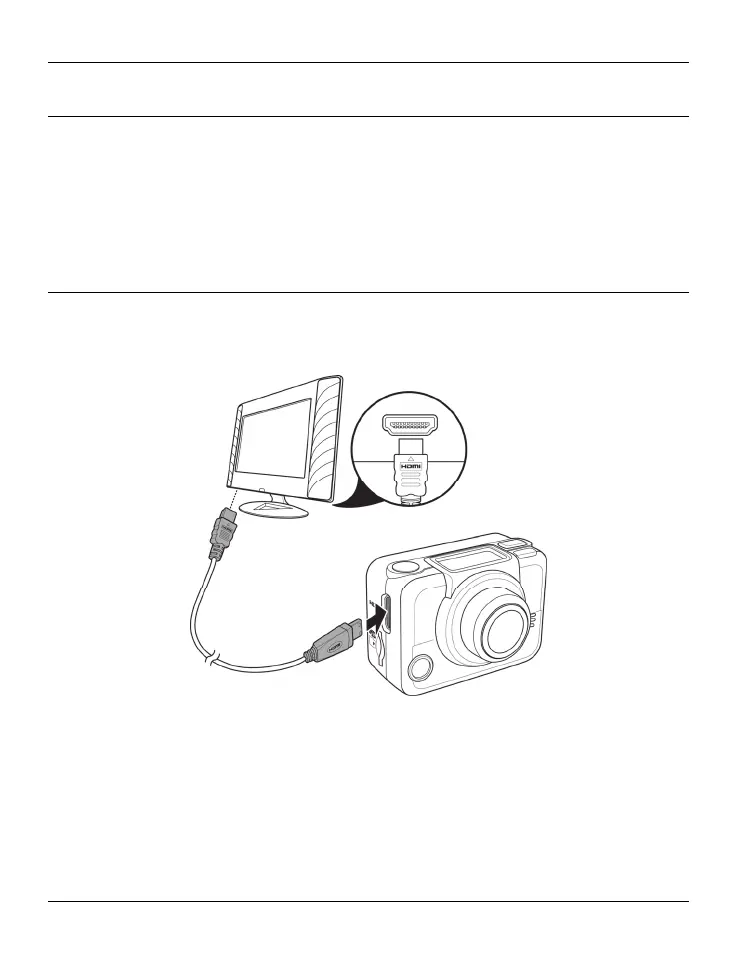
Use the HDMI cable to connect the camcorder to an available HDMI port on a TV. Insert the
small plug of the supplied HDMI cable into the HDMI port [8] of your camcorder and the
large plug into a HDMI port on your TV.
Power on your TV and select the HDMI input where your camcorder is connected to. Press
and hold the On/Off/Mode button [2] for at least 3 seconds to switch the camcorder on.
The camcorder initialises and the display indicates “PLAYBACK”, and after a few seconds
the TV screen will show the following picture:


 To Next Page
 Loading...