Using the display
You c a n check information about the CD using the
display.
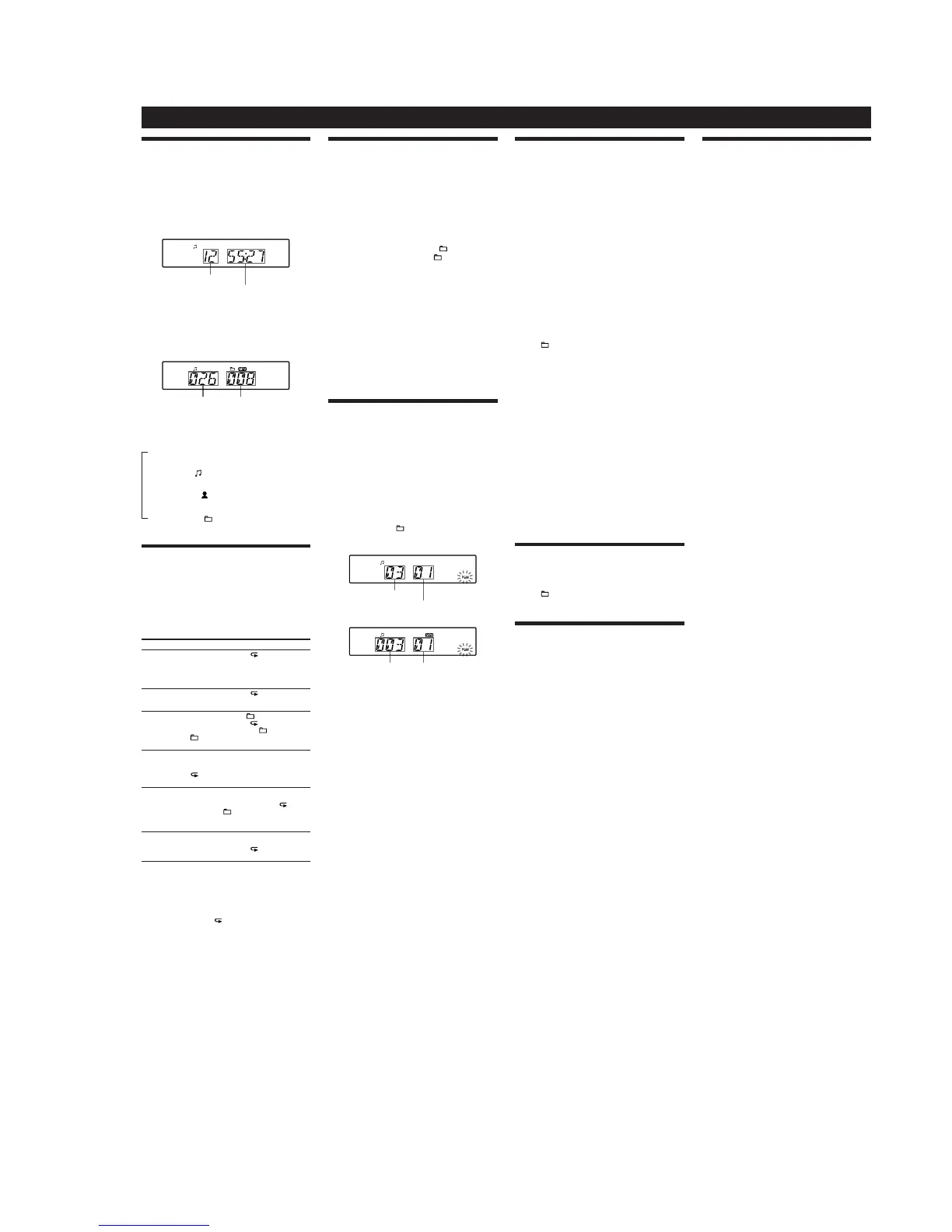
Checking the information of an audio CD
To check the total track number and playing
time of the CD
Press Ą
ȫ
to stop the CD playback.
Total track number
Total playing time
Checking the information of an MP3 disc
To check the total folder number and total le
number on the CD
Press Ą
ȫ
while the CD is stopped, and you can check
them in the display.
Total le number Total folder number
To check le information
Press DISPLAY
Ȭ
on the unit while playing an MP3
disc. e display changes as follows:
e current le number and playing time
Ô
e song title (
)
e artist name (
)
e album name (
)
Playing tracks/MP3 les repeatedly
(Repeat Play)
Yo u can play tracks/MP3 les repeatedly in normal,
Shue or Program play modes.
1 Press CD
ȳ
.
“CD” appears in the display.
2 Proceed as follows.
To repeat Do this
A single
track/MP3
file
1Press REPEAT
ȭ
until “ 1” appears.
2Press
Ã
ˎ
ù
or
ß
ˎ
Ñ
(
Ã
or
Ñ
on the
remote)
ȯ
to select the track/MP3 le that you
want to repeat.
3Press
à
ȫ
.
All tracks/
MP3 files on
the CD
1Press REPEAT
ȭ
until “ ” appears.
2Press
à
ȫ
.
A selected
folder (MP3
disc only)
1Press MODE
Ȯ
until “ ” appears, and then
press REPEAT
ȭ
until “ ” appears.
2Select the folder by pressing
/PRESET + or –
(
+ or – on the remote)
ȯ
.
3Press
à
ȫ
.
Tracks/MP3
files in
random
order
1Select Shue Play (see “Playing tracks/MP3 les
in random order”).
2Press REPEAT
ȭ
until “SHUF” and
“
” appear.
3Press
à
ȫ
.
Files in a
selected
folder in
random
order (MP3
disc only)
1Start Folder Shue Play (see “Playing tracks/
MP3 les in random order”).
2Press REPEAT
ȭ
on the unit until “ ”,
“SHUF” and “
” appear.
3Press
à
ȫ
.
Programed
tracks/MP3
files
1Program tracks/MP3 les (see “Creating your
own program”).
2Press REPEAT
ȭ
until “ ” and “PGM” appear.
3Press
à
ȫ
.
On the remote
To s elect the CD function, press FUNCTION
Ⱥ
repeatedly until “CD” appears in the display.
To cancel Repeat Play
Press REPEAT
ȭ
until “ ” disappears from the display.
Other Operations
Playing tracks/MP3 les in random
order
(Shue Play)
Yo u can play tracks/MP3 les in random order. When
playing an MP3 disc, you can also play MP3 les in a
selected folder in random order (Folder Shue Play).
1 Press CD
ȳ
.
“CD” appears in the display.
2 Press MODE
Ȯ
until “SHUF” appears in the display.
When you select Folder Shue Play (MP3 disc only),
press MODE
Ȯ
on the unit until “ ” and “SHUF”
appear in the display. en press
/PRESET + or
–
ȯ
on the unit to select a folder you want.
3 Press à
ȫ
on the unit to start Shue Play.
On the remote
To s elect the CD function, press FUNCTION Ⱥ
repeatedly until “CD” appears in the display.
To cancel Shue Play
Stop playing rst. en press MODE
Ȯ
repeatedly until
“SHUF” disappears from the display.
Tips
ˎ
During Shue Play, you cannot select the previous track/MP3 le by
pressing
ù
ˎ
Ã
(
Ã
on the remote)
ȯ
.
ˎ
e resume function does not work during Shue Play.
Creating your own program
(Program Play)
Yo u can arrange the playing order of up to 20 tracks on
a CD.
1 Press CD
ȳ
.
“CD” appears in the display.
2 Press MODE
Ȯ
repeatedly until “PGM” ashes in the
display.
3 Press
ù
ˎ
Ã
or
ß
ˎ
Ñ
(
Ã
or
Ñ
on the
remote)
ȯ
then press ENTER
ȯ
for the track/MP3
les you want to program in the order you want.
For MP3 les, press
/PRESET + or –
ȯ
rst and
then press ENTER
ȯ
.
Audio CD (Program Play)
Programed track number
Playing order
MP3 disc (Program Play)
Programed track number Playing order
4 Press à
ȫ
to start Program Play.
On the remote
To s elect the CD function, press CD
ȳ
.
To cancel Program Play
Stop playing rst. en press MODE
Ȯ
repeatedly until
“PGM” disappears from the display.
To delete the last track of the program
Press CLEAR
Ȼ
on the remote while the player is
stopped.
To check the order of tracks before play
Press ENTER
ȯ
.
Every time you press the button, the track number
appears in the programed order.
To change the current program
Press Ą
ȫ
once if the CD is stopped and twice if the
CD is playing. e current program will be erased.
en create a new program following the programing
procedure.
Tips
ˎ
If you try to program 21 tracks/MP3 les or more, “FULL” will
appear in the display.
ˎ
Yo u can play the same program again, since the program is saved
until you open the CD tray or turn o the power of the unit.
ˎ
e resume function does not work during Program Play.
Presetting radio stations
Yo u can store radio stations into the unit’s memory. You
can preset up to 30 radio stations, 20 for FM and 10 for
AM in any order.
1 Press RADIO BAND
ˎ
AUTO PRESET
ȴ
on the unit to
select the band.
2 Hold down RADIO BAND
ˎ
AUTO PRESET
ȴ
on the
unit for 2 seconds until “AUTO” ashes in the display.
3 Press ENTER
ȯ
while “AUTO” ashes in the display.
e stations are stored in memory from the lower
frequencies to the higher ones.
If a station cannot be preset automatically
You n eed to preset a station with a weak signal manually.
1 Press RADIO BAND
ˎ
AUTO PRESET
ȴ
on the unit to
select the band.
2 Tune in a station you want.
3 Hold down ENTER
ȯ
on the unit for 2 seconds until
the preset number ashes in the display.
4 Press /PRESET + or –
ȯ
on the unit until the
preset number you want for the station ashes in
the display.
5 Press ENTER
ȯ
on the unit.
e new station replaces the old one.
On the remote
1 Press RADIO
ˎ
BAND
ȴ
repeatedly until the band
you want appears in the display.
2 Tune in a station you want.
3 Hold down ENTER
ȯ
for 2 seconds until the preset
number ashes in the display.
4 Press PRESET + or –
ȯ
until the preset number you
want for the station ashes in the display.
5 Press ENTER
ȯ
.
e new station replaces the old one.
Tip
e preset radio stations remain in memory even if you unplug the
AC power cord or remove the batteries.
Playing preset radio stations
1 Press RADIO BAND
ˎ
AUTO PRESET
ȴ
on the unit
(RADIO
ˎ
BAND
ȴ
on the remote) to select the band.
2 Press /PRESET + or –
ȯ
on the unit (PRESET + or
–
ȯ
on the remote) to tune in the stored station.
Falling asleep to music
1 Play the music source you want.
2 Press SLEEP
ȹ
on the unit to display “SLEEP”.
3 Press SLEEP
ȹ
on the unit to select the minutes
until the unit goes o automatically.
Each time you press the button, the indication changes
as follows:
“A UTO*” “60MIN” “30MIN” “20MIN”
“10MIN” “OFF”.
*When you select “AUTO”, the CD stops playing in 90 minutes at
most and the unit goes o automatically. When you are listening
to the radio, the radio goes o in 90 minutes.
If 4 seconds have passed aer you pressed SLEEP
ȹ
,
the minutes in the display are entered.
When the preset time has passed, the unit goes o
automatically.
To cancel the sleep function
Press POWER
ȩ
to turn o the power.
Tip
e display’s backlight goes o while sleeping time is active.
Connecting optional component
Yo u can enjoy the sound from a PC, TV, VCR, portable
digital music player, etc. through the speakers of this unit.
Be sure to turn o the power of each component before
making any connections.
For details, refer to the instruction manual of the
component to be connected.
1 Connect the AUDIO IN jack ȷ on the unit to the
line output jack of the portable digital music player
or other components using an audio connecting
cable* (not supplied).
*For a PC: use a cable which lls the connector of your PC.
For a TV or VCR: use a cable with a stereo-mini plug on one
end and two phono plugs on the other end.
For a portable digital music player: use a cable with a stereo-
mini plug on both ends.
2 Turn the unit and the connected component on.
3 Press AUDIO IN ȵ and start playing sound on the
connected component.
e sound from the connected component is output
from the speakers.


 To Next Page
 Loading...