Basic copying
52
2. Menu overview and basic setup
1
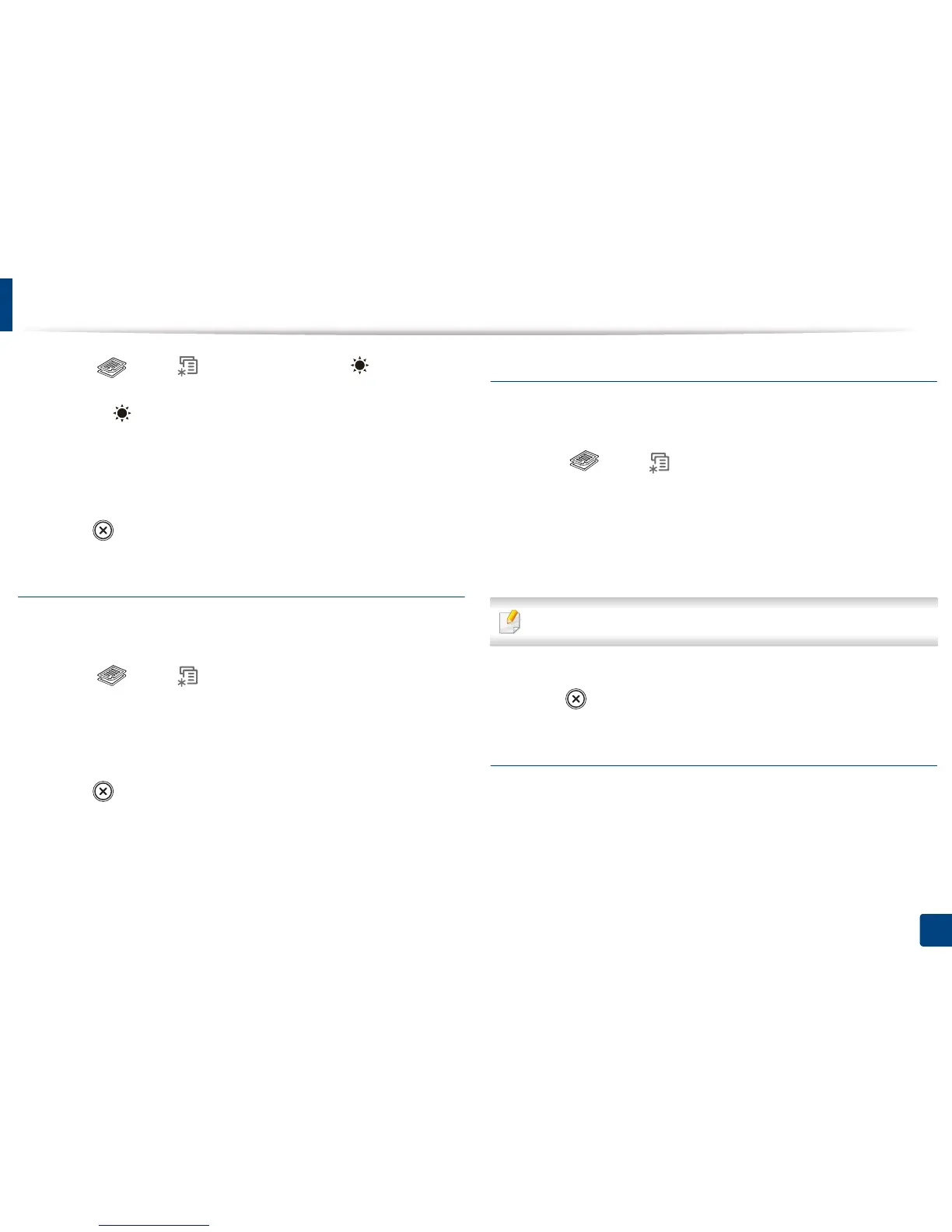
Select (copy) > (Menu) > Copy Feature > (Darkness) on
the control panel.
Or select (Darkness) button on the control panel.
2
Select the option you want and press OK.
For example, the Light+5 being the lightest, and the Dark+5 being the
darkest.
3
Press (Stop/Clear) to return to ready mode.
Contrast
The Contrast menu lets you increase or decrease the difference between the
bright and dark areas of an image.
1
Select (copy) > (Menu) > Copy Feature > Contrast on the
control panel.
2
Select the option you want and press OK.
Select Dark to heighten the contrast and select Light to reduce it.
3
Press (Stop/Clear) to return to ready mode.
Original
The original setting is used to improve the copy quality by selecting the
document for the current copy job.
1
Select (copy) > (Menu) > Copy Feature > Original type on the
control panel.
2
Select the option you want and press OK.
• Text: Use for originals containing mostly text.
• Text/Photo: Use for originals with mixed text and photographs.
If texts in the printout is blurry, select Text to get the clear texts.
• Photo: Use when the originals are photographs.
3
Press (Stop/Clear) to return to ready mode.
Reduced or enlarged copy
You can reduce or enlarge the size of a copied image from 25% to 400% when
you copy original documents from the scanner glass.


 To Next Page
 Loading...