EasyManua.ls Logo

JVC KW-AVX810 - On-Screen Operation Buttons

JVC KW-AVX810
102 pages
Print Icon
To Next Page IconTo Next Page
To Previous Page IconTo Previous Page
Loading...
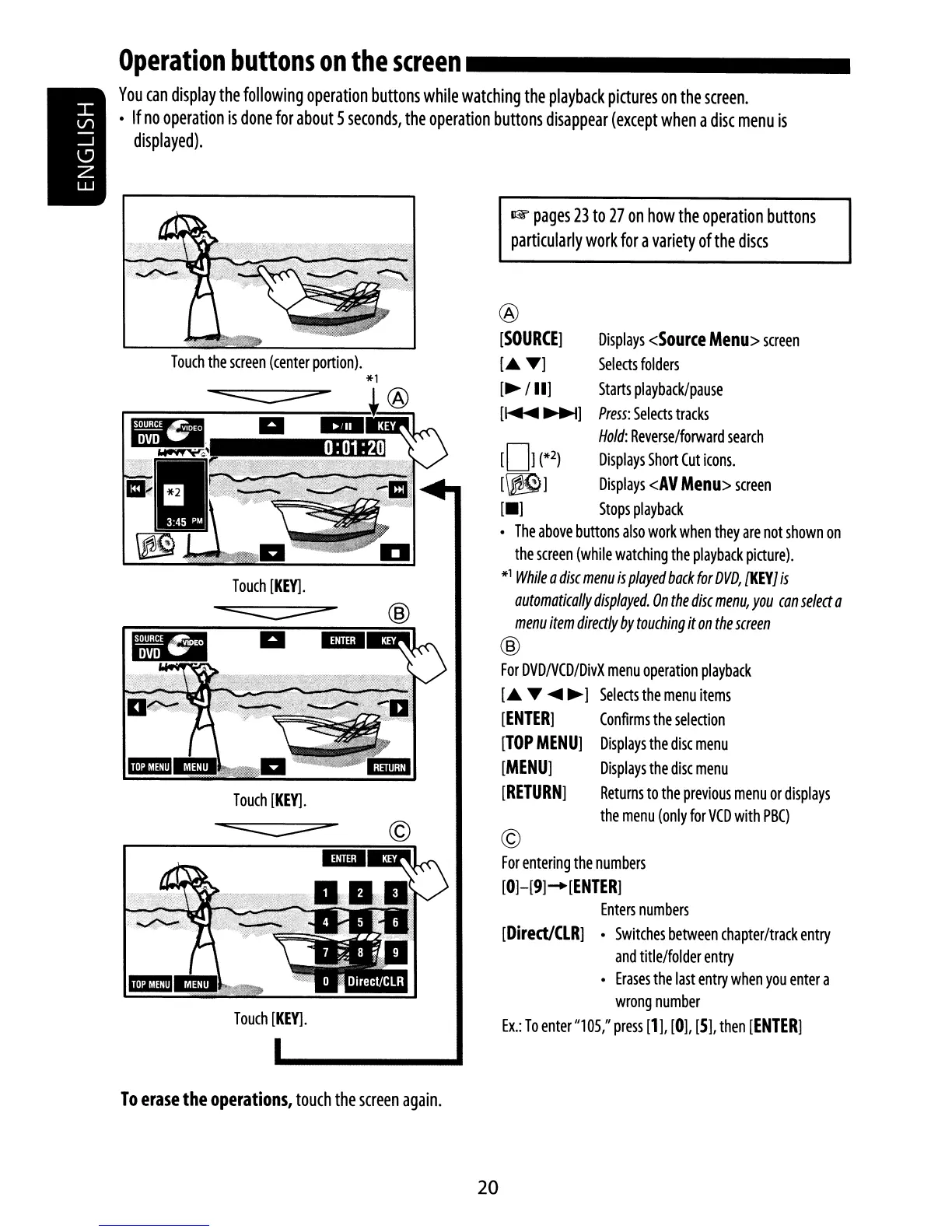
Operation
buttons
on
the
screen
_
You
can
display
the
following
operation
buttons
while
watching
the
playback
pictures
on
the
screen
.
If
no
operation
is
done
for
about
5
seconds,
the
operation
buttons
disappear
(except
when
a
disc
menu
is
displayed).
1&
pages
23
to
27
on
how
the
operation
buttons
particularly
work
for
a
variety
of
the
discs
©
For
entering
the
numbers
[0]-[9]
-+
[ENTER]
Enters
numbers
[DirectlCLR]
Switches
between
chapter/track
entry
and
title/folder
entry
Erases
the
last
entry
when
you
enter
a
wrong
number
Ex.:
To
enter
1/105,1/
press
[1],
[0],
[5],
then
[ENTER]
Displays
<Source
Menu>
screen
Selects
folders
Starts
playback/pause
Press:
Sel
ects
tracks
Hold:
Reverse/forward
search
[0]
(*2)
Displays
Short
Cut
icons.
[~]
Displays
<AV
Menu>
screen
[_]
Stops
playback
The
above
buttons
also
work
when
they
are
not
shown
on
the
screen
(while
watching
the
playback
picture).
*1
While
a
disc
menu
is
played
back
for
DVD,
[KEY]
is
automatically
displayed.
On
the
disc
menu,
you
can
select
a
menu
item
directly
by
touching
it
on
the
screen
®
For
DVD/vCD/DivX
menu
operation
playback
[.
~
~
~]
Selects
the
menu
items
[ENTER]
Confirms
the
selection
[TOP
MENU]
Displays
the
disc
menu
[MENU]
Displays
the
disc
menu
[RETURN]
Returns
to
the
previous
menu
or
displays
the
menu
(only
for
VCD
with
PBC)
®
[SOURCE]
[.~]
[~
/11]
[~~]
a
ED
a
..
0:01:20
Touch
[KEY].
Touch
[KEY].
Touch
[KEY].
Touch
the
screen
(center
portion).
*1
-=:::::::::::::
*®
To
erase
the
operations,
touch
the
screen
again.
20

Other manuals for JVC KW-AVX810

Related product manuals