To remove a SIM card lock
1
From the Homescreen, tap .
2
Find and tap Settings > Security > Set up SIM card lock.
3
Unmark the Lock SIM card checkbox.
4
Enter the SIM card PIN and tap OK.
To change the SIM card PIN
1
From the Home screen, tap .
2
Find and tap Settings > Security > Set up SIM card lock.
3
Tap Change SIM PIN.
4
Enter the old SIM card PIN and tap OK.
5
Enter the new SIM card PIN and tap OK.
6
Retype the new SIM card PIN and tap OK.
To unlock a blocked SIM card using the PUK code
1
Enter the PUK code and tap
.
2
Enter a new PIN code and tap .
3
Re-enter the new PIN code and tap
.
If you enter an incorrect PUK code too many times, you need to contact your network operator
to get a new SIM card.
Finding the identification number of your device
Your device has a unique ID (identification) number. On your device, this number is
referred to as the IMEI (International Mobile Equipment Identity). You should keep a copy
of this number. You may require it, for example, when you access the Xperia™ Care
support service and need to register your device. Also, if your device is stolen, some
network providers can use this number to stop the device from accessing the network in
your country.
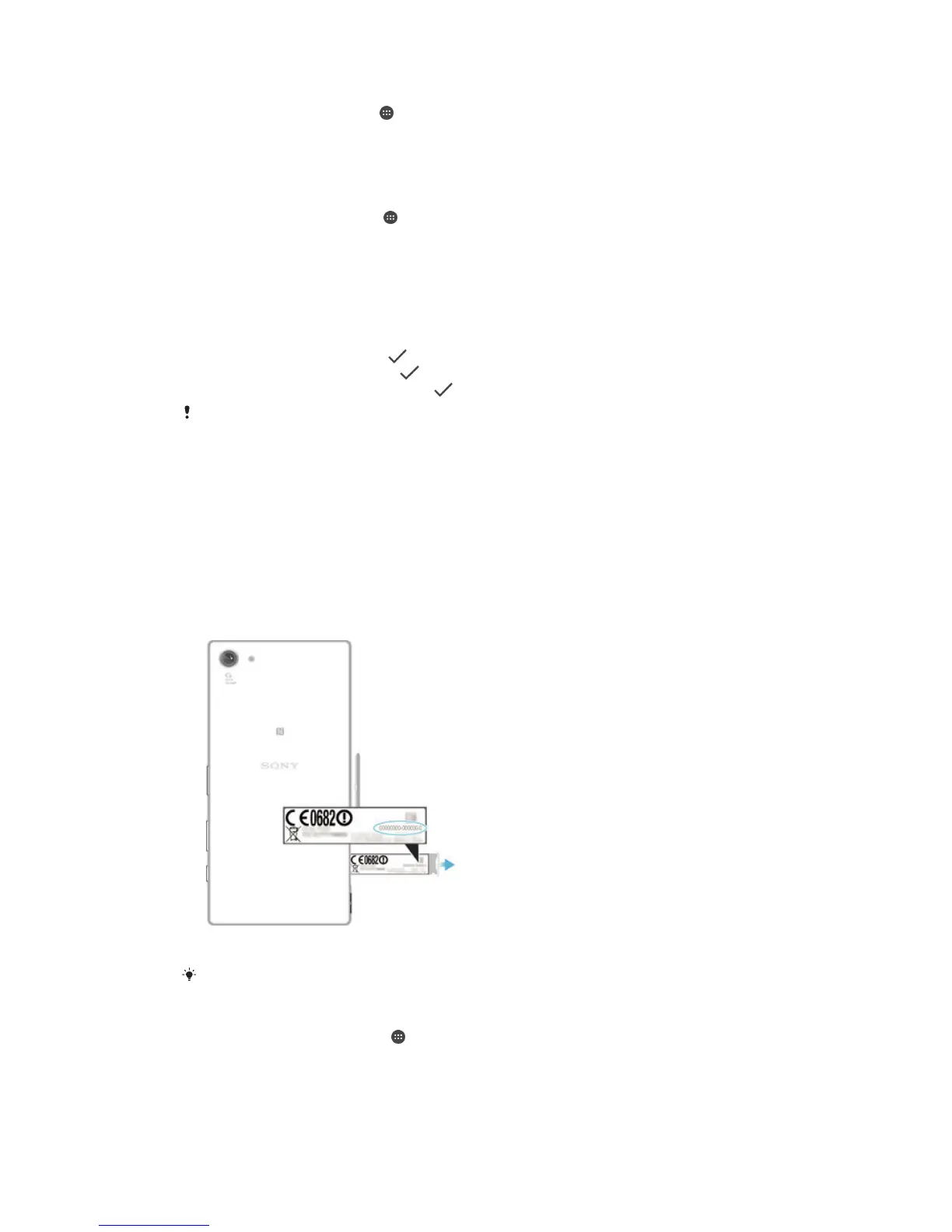
To View Your IMEI Number on the Label Tray
1
Open the cover for the nano SIM and memory card slot.
2
Drag out the label tray. The IMEI number is displayed on the label tray.
To view the IMEI number, you can also open the phone dialer and enter
*#06#.
To View Your IMEI Number via the Device Settings
1
From your Home screen, tap .
2
Find and tap Settings > About phone > Status > IMEI information.
20
This is an Internet version of this publication. © Print only for private use.



 To Next Page
 Loading...