Quick Guide
CVP-305/303/301 Owner’s Manual
54
To close the Transpose display, press the [EXIT] button.
Applying Effects to Your Voice (CVP-305/303)
You can also apply various effects to your voice.
n Selecting an effect type
You can select the effect type in the Mixing Console (page 84).
Adding Harmony Vocals to Your Voice (CVP-305/303)
You can also automatically apply various harmony vocals to your voice.
If the Song contains this data, the current chord name will be displayed in the Main display during Song
playback, letting you easily check whether the Song contains chord data or not.
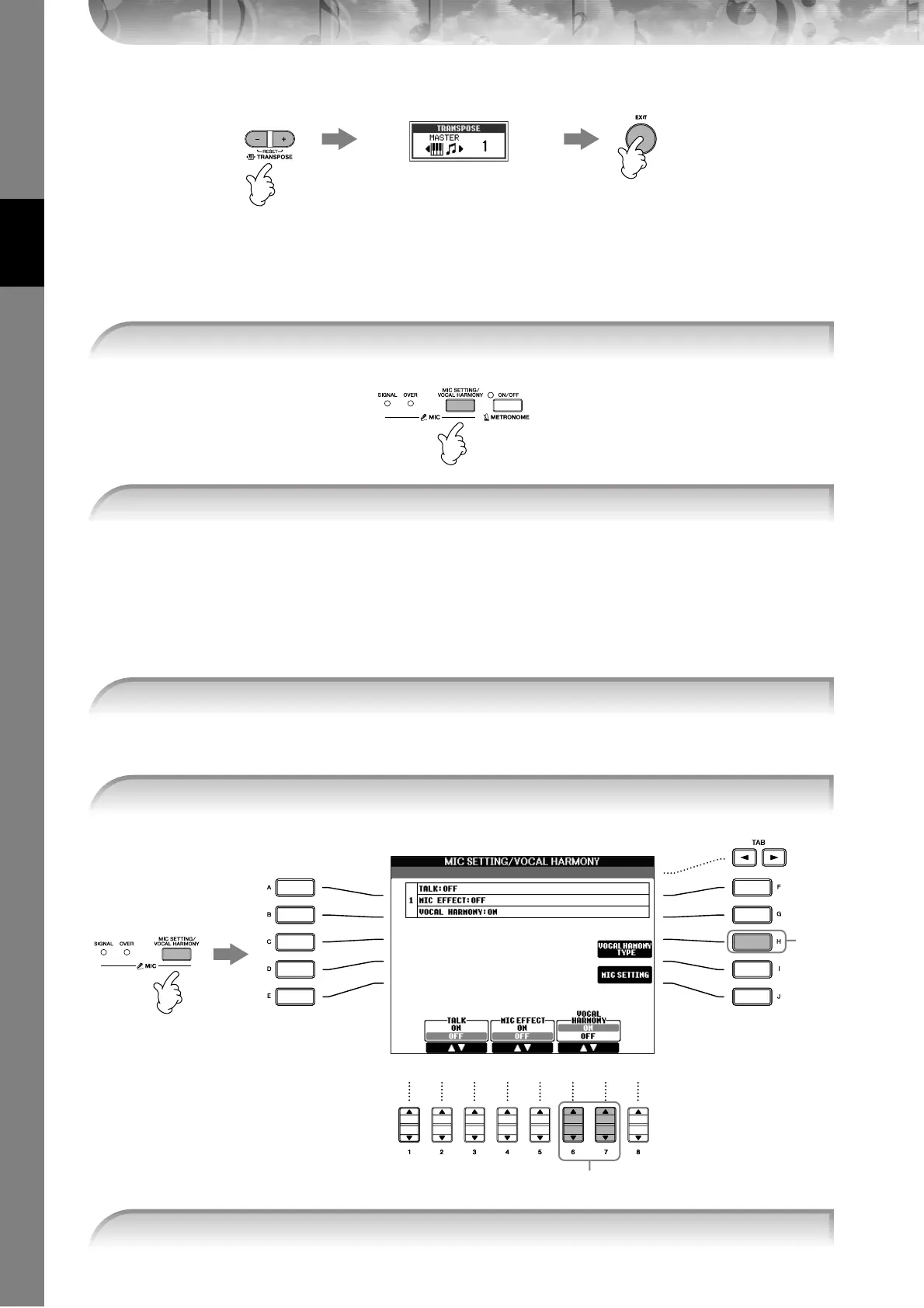
1 Press the [MIC SETTING/VOCAL HARMONY] button to call up the Mic Setting display.
2 Press the [4
ππ
ππ
††
††
]/[5
ππ
ππ
††
††
] buttons to turn the effect on.
1 Select a Song which contains chord data (page 34).
2 Press the [MIC SETTING/VOCAL HARMONY] button to call up the harmony vocals
(Vocal Harmony) Setting display.
2
3
4
3 Press the [6
ππ
ππ
††
††
]/[7
ππ
ππ
††
††
] buttons to turn the harmony vocals (Vocal Harmony) on.



 To Next Page
 Loading...