19
Chapter 2: There’s no place like Home
Quick settings
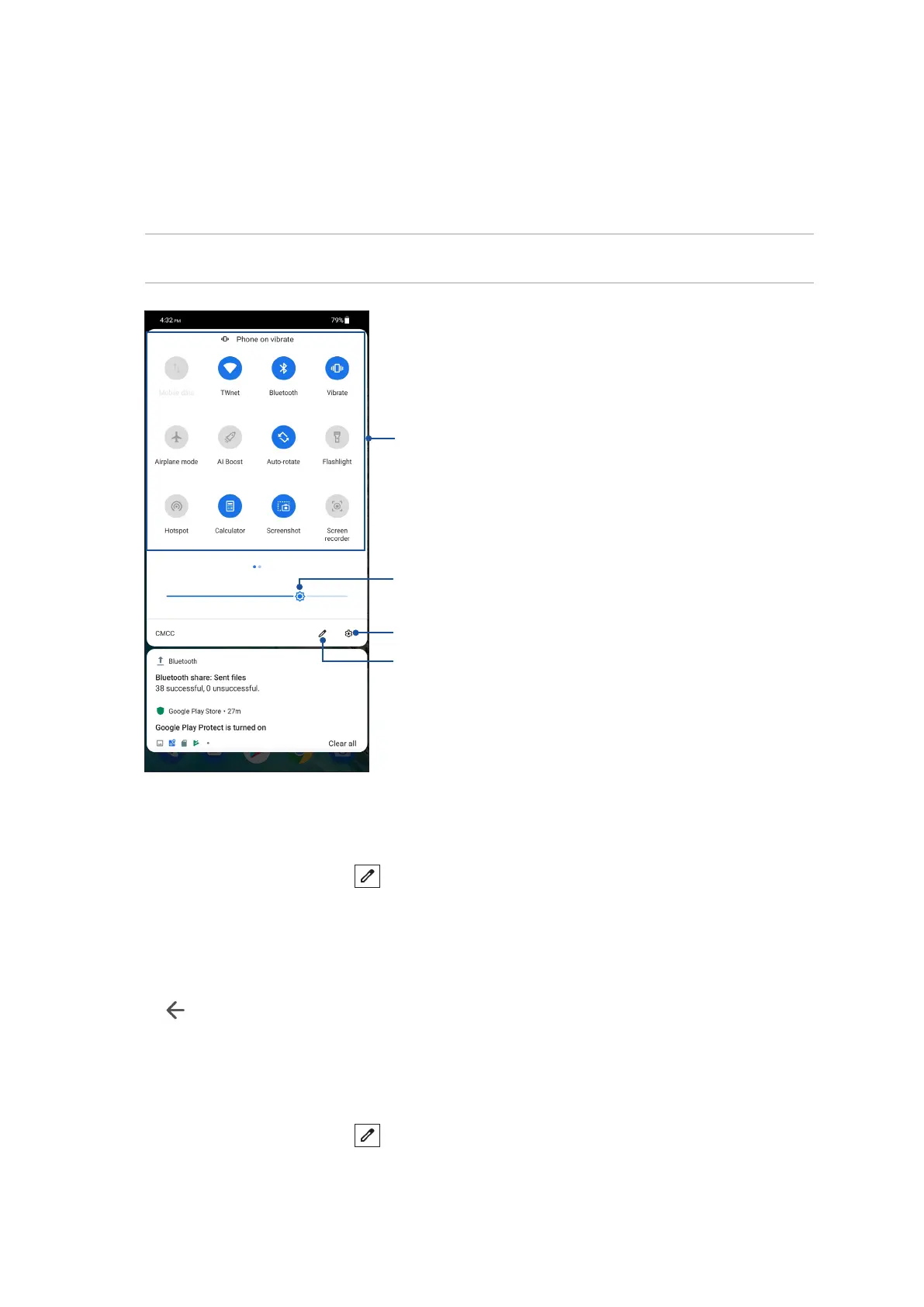
The Quick settings panel provides a one-tap access to some of the wireless features and settings of
your ASUS Phone. Each of these features are represented by an icon.
To launch the Quick settings panel, swipe down twice from the top of your screen.
NOTE: A blue icon indicates that the feature is currently enabled while a gray icon indicates a disabled
feature.
Tap these buttons to enable or disable their functions
Slide left or right to adjust the screen’s brightness
Tap to open Settings
Adding features
ToaddfeaturesfromtheQuickSettingspanel:
1. Launch Quick settings then tap .
2. Swipe up Hold and drag to add tiles.
3. Under Hold and drag to add tiles, tap and drag an icon up to add it to the Quick Settings panel.
4. Tap to go back and view the current Quick Settings panel.
Removing features
ToremoveexistingfeaturesfromtheQuickSettingspanel:
1. Launch Quick settings then tap .
2. Tap and drag an icon below Hold and drag to add tiles to remove it from the Quick Settings
panel.
Tap to select/deselect items to display in Quick settings


 To Next Page
 Loading...