Two-Sided Copying/Printing
3-48
3
Basic Copying and Mail Box Features
3
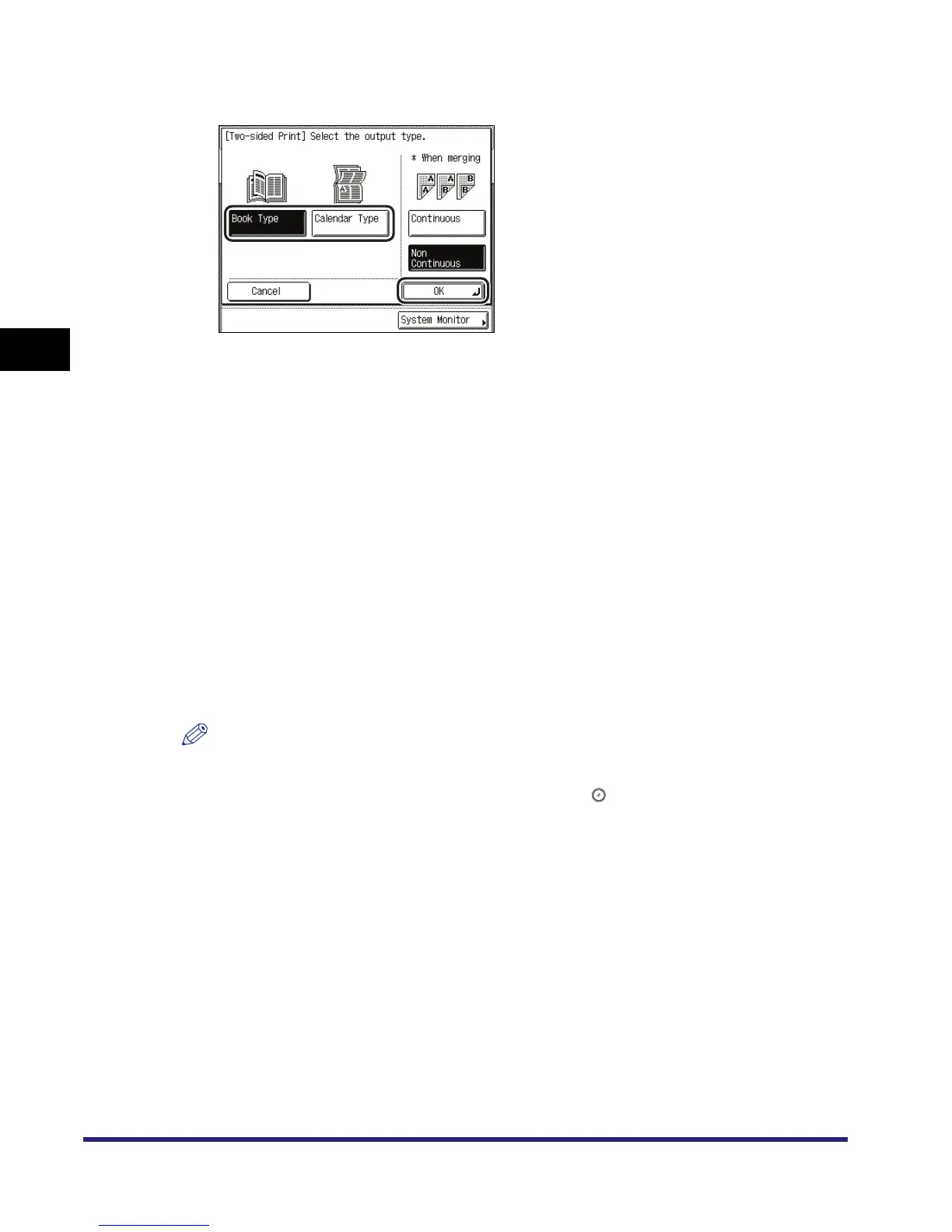
Select the desired orientation ➞ press [OK].
Details of each item are shown below.
If you want to print the first page of each document on the front when documents are merged
and the Finisher mode is selected (except for [Group]), press [Non Continuous].
If you want to print continuously without inserting any blank pages between the documents,
press [Continuous].
The selected mode is set, and the display returns to the Change Print Settings screen.
4
Press [Start Print].
If there is a current or reserved print job, the document is placed in the queue and is printed
after the current or reserved job is complete.
Printing starts.
NOTE
•
To cancel this setting, press [Two-sided Printing]
➞
[Cancel].
•
To cancel all settings and return the machine to Standard Local Print Settings, press [Initial
Settings]. To return to the Inbox Selection screen, press .
[Book Type]: The front and back sides of the copy will have the same top-bottom
orientation.
[Calendar Type]: The front and back sides of the copy will have opposite top-bottom
orientations.


 To Next Page
 Loading...