24 Setting Up the Monitor
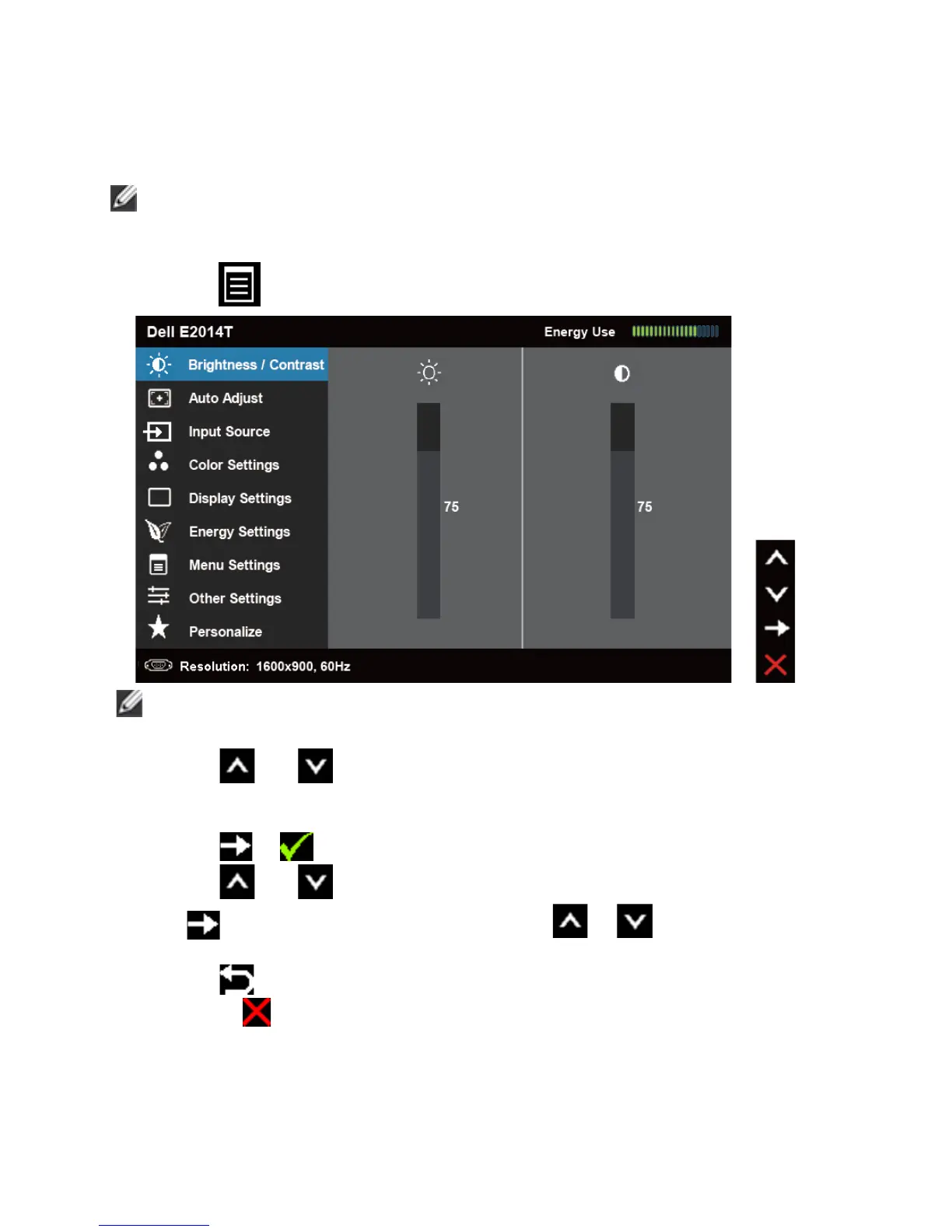
Using the On-Screen Display (OSD) Menu
Accessing the Menu System
NOTE: Any changes you make using the OSD menu are automatically saved
if you move to another OSD menu, exit the OSD menu, or wait for the OSD
menu to disappear.
1. Press the
button to launch the OSD menu and display the main menu.
NOTE: Auto Adjust feature is only available when you use the VGA
connector.
2. Press the and buttons to move between the OSD menu options. As
you move from one icon to another, the option name is highlighted. See the
following table for a complete list of all the options available for the monitor.
3. Press the or button once to activate the highlighted option.
4. Press the and buttons to select the desired parameter.
5. Press to enter the slide bar and then use the or button, according
to the indicators on the menu, to make your changes.
6. Press the button once to return to the main menu to select another option
or press the
button two or three times to exit from the OSD menu.


 To Next Page
 Loading...