14Making Connections
2. After you install File Transfer, follow these steps:
If you are using File Transfer for the first time, double tap it to open it.
After you start File Transfer once, it opens automatically whenever you
connect your Sero 8 to your computer.
Connect your Sero 8 to your computer with a Micro-USB cable.
File Transfer starts, if it’s not already running, and opens a window that
displays the contents of your Sero 8, along with storage space details at the
bottom of the window.
3. You work with this window much as if it was a Finder window: opening and
closing folders, creating new folders, and dragging files to or from it and
other Finder windows.
4. Disconnect the USB cable when you’re finished.
Connect to a Keyboard, a Mouse & Other Devices
You can connect a keyboard, a mouse or other input devices to your Sero 8 via
USB and use it just as you would with a PC.
Tip: To set the Pointer speed, go to Settings > PERSONAL > Language & input
> Mouse/trackpad > Pointer speed.
NOTE
You may need an adapter to connect the keyboard or other device to
your Sero 8’s USB port.
Micro SD Card
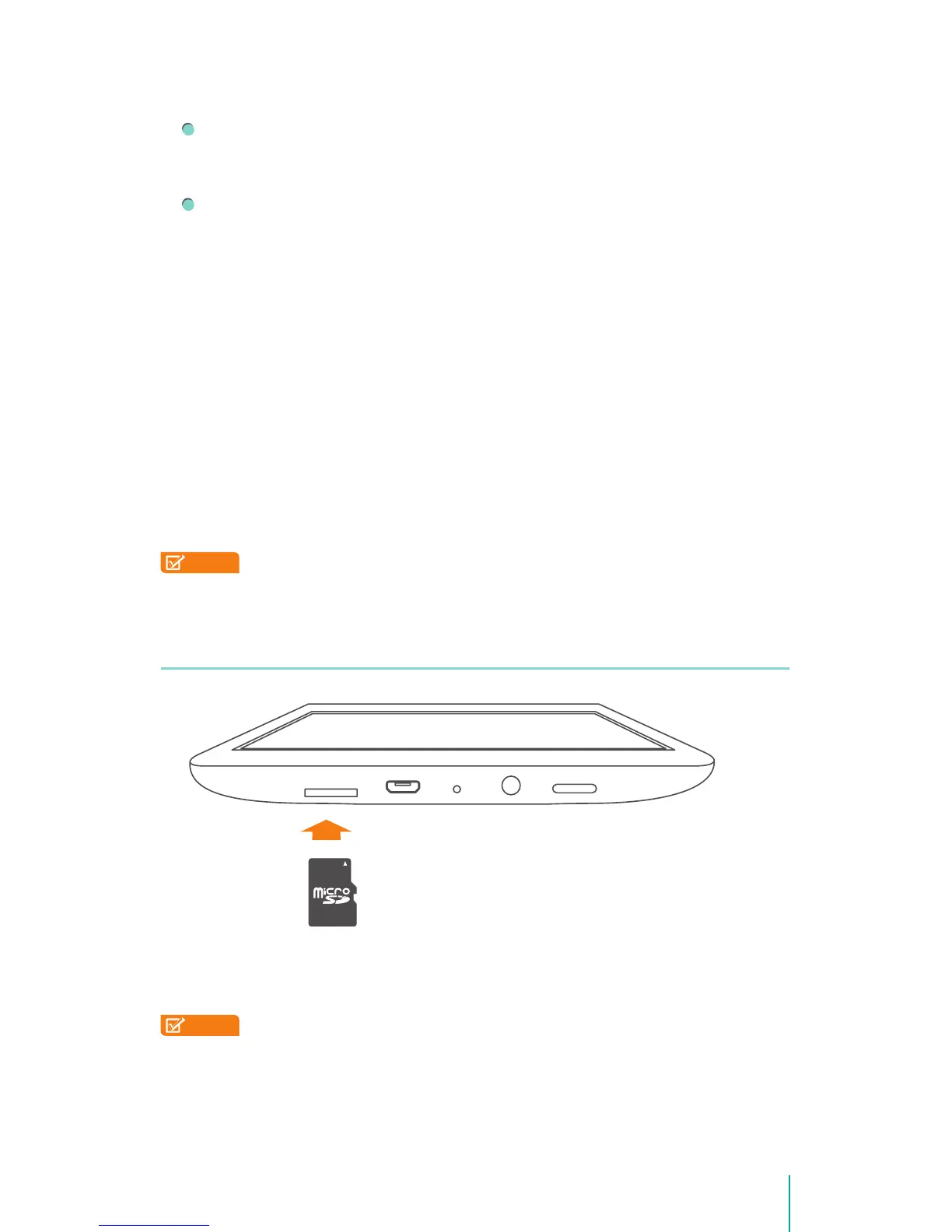
Insert the microSD card contacts facing down into the Sero 8’s Micro SD port.
To check the storage of microSD card, go to Settings > DEVICE > Storage.
NOTES
• You can use a microSD
TM
card and microSDHC
TM
card.
• Never remove or insert a microSD card while the Sero 8 is powered on.
microSD
Card


 To Next Page
 Loading...