Playing back images automatically
Playing back images automatically
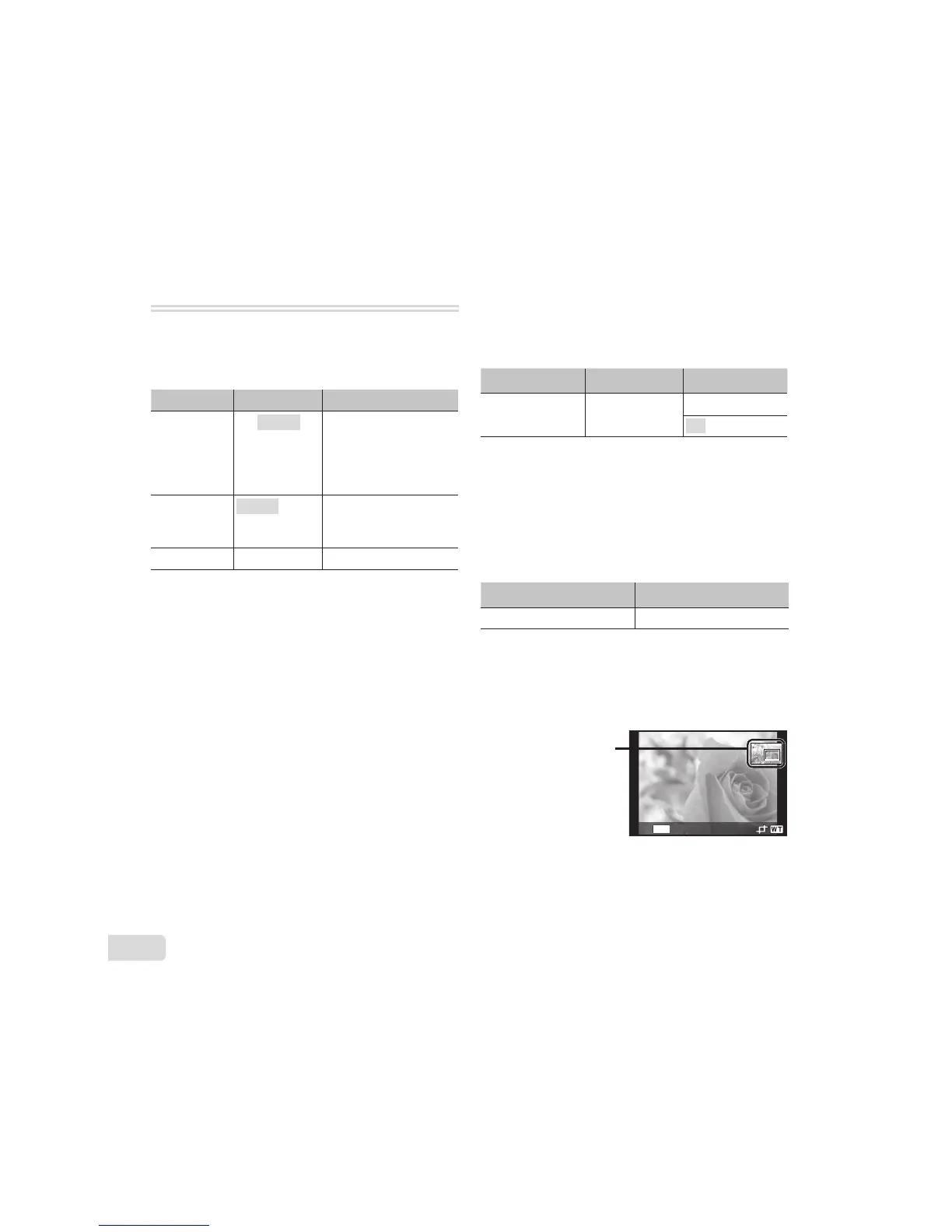
[Slideshow]
Submenu 2 Submenu 3 Application
BGM
Off/Cosmic/
Breeze/
Mellow/
Dreamy/
Urban
Selects the
background music
options.
Type
Normal/
Fader/
Zoom
Selects the type of
transition effect used
between slides.
Start ʊ Starts the slideshow.
Ɣ During a slideshow, press I to advance one
frame, H to go back one frame.
Ɣ Press the button or the i button to stop
the slideshow.
]
This saves a high-resolution image as a separate
image with a smaller size for use in e-mail
attachments and other applications.
Submenu 1 Submenu 2 Submenu 3
Edit
Q
n
9
1 Use HI to select an image.
2 Use FG to select an image size and press the
A button.
Ɣ The resized image is saved as a separate
image.
]
Submenu 1 Submenu 2
Edit
P
1 Use HI to select an image, and press the A
button.
2 Use the zoom buttons to select the size of the
cropping frame, and use FGHI to move the
frame.
Cropping frame
MENU
Back
3 Press the A button after you have selected the
area to trim.
Ɣ The edited image is saved as a separate
image.


 To Next Page
 Loading...