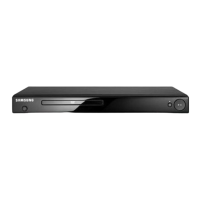
Display Indicators Description-Rear Panel
2 3
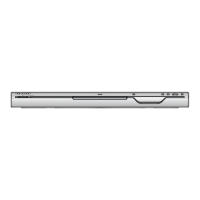
_ Front Panel Display 1
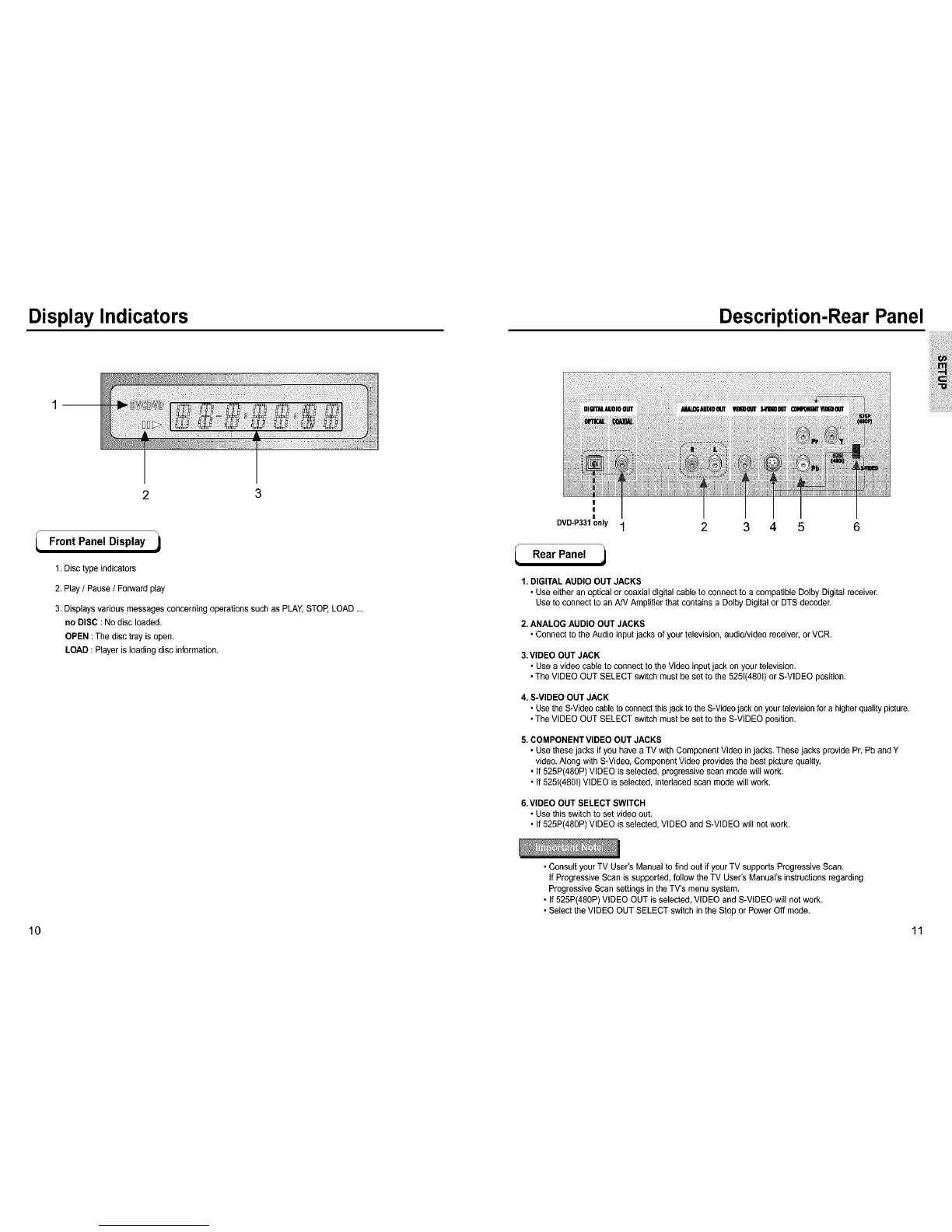
1. Disc type indicators
2, Play / Pause / Forward play
3, Displays various messages concerning operations such as PLAY,STOP,LOAD _,
no DISC : No disc loaded.
OPEN :The disc tray is open.
LOAD : P_ayeris loading disc information,
|
I
DVD*P331 only
Rear Panel _1
I
2
I I
3 4
I
5
6
I. DIGITAL AUDIO OUT JACKS
• Use either an optical or coaxial digital cabte to connect to a compatible Dolby Digital receiver,
Use to connect to an AN Amplifier that contains a Dolby Digita_or DTS decoder.
2.ANALOG AUDIO OUT JACKS
• Connect to the Audio input jacks of your television, audio/video receiver, or VCR.
3.VIDEO OUT JACK
• Use a video cable to connect to the Video input jack on your television.
• The VIDEO OUT SELECT switch must be set to the 5251(4801)or S-VIDEO position.
4. S-VIDEO OUT JACK
• Use the S-Video cable to connect thisjack to the S-Videojack onyourtelevisionfor a higher quality picture.
• The VIDEO OUT SELECT switch must be set to the S-VIDEO position,
5. COMPONENT VIDEO OUT JACKS
• Use these jacks if you have a TV with Component Video injacks. These jacks provide Pr, Pb and Y
video. Along with S-Video, Component Video provides the best picture quality,
• If 525P(48gP) VIDEO is selected, progressive scan mode will work,
• If 5251(4801)VIDEO is selected, interlaced scan mode wil_work.
6.VIDEO OUT SELECT SWITCH
• Use this switch to set video oat.
• If 525P(480P) VIDEO is selected, VIDEO and S-VIDEO wil_notwork.
• Consult your TV User's Manaa{ to find oat ifyour TV supports Progressive Scan,
If Progressive Scan is supported, follow the TV User's Manual's instructionsregarding
Progressive Scan settings in the TV's menu system.
• If 525P(480P) V_DEO OUT is selected, VIDEO and S-V_DEO will not work.
• Select the VIDEO OUT SELECT switch in the Stop or Power Off mode,
10 11


 To Next Page
 Loading...