English _41
RECORDING VIDEOS ON A DISC
• This function is available in DISC Record mode.
page 26
• You can record videos using the remote control. (SC-DX205 only)
page 18
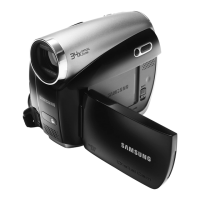
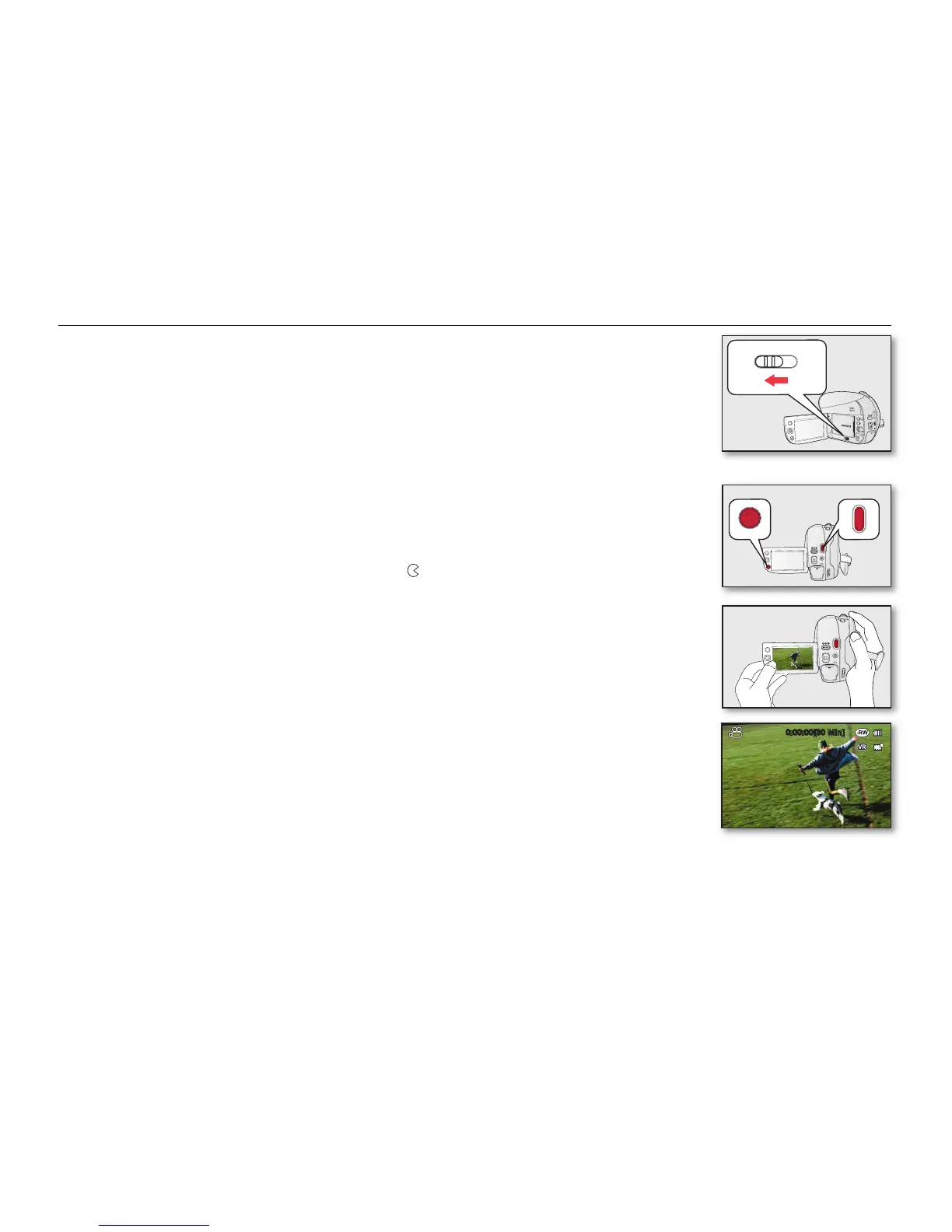
• This DVD camcorder provides two Recording start/stop buttons. One is on the rear
side of the camcorder and the other is on the LCD panel. Select the Recording start/
stop button that works best for you.
1. Turn the DVD camcorder on.
• Connect a power source to the DVD camcorder.
(A battery pack or an AC power adaptor)
• Slide the POWER switch downwards to turn the DVD camcorder on.
• Set the Storage mode switch to DISC. (SC-DX205 only)
page 38
2. Check the subject on the LCD screen. (Lens and LCD)
• Set the
Lens open/close switch to open ( ).
page 15
3. Press the Recording start/stop button.
• The (
) recording indicator will display, and recording will start.
• Press the Recording start/stop button again to stop recording.
4. When recording is finished, turn the DVD camcorder off.
0:00:00[30 Min]


 To Next Page
 Loading...