English _63
● WEB VIEWER
Item Description
h
Full Screen Switch the current video to the maximum size of the monitor.
i
Capture Saves the snapshot as an image file in the .bmp or .jpg format.
j
Audio/Microphone
Control
Enable Audio and Microphone are control the Audio volume.
`
Only the Audio volume can be controlled.
k
Alarm output Activate the Alarm Out port.
l
External PTZ
Connect the external PTZ to the RS-485 terminal and control the PTZ camera lens
direction with the arrow keys.
`
Only for SNB-6003/SNB-6004.
`
The pan/tilt operations will be enabled only if the camera is connected to a pan/
tilt-compliant receiver.
m
Hide the context
menu
The left-corner context menu will disappear but only the menu icon.
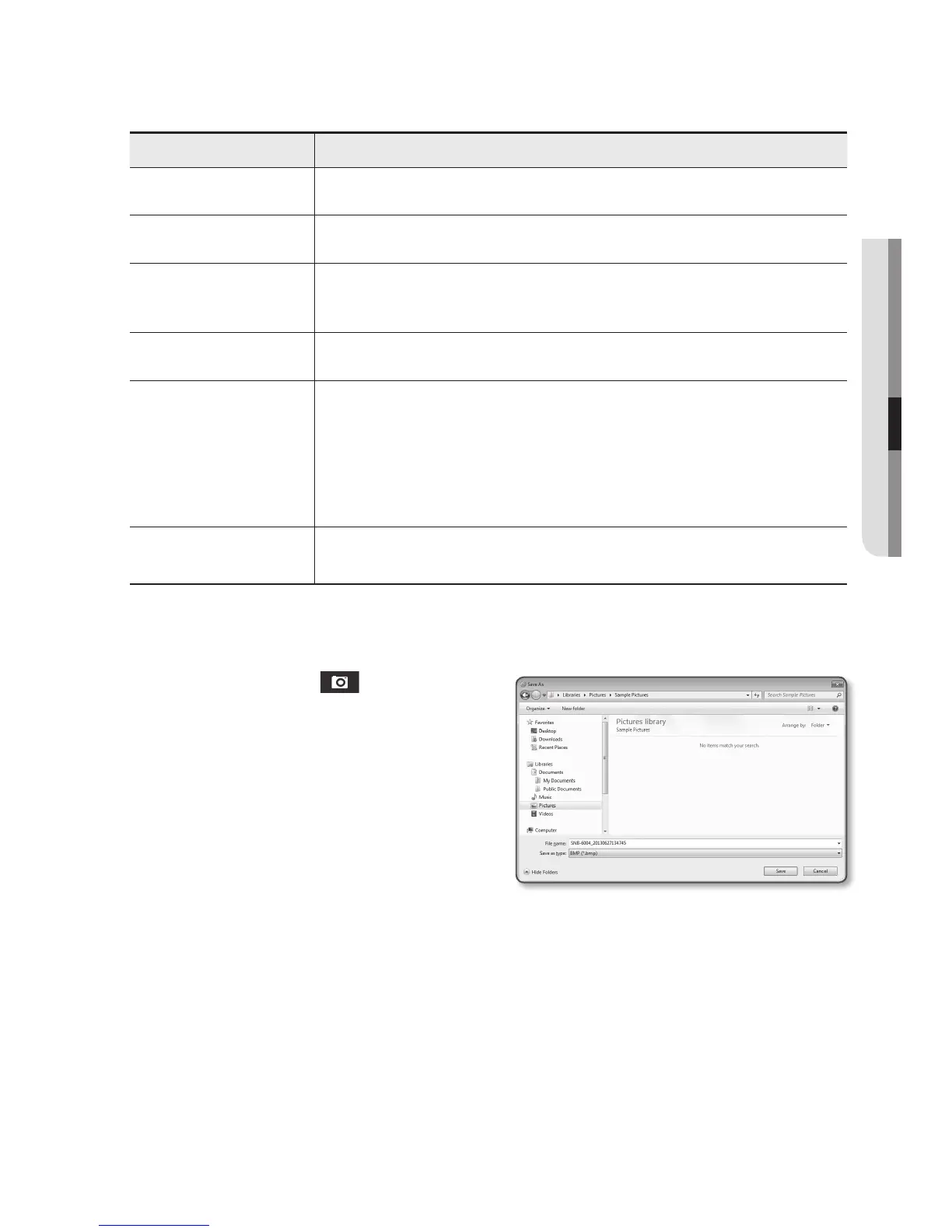
To capture the snapshot
1. Click [Capture (
)] on the scene to
capture.
The Capture dialog should appear.
2. Confirm the save path and click [
Save]
button.
The screenshot will be saved in the
specified path.
M
`
If you encounter an interrupted video
when capturing the image with IE8 on a Windows 7-based PC, deselect “Turn On Protected
Mode” from “Tools – Internet Options – Security”.
`
If the screen is not captured by IE browser in Windows 7 or 8, run the IE Browser with the Admin
privilege.


 To Next Page
 Loading...