4 Record your screen with audio
5 Access the screen recording settings
6 Close the screen recording window
To record your screen
1 Press and hold down the power key until a prompt window appears.
2 Tap .
3 After the screen recording window opens, tap . The record screen function
starts and a timer button is displayed.
4 To stop the recording, tap the timer button, then tap .
To record your screen when the front camera is activated
1 When the screen recording window opens, tap
. A window opens showing a
viewfinder for the front camera.
2 To start recording your screen and video captured by the front camera, tap
.
3 To stop recording, tap the timer button, then tap .
4 To close the front camera viewfinder window, tap
.
To view recent screen recordings
• Drag the status bar downward, then tap to view the most recent recordings of
your screen.
You can also view your screen recordings in the Album application.
Notifications
Notifications inform you of events such as new messages and calendar notifications as
well as activities in progress, such as file downloads. Notifications appear in the following
places:
• The status bar
• The Notification panel
• The lockscreen
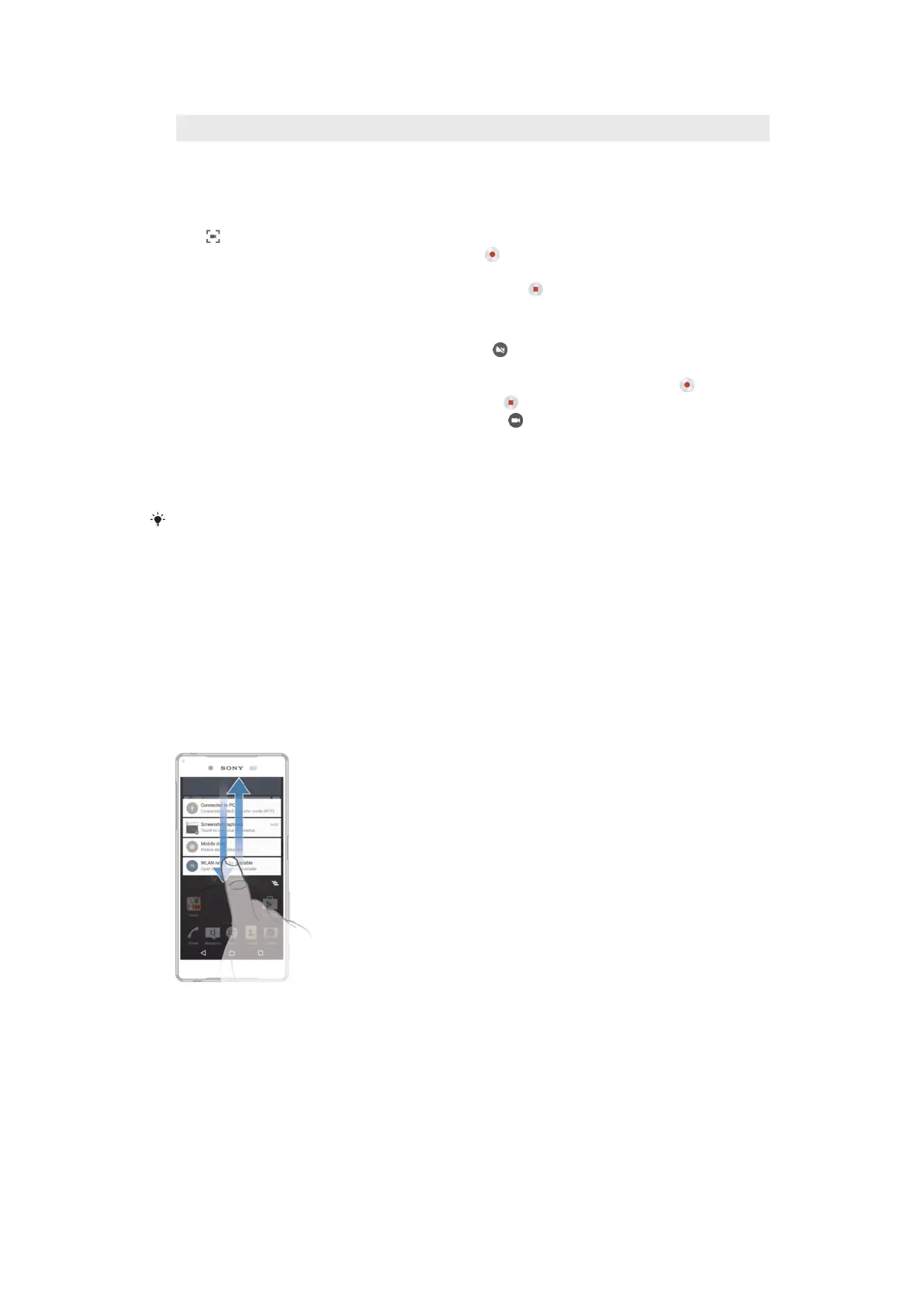
To open or close the Notification panel
1 To open the Notification panel, drag the status bar downward.
2 To close the Notification panel, drag the panel upward.
To Take Action on a Notification in the Notification Panel
• Tap the notification.
To dismiss a notification from the Notification panel
• Place your finger on a notification and flick left or right.
34
This is an Internet version of this publication. © Print only for private use.


 To Next Page
 Loading...




