For Windows 8.1
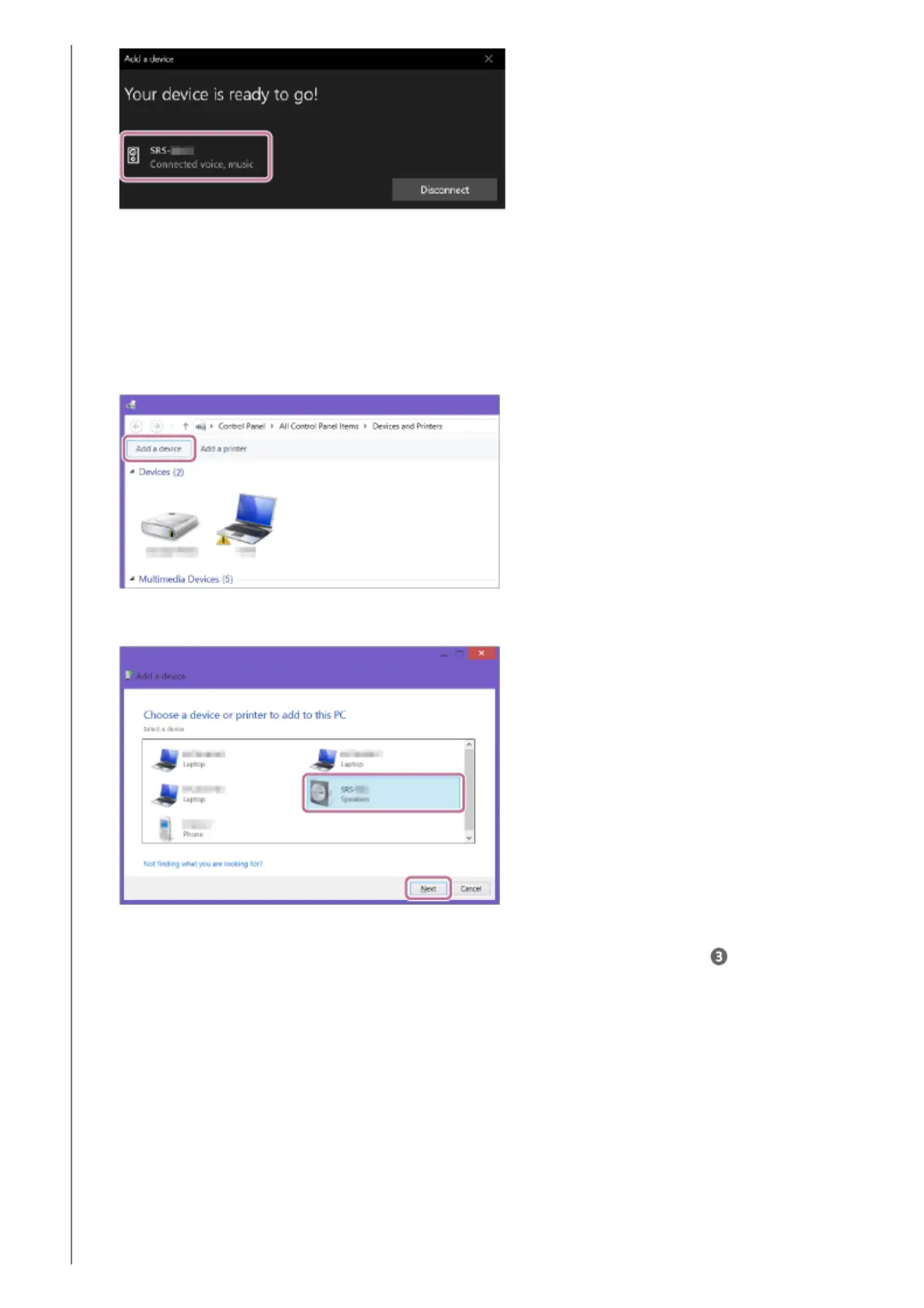
Right-click on [Start], and then click [Control Panel].
When [All Control Panel Items] is displayed, select [Devices and Printers].
If the [Control Panel] screen appears instead of [All Control Panel Items], select [Large icons] or [Small icons]
from the [View by] menu in the top right corner of the screen.
1.
Click [Add a device].
2.
Select [SRS-XP700] or [SRS-XP500] and click [Next].
If a passkey
*
is required, enter “0000.”
If [SRS-XP700] or [SRS-XP500] does not appear, perform the operation again from step
.
3.
The passkey may be called a “passcode,” “PIN code,” “PIN number,” or “password.”
*
When the following screen appears, click [Close].
The computer begins installing the driver.
4.


 To Next Page
 Loading...