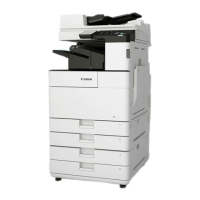
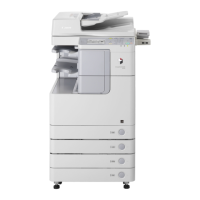
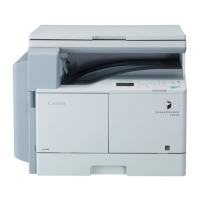
32 Basic Copying
Basic Copying
This section describes the flow of basic copy operations. For more details, see e-Manual > Copy.
NOTE
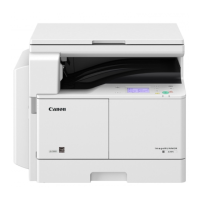
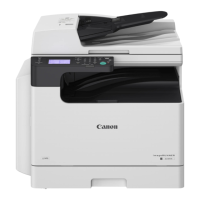
The optional feeder (DADF-AM1) can only be attached to the imageRUNNER 2202N/2002N.
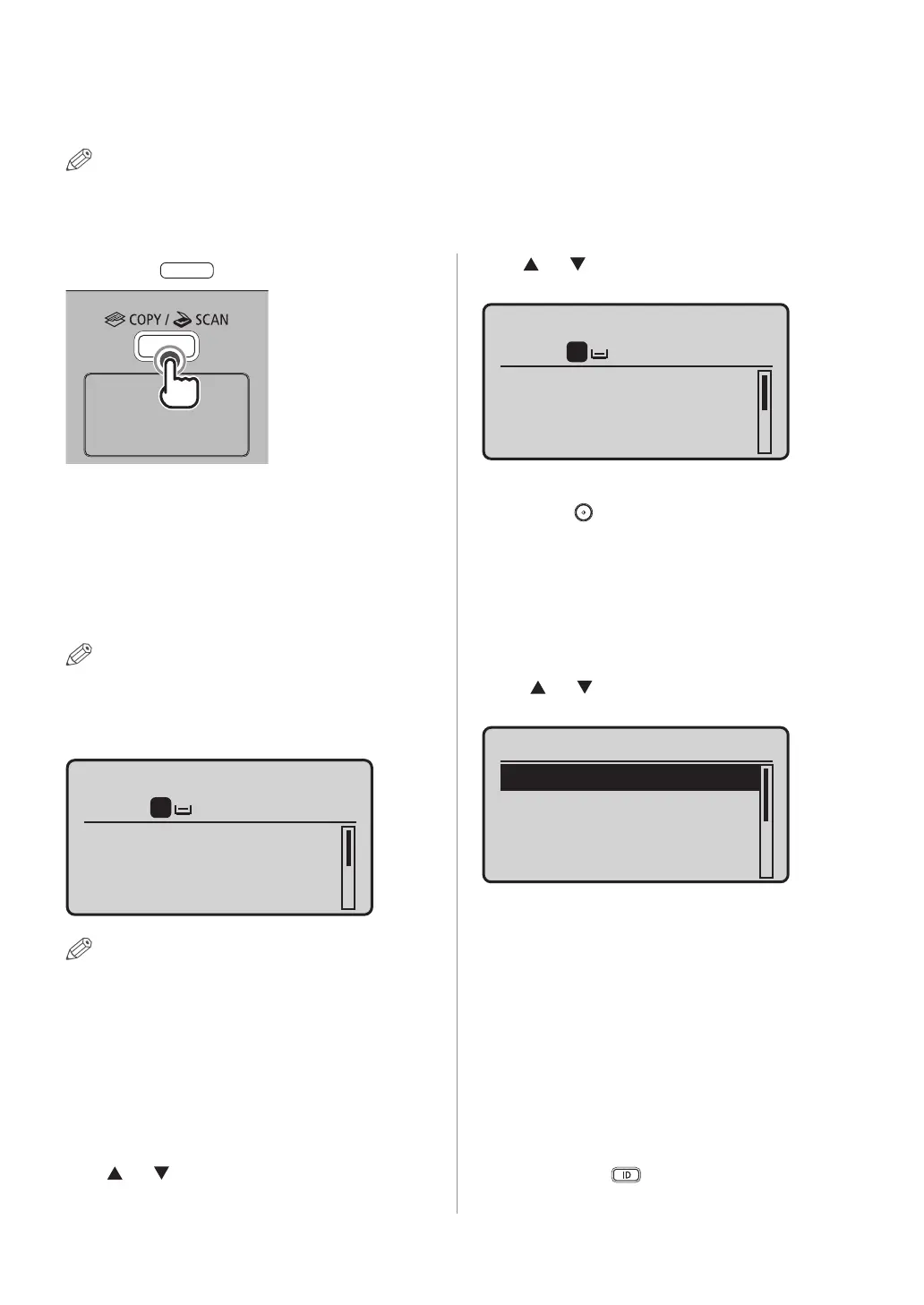
01 Press [ ] (COPY/SCAN).
For the imageRUNNER 2202N/2002N:
If a log in screen for Department ID Management
appears, you must enter the applicable authentication
information (ID, password/PIN).
02 Place your originals.
NOTE
For help, see e-Manual > Basic Operations.
03 Specify the desired copy settings.
Copy: Press Start
100% A4
Density: 0
Original Type: Text
2-Sided: Off
+
-
01
1
NOTE
For more information on specifying copy settings, see
e-Manual > Copy.
04 Enter the required number of copies.
For the imageRUNNER 2202N/2002N:
Enter the copy quantity (1 to 99) using numeric keys.
For the imageRUNNER 2002:
Press [
] or [ ] to highlight <Number of Copies>, and
then press [OK].
Press [
] or [ ] to enter the required number of copies
(1 to 99).
Copy: Press Start
100% A4
Density: 0
Original Type: Text
2-Sided: Off
+
-
01
1
05 Press [ ] (Start).
■ If the original is placed in the optional feeder:
Copying starts.
• Proceed to step 6.
■ If the original is placed on the platen glass:
• Use [ ] or [ ] to select the size of the placed original
→ press [OK].
Paper Size
A4
A4R
A3
A5
Copying starts.
06 If you want to start copying the next
original while printing for the current job is
in progress, repeat steps 2 to 5.
07 When copying is complete, remove
your originals.
For the imageRUNNER 2202N/2002N:
If a login service such as Department ID Management
has been set, press [
] (Log In/Out) to log out.


 To Next Page
 Loading...