64
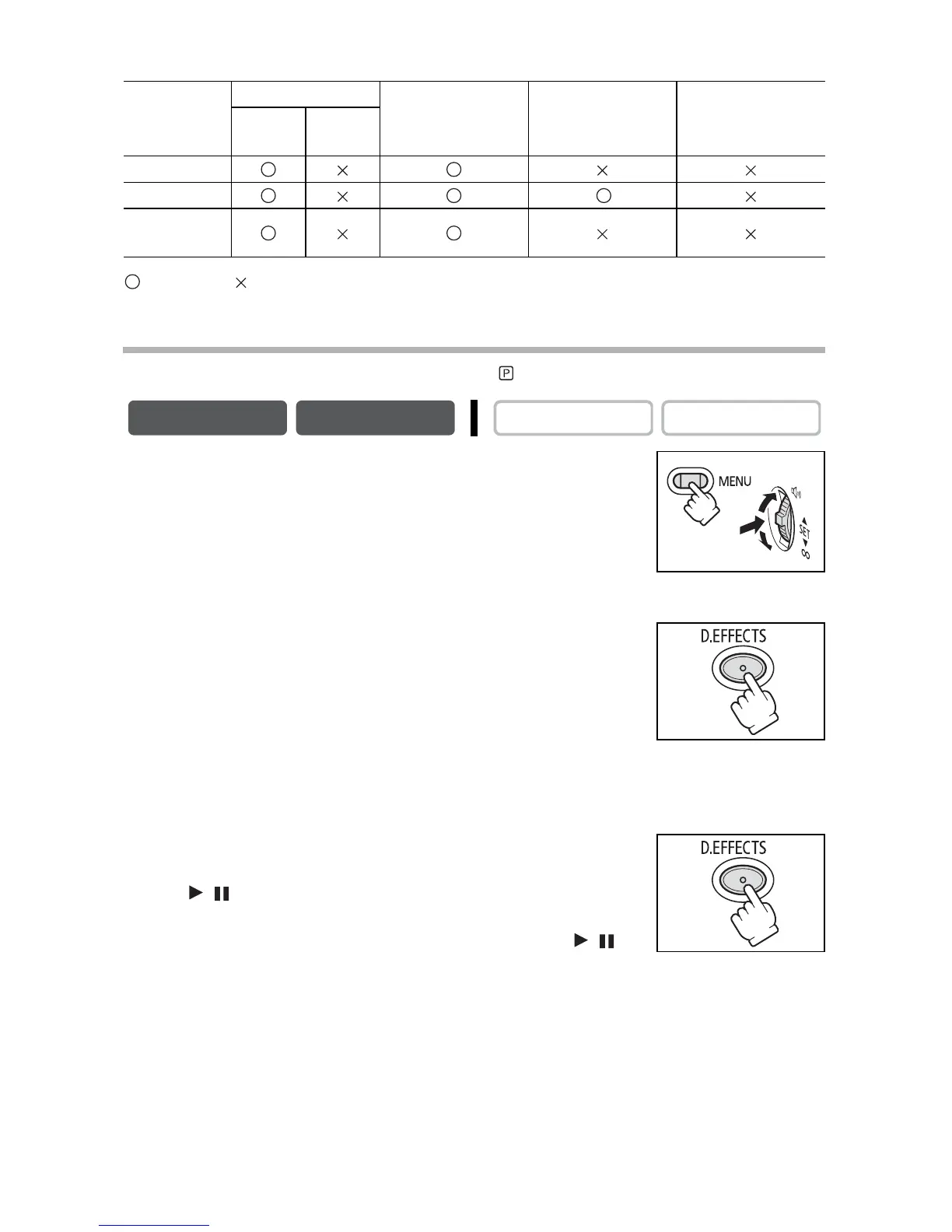
Availability of Digital Effects by Operating Modes:
: Available : Not available
* : Black and White only.
Selecting a Fader
In CAMERA mode, set the program selector to .
1. Open the menu and select [D.EFFECT SETUP].
2. Select [D.E.SELECT] and set it to [FADER].
3. Select [FADER TYPE], select a setting option and
close the menu.
The name of the selected fader flashes.
CAMERA mode:
4. Fade in: In record pause mode, press the
D.EFFECTS button and begin recording by pressing
the start/stop button.
Fade out: During recording, press the D.EFFECTS
button and pause recording by pressing the start/
stop button.
The fader can be activated/deactivated by pressing the D.EFFECTS button.
PLAY (VCR) mode:
4. Fade in: In playback pause mode, press the
D.EFFECTS button and begin playback by pressing
the / button.
Fade out: During playback, press the D.EFFECTS
button and pause playback by pressing the /
button.
The fader can be activated/deactivated by pressing the D.EFFECTS button.
CAMERA
PLAY (VCR) CARD CAMERA CARD PLAY
Movies
Still
Images
Faders
Effects *
Multi-image
screen
CAMERA PLAY (VCR)
CARD CAMERA CARD PLAY


 To Next Page
 Loading...