Removing the power button with optional
fingerprint reader
NOTE: Before working inside your computer, read the safety information that shipped with your computer and follow
the steps in Before working inside your computer. After working inside your computer, follow the instructions in After
working inside your computer. For more safety best practices, see the Regulatory Compliance home page at www.dell.com/
regulatory_compliance.
Prerequisites
1. Remove the base cover.
2. Remove the battery.
3. Remove the solid-state drive.
4. Remove the fans.
5. Remove the system board.
Procedure
NOTE:
If the power button does not include the fingerprint reader, perform only steps 1 and 3. Complete all steps if the
power button includes the fingerprint reader.
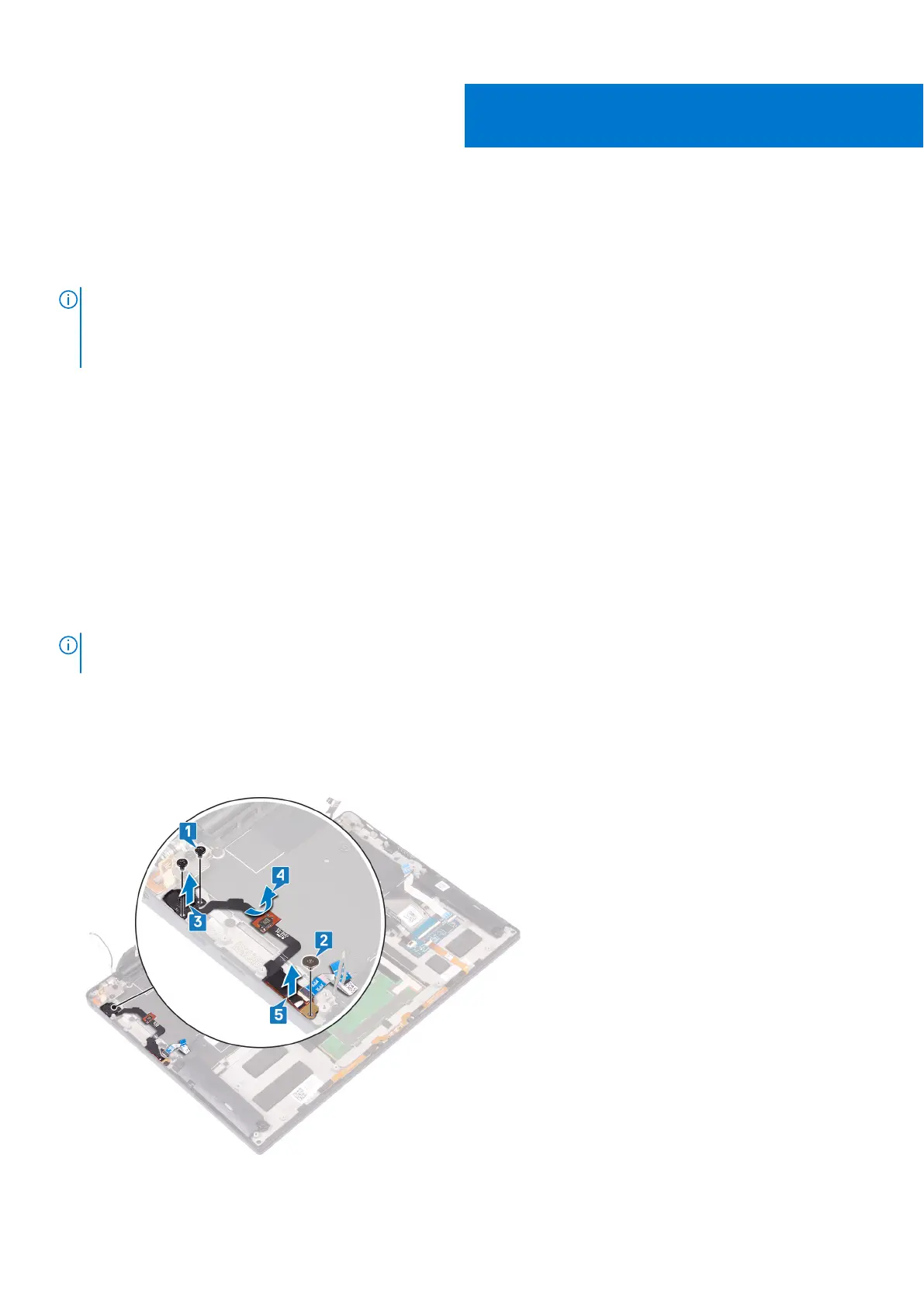
1. Remove the two screws (M1.4x1.7) that secure the power button to the palm-rest assembly.
2. Remove the screw (M1.6x1.5) that secures the fingerprint-reader board to the palm-rest assembly.
3. Lift the power button from the palm-rest assembly.
4. Peel and lift the power button cable from the keyboard.
5. Lift the fingerprint-reader board from the palm-rest assembly.
28
54 Removing the power button with optional fingerprint reader


 To Next Page
 Loading...