54
1. Visit http://tplinkwifi.net, and log in with your TP-Link ID or the password you set for
the router.
2. Go to Advanced > Wireless > WPS .
10. 7. 1. Set the Router’s PIN
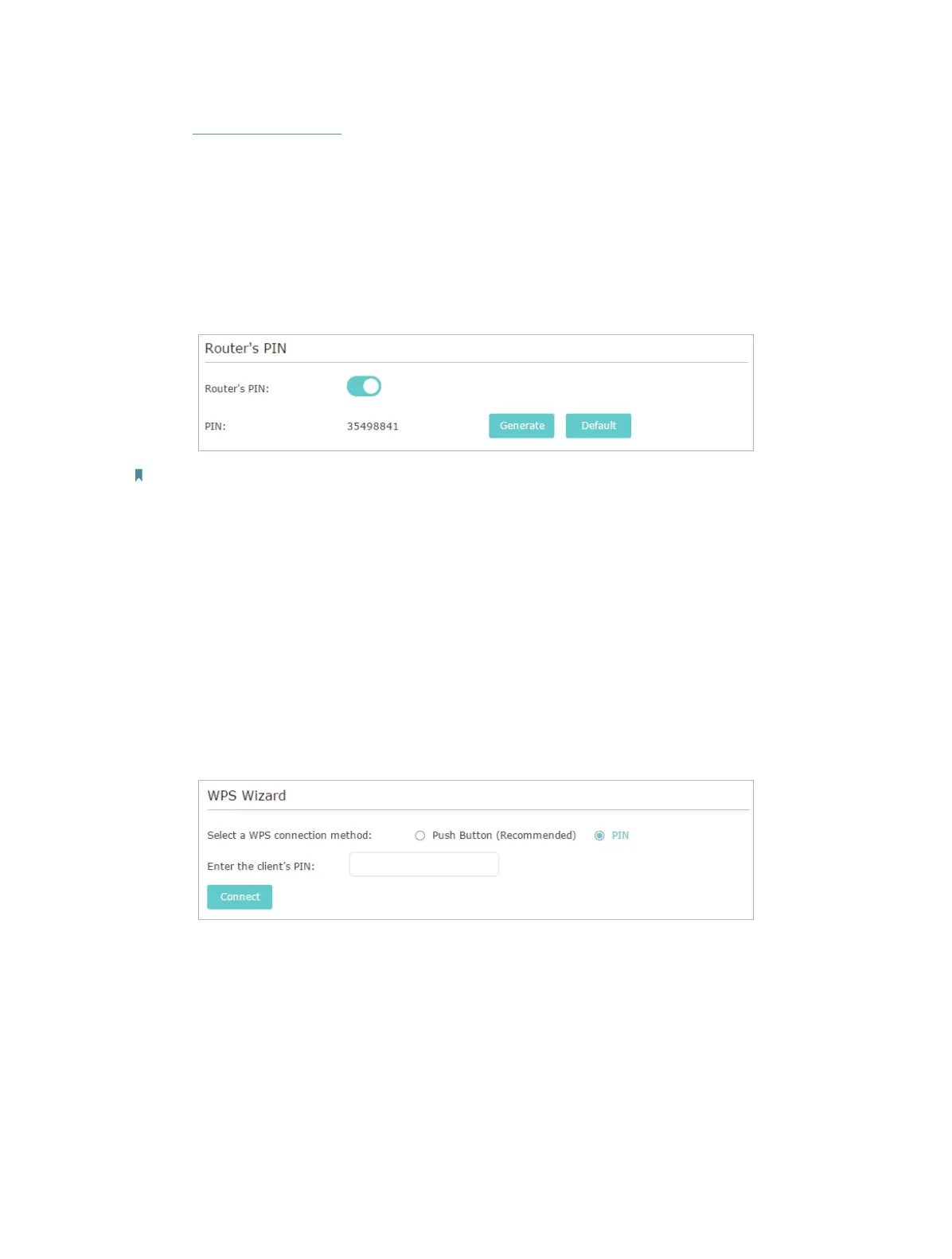
Router’s PIN is enabled by default to allow wireless devices to connect to the router
using the PIN. You can use the default one or generate a new one.
Note:
• If you want to enable/disable the WPS feature, go to System Tools > System Parameters > WPS, check
or uncheck the box for Enable WPS.
• PIN (Personal Identification Number) is an eight-character identification number preset to each router.
WPS supported devices can connect to your router with the PIN. The default PIN is printed on the label
of the router.
10. 7. 2. Use the WPS Wizard for Wi-Fi Connections
1. Select a setup method:
• Push Button(Recommended): Click Connect on the screen. Within two minutes,
press the WPS button on the client device.
• PIN: Enter the client’s PIN, and click Connect.
2. Success will appear on the above screen and the WPS LED on the router will keep on
for five minutes if the client has been successfully added to the network.



 To Next Page
 Loading...