68
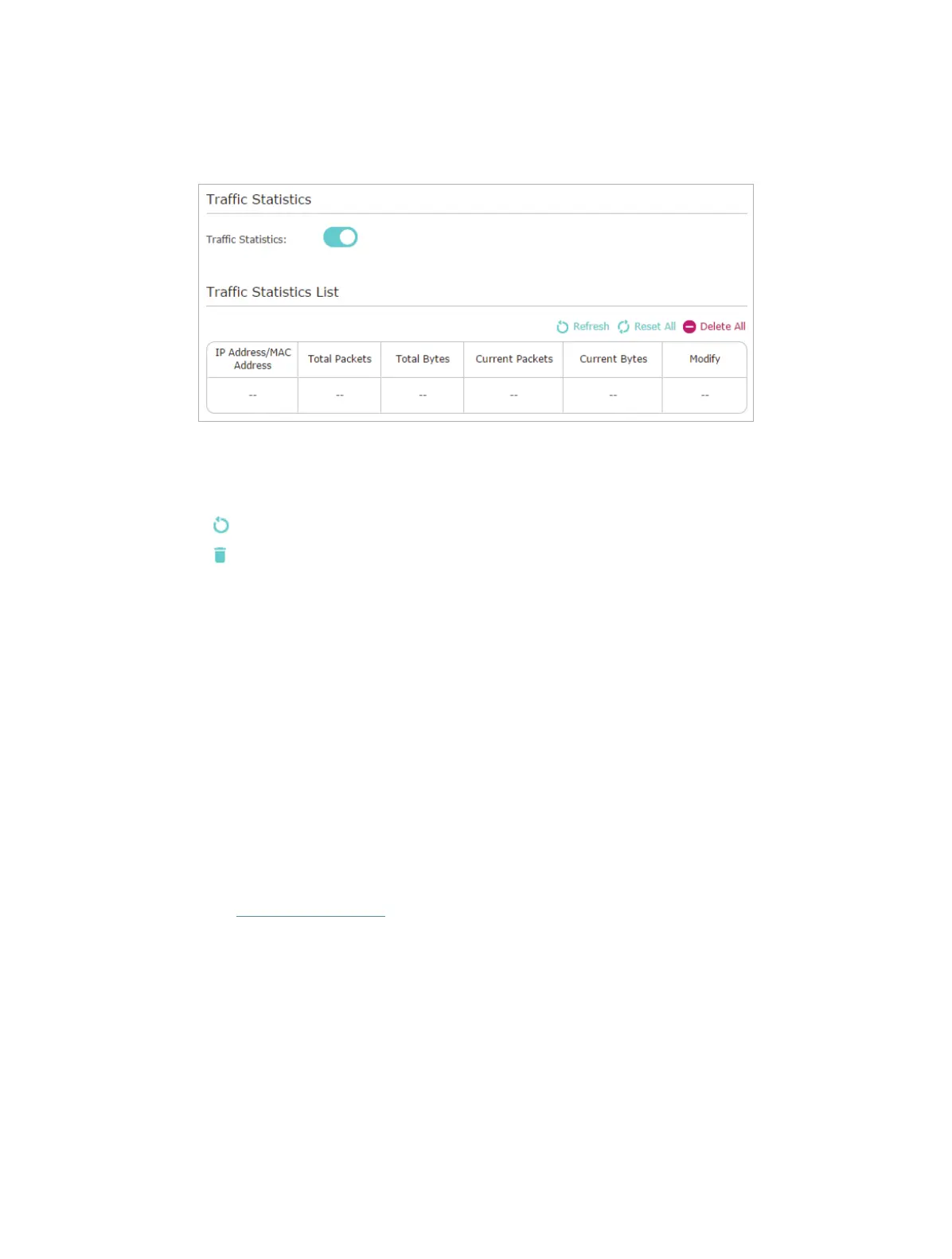
3. Toggle on Traffic Statistics, and then you can monitor the traffic statistics in Traffic
Statistics List section.
Click Refresh to update the statistic information on the page.
Click Reset All to reset all statistic values in the list to zero.
Click Delete All to delete all statistic information in the list.
Click
to reset the statistic information of the specific device.
Click
to delete the specific device item in the list.
11. 11. Control LEDs
The router‘s LEDs indicate router’s activities and status. You can turn on or turn off the
LEDs either from the web management page or by pressing the LED button.
¾ To turn on or off the LEDs:
• Press the LED button on the router (if available) about 2 seconds to turn on or off the
LEDs.
• Visit http://tplinkwifi.net, and log in with your TP-Link ID or the password you set for
the router. Click the LED icon in the top right corner of the page.
¾ To turn off LEDs during Night Mode Period:
1 ) Visit http://tplinkwifi.net, and log in with your TP-Link ID or the password you set
for the router.
2 ) Go to Advanced > System Tools > System Parameters.
3 ) In the LED Control section, check the box for Enable Night Mode.
4 ) Specify a time period in the Night Mode Period as needed, and the LEDs will be
off during this period.
5 ) Click Save.


 To Next Page
 Loading...