62
2. Wait a few minutes for the resetting and rebooting.
Note:
• During the resetting process, do not turn off or reset the router.
• We strongly recommend you backup the current configuration settings before resetting the router.
11. 5. Change the Administrator Account
The account management feature allows you to change your login username and
password of the web management page.
1. Visit http://tplinkwifi.net, and log in with your TP-Link ID or the password you set for
the router.
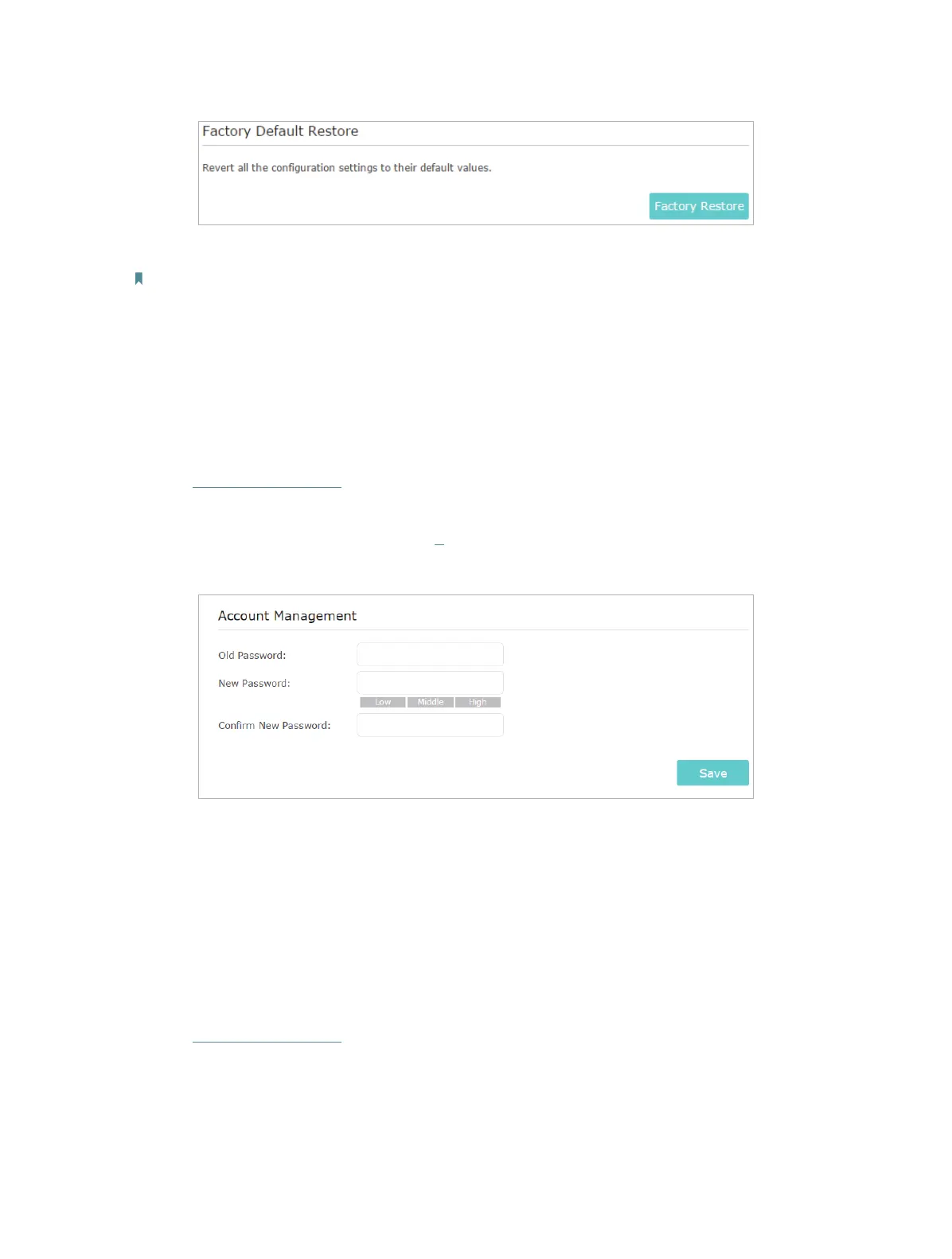
2. Go to Advanced > System Tools > Administration and focus on the Account
Management section.
3. Enter the old password, then a new password twice (both case-sensitive). Click Save.
4. Use the new username and password for the following logins.
11. 6. Password Recovery
This feature allows you to recover your default login username and password in case
you forget them.
1. Visit http://tplinkwifi.net, and log in with your TP-Link ID or the password you set for
the router.
2. Go to Advanced > System Tools > Administration and focus on the Password
Recovery section.
3. Check the box for Enable Password Recovery.


 To Next Page
 Loading...