Home > Scan > Scan from Your Computer (Macintosh) > Scan Using ControlCenter2 (Macintosh) > Scan
Both Sides of a Document Automatically Using ControlCenter2 (Macintosh)
Scan Both Sides of a Document Automatically Using ControlCenter2
(Macintosh)
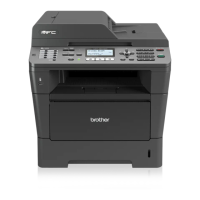
Related Models: MFC-8540DN
1. Load documents in the ADF.
To scan both sides of a document automatically, you must use the ADF, not the flatbed scanner glass.
2. In the Finder menu bar, click Go > Applications > Brother, and then double-click the
(ControlCenter) icon.
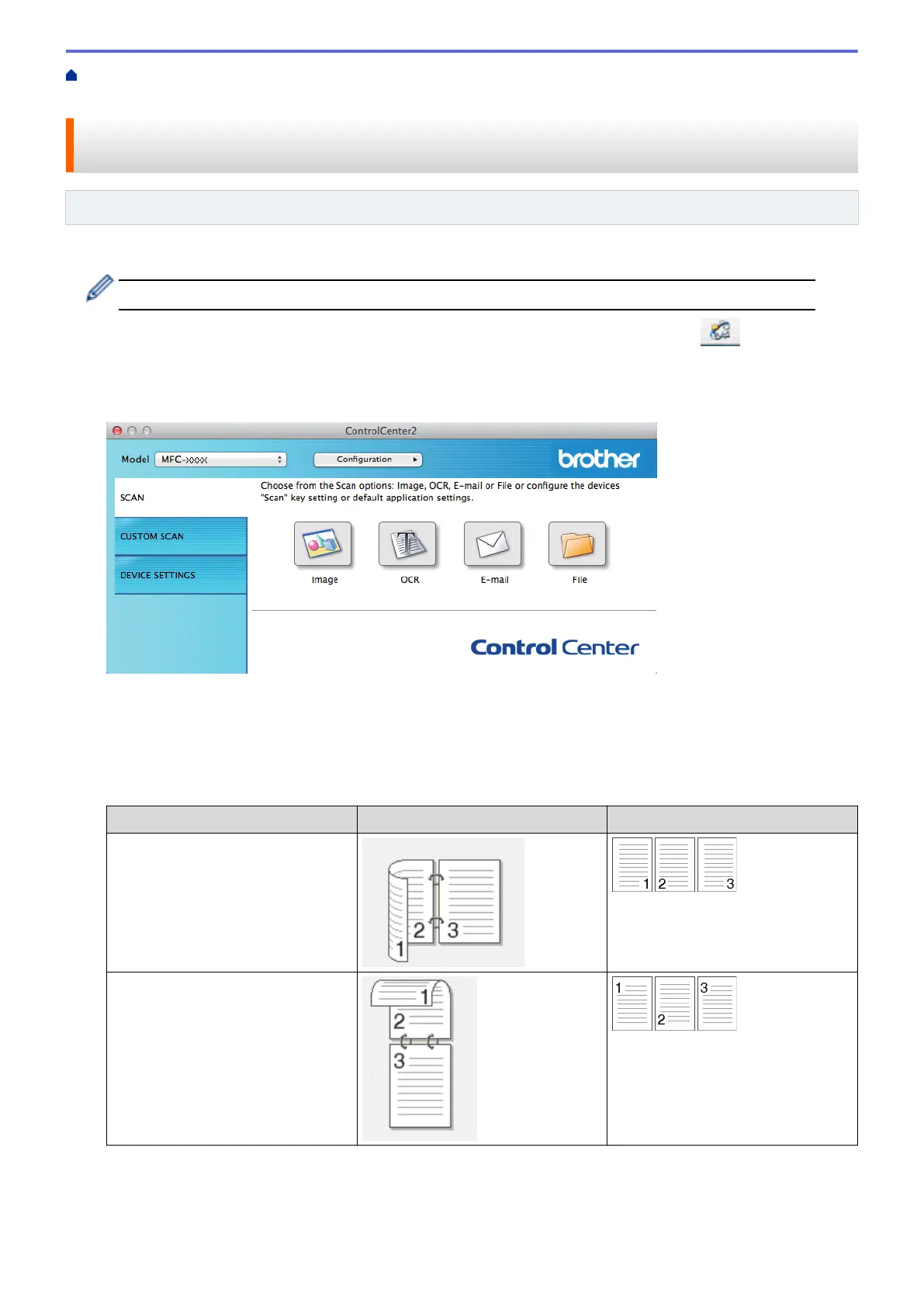
The ControlCenter2 screen appears.
3. Click the SCAN tab.
4. Click the scan type button (Image, OCR, E-mail, or File) you want to use.
The scan settings dialog box appears.
5. Select the 2-sided Scanning check box.
6. Select the Long-edge binding or Short-edge binding option, depending on the Original layout (see table for
layout examples).
2-sided Scan setting
Original layout Scan Result
Long-edge binding
Short-edge binding
7. Configure other settings, if needed.
8. Click the Start Scanning button.
The machine starts scanning.
188



 To Next Page
 Loading...