Home > Troubleshooting > Printer Jam or Paper Jam > Paper is Jammed in the Front of the Machine
Paper is Jammed in the Front of the Machine
If the LCD displays the following paper jam messages, follow these steps:
• [Jam Front/Rear], [Repeat Jam Front/Rear]
• [Jam Front], [Repeat Jam Front]
• [Jam Front/MP Tray], [Repeat Jam Front/MP Tray]
• [Jam Front/Manual Feed Slot], [Repeat Jam Front/Manual Feed]
1. Unplug the machine from the electrical socket.
2. If the paper is loaded in the MP tray, remove the paper. (MFC-J2730DW)
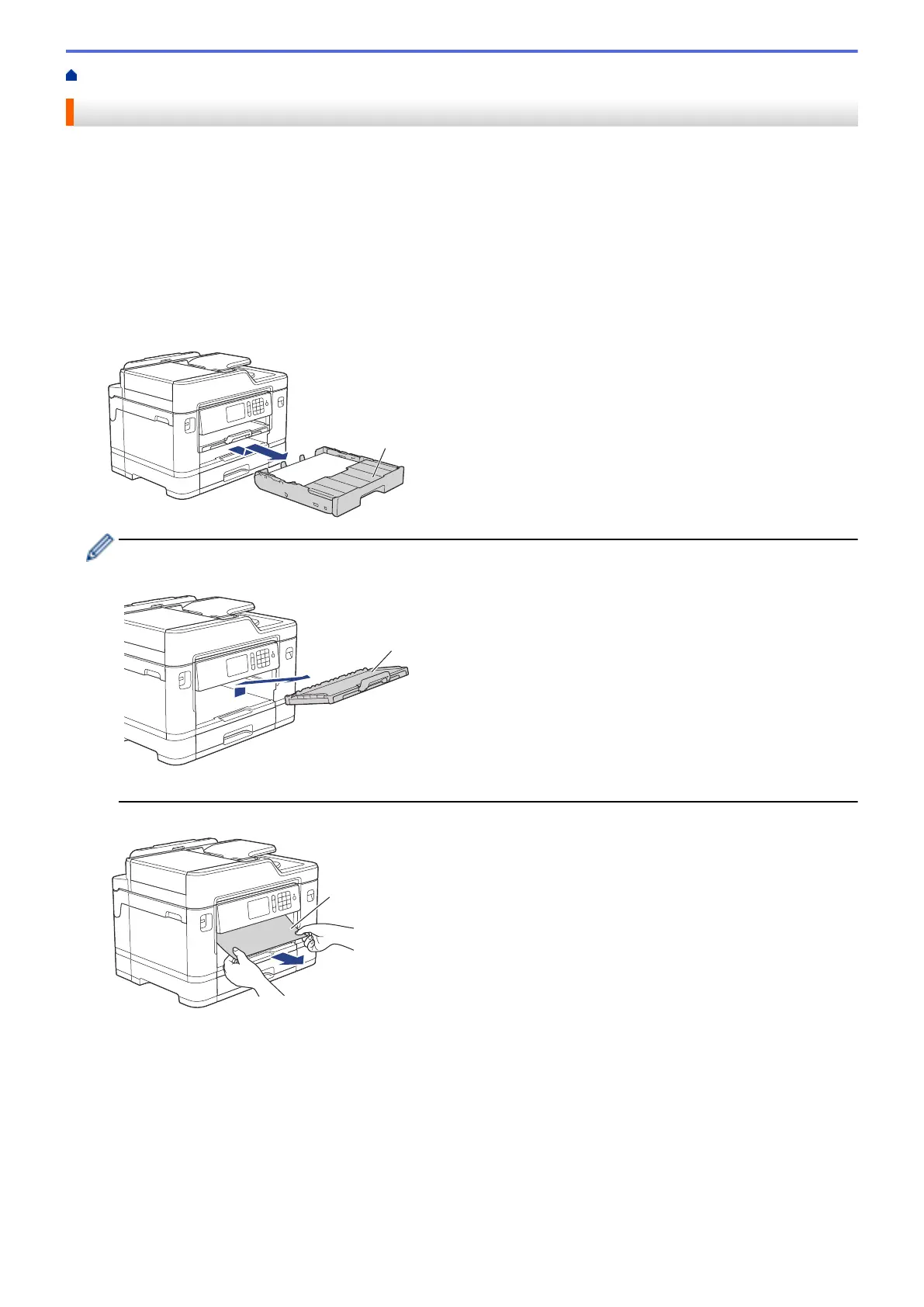
3. Pull Tray #1 (1) completely out of the machine as shown by the arrow.
If your LCD error message was repeat paper jam messages, for example [Repeat Jam Front/Rear],
lift the paper support (1), and then pull it at an angle completely out of the machine as shown by the arrow.
When finished, continue with the next step.
4. Slowly pull out the jammed paper (1).
582


 To Next Page
 Loading...