f'_(Printing
Adjustment of Printing Effects
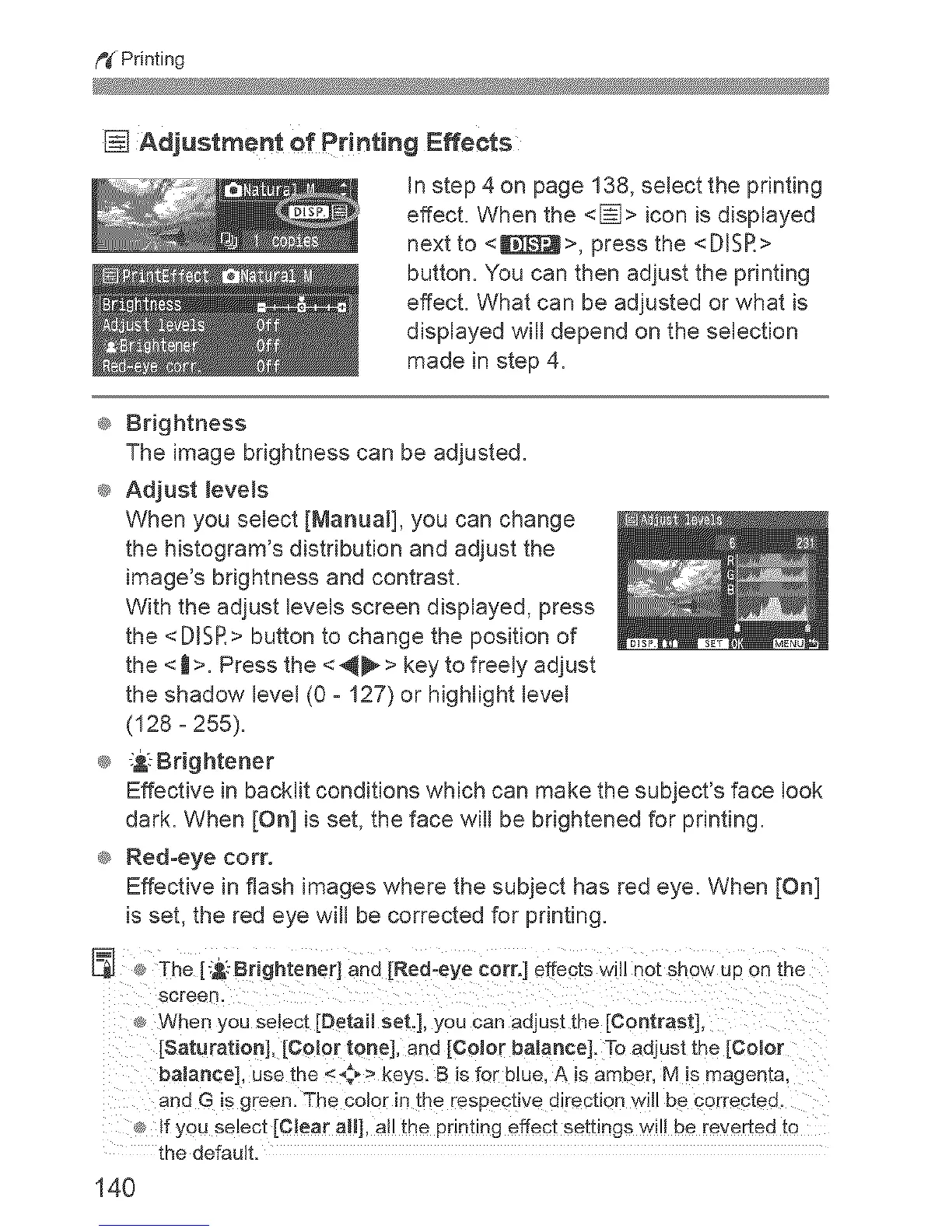
In step 4 on page 138, select the printing
effect. When the <[]> icon is displayed
next to <_>, press the <DISR>
button. You can then adjust the printing
effect. What can be adjusted or what is
displayed will depend on the selection
made in step 4=
® Brightness
The image brightness can be adjusted.
® Adjust JeveJs
When you select [Manual], you can change
the histogram's distribution and adjust the
image's brightness and contrast.
With the adjust levels screen displayed, press
the <DISR> button to change the position of
the <t >=Press the < _ > key to freely adjust
the shadow level (0 - 127) or highlight level
(128- 255).
® ._.-Brig htener
Effective in backlit conditions which can make the subject's face look
dark. When [On] is set, the face will be brightened for printing.
® Red-eye corr.
Effective in flash images where the subject has red eye. When [On]
is set, the red eye will be corrected for printing.
[Saturation], [COlor tone], and [CoJor balance]. To adjust the [Color
balance], use the <,_ > keys. B is fer blue, A is amber,M is magenta,
and G iSgreen. The color inthe respective directionwill becorrected.
®ff you select [C!ear a!!], a!! the printing effect settingswi!! be reverted to
the default.
140


 To Next Page
 Loading...