13
Operator Panel
About the Operator Panel
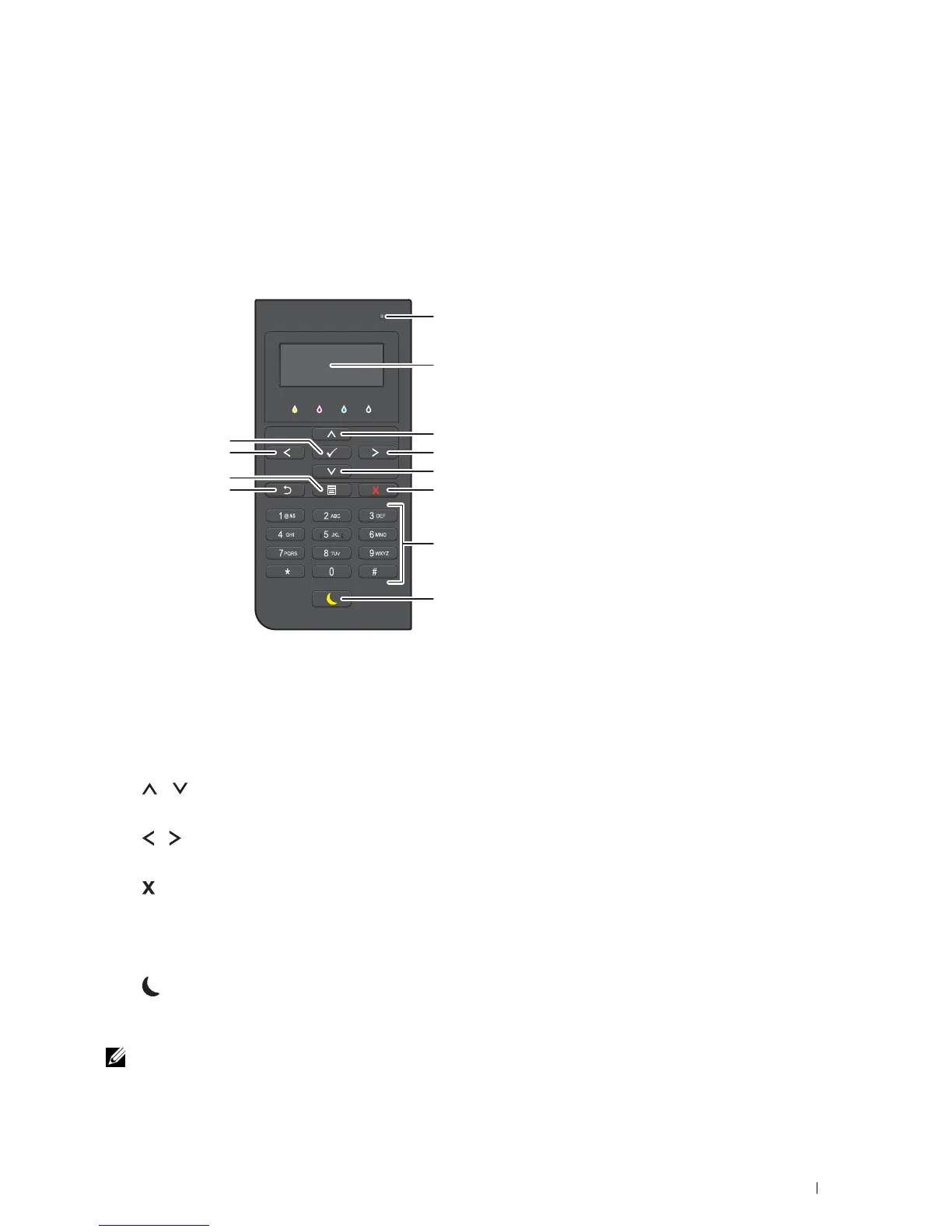
The operator panel has a 4-line LCD panel, a status LED, control buttons, and a number pad, which allows you to
control the printer.
1
2
3
10
4
4
3
9
8
5
6
7
1
Status LED (Ready / Error)
• Shows a green light when the printer is ready and a blinking green light when data is being received.
• Shows an amber light when an error occurs and a blinking amber light when an unrecoverable print error
occurs.
2
LCD Panel
• Displays various settings, instructions, and error messages.
3
button
• Moves the cursor or highlight up or down.
4
button
• Moves the cursor or highlight right or left.
5
(Cancel)
button
• Cancels active or pending jobs.
6
Number Pad
• Enters numbers and characters.
7
(Power Saver)
button
• Enters or exits the Power Saver mode. When the machine is not used for a while, it enters the Power Saver
mode to reduce power consumption. When the Power Saver mode is active, the Power Saver button blinks.
NOTE: When the printer is connected to a network via Ethernet or Wireless and Power Off Timer is set to Auto
Detect
, the printer will not turn off automatically. To use the Power Off Timer feature with a network connected printer, set
Power Off Timer to On.
Operator Panel 95


 To Next Page
 Loading...